TABLE OF CONTENTS
Enabling QR Code File Selection
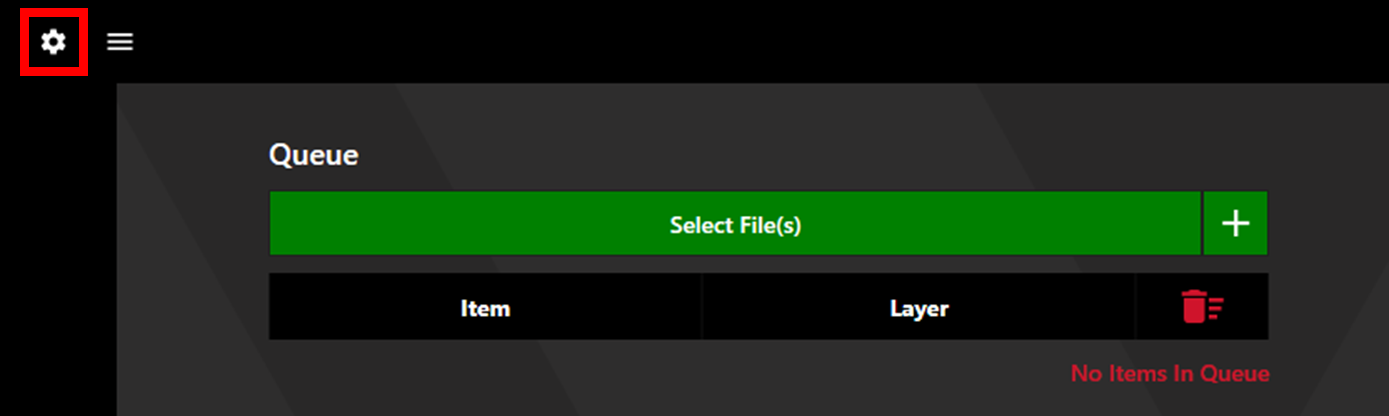
In the Watt Laser Suite app, access Settings via the settings cog in the upper left corner.
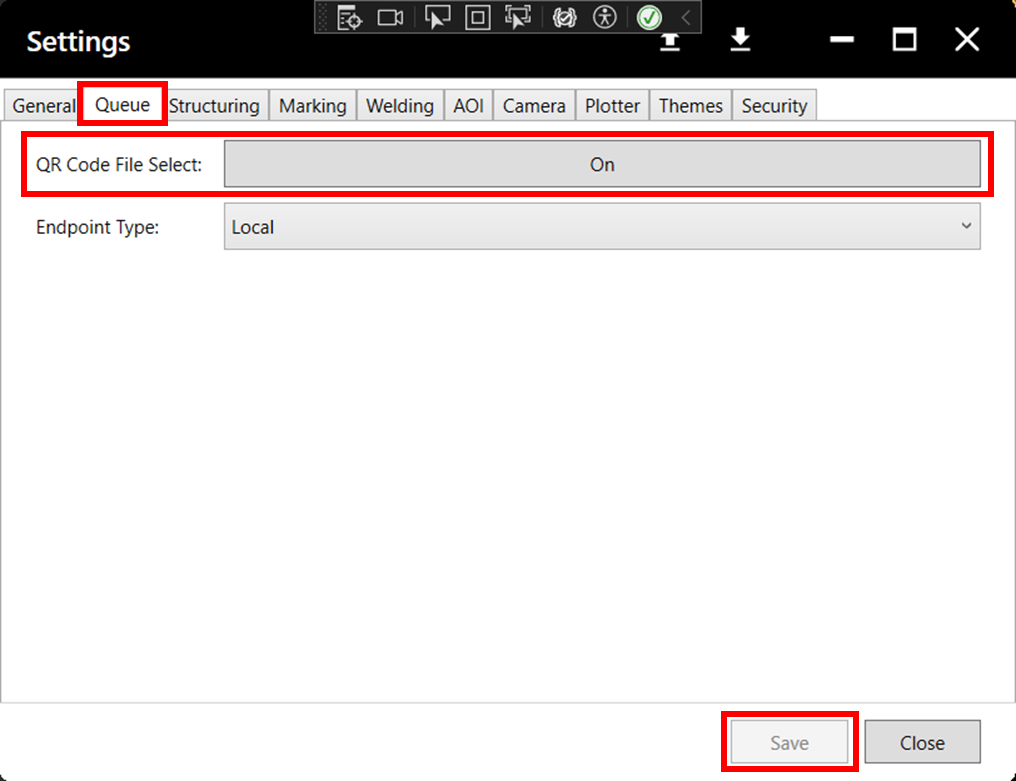
Select the Queue tab, then enable QR Code File Select and click Save.
Default Gerber Directory
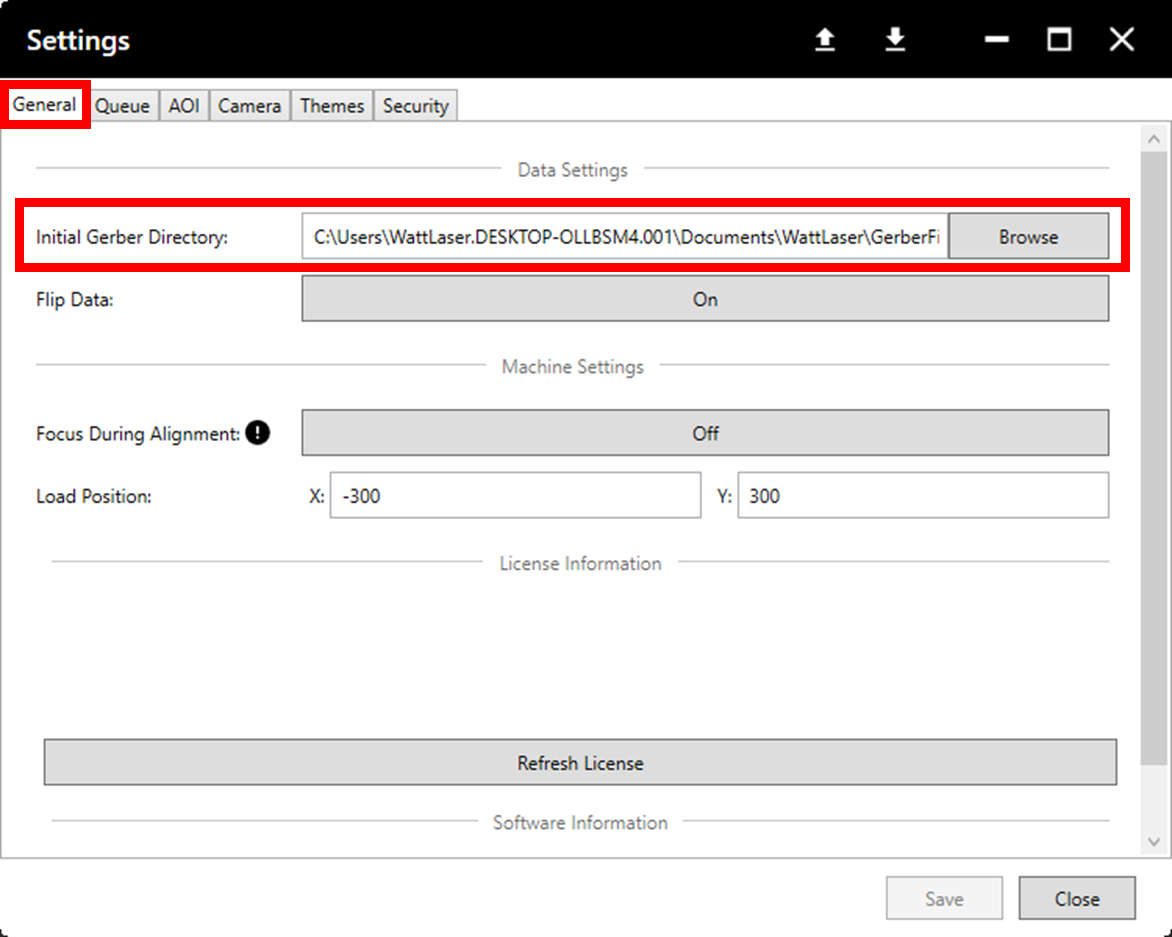
The default gerber directory sets the location from which files will be pulled during QR code file selection. To make changes to the default gerber directory, click on the settings cog in the upper left corner and navigate to the General tab. Click Browse to choose a directory, then click Save.
Using the QR Code Reader
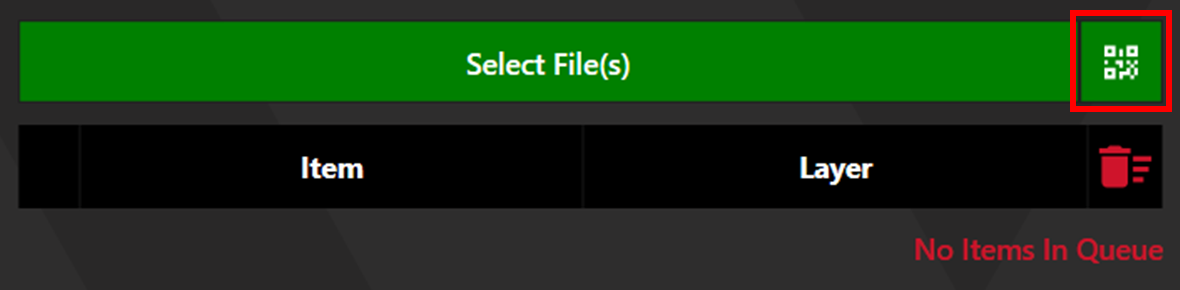
Once QR Code File Select is enabled, a QR symbol will appear next to the Select File(s) button. Click this to open the QR Code Reader.
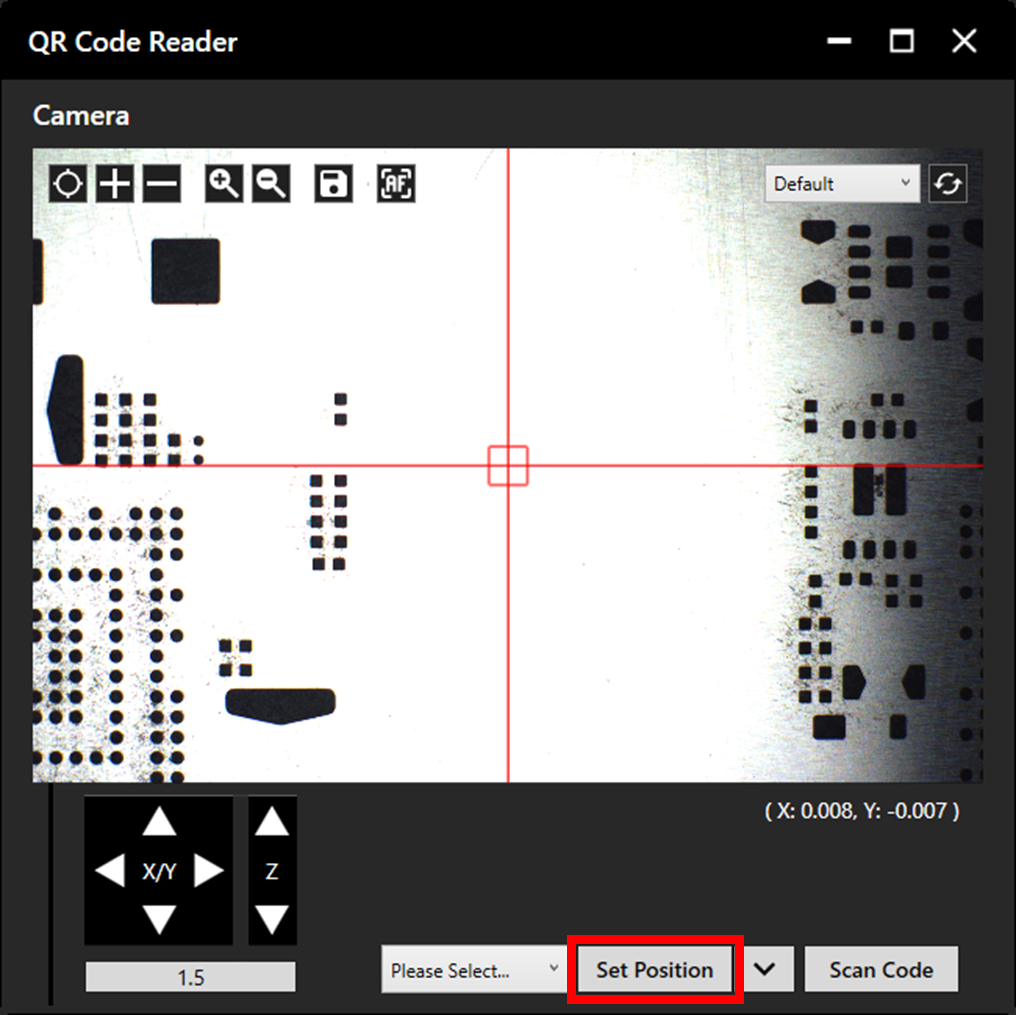
To set a saved QR position, navigate to the desired position and click Set Position.
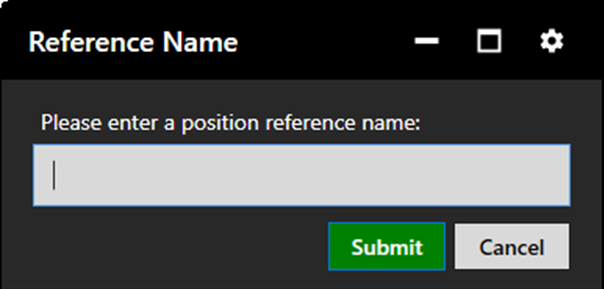
The reference name window will open. Enter the desired reference name and click Submit.
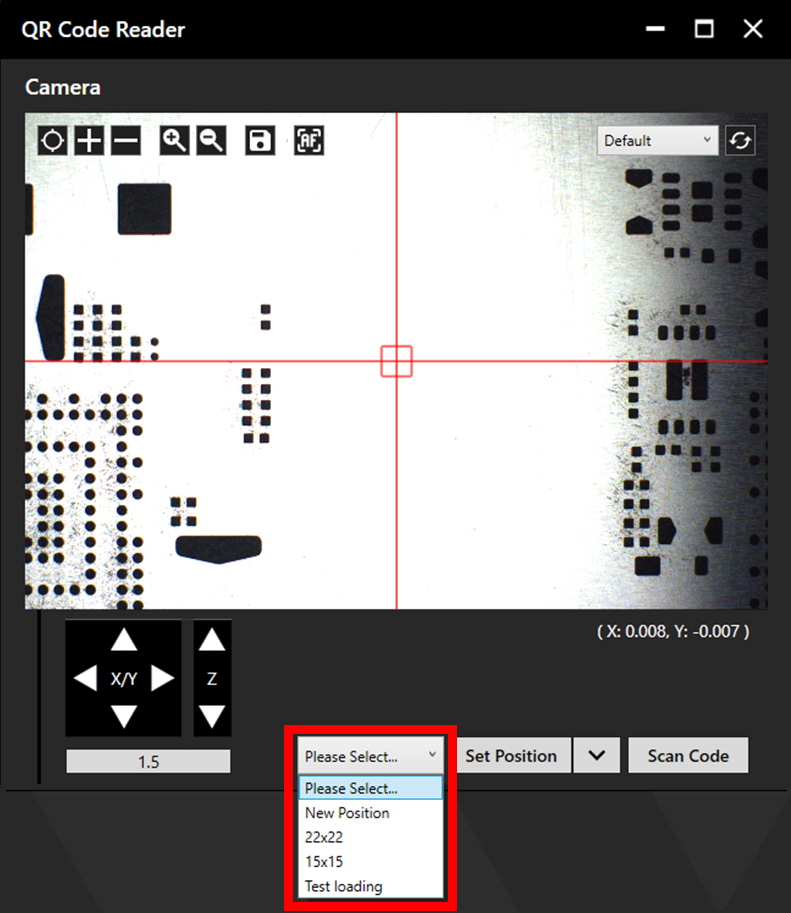
Saved positions will be stored in a dropdown menu. When a saved position is selected, the camera will jog to this position and attempt to read the QR code. If the camera is not positioned above the QR code, some manual adjustment may be required.
If navigating to the QR code manually, click Scan Code once positioned over the QR code.
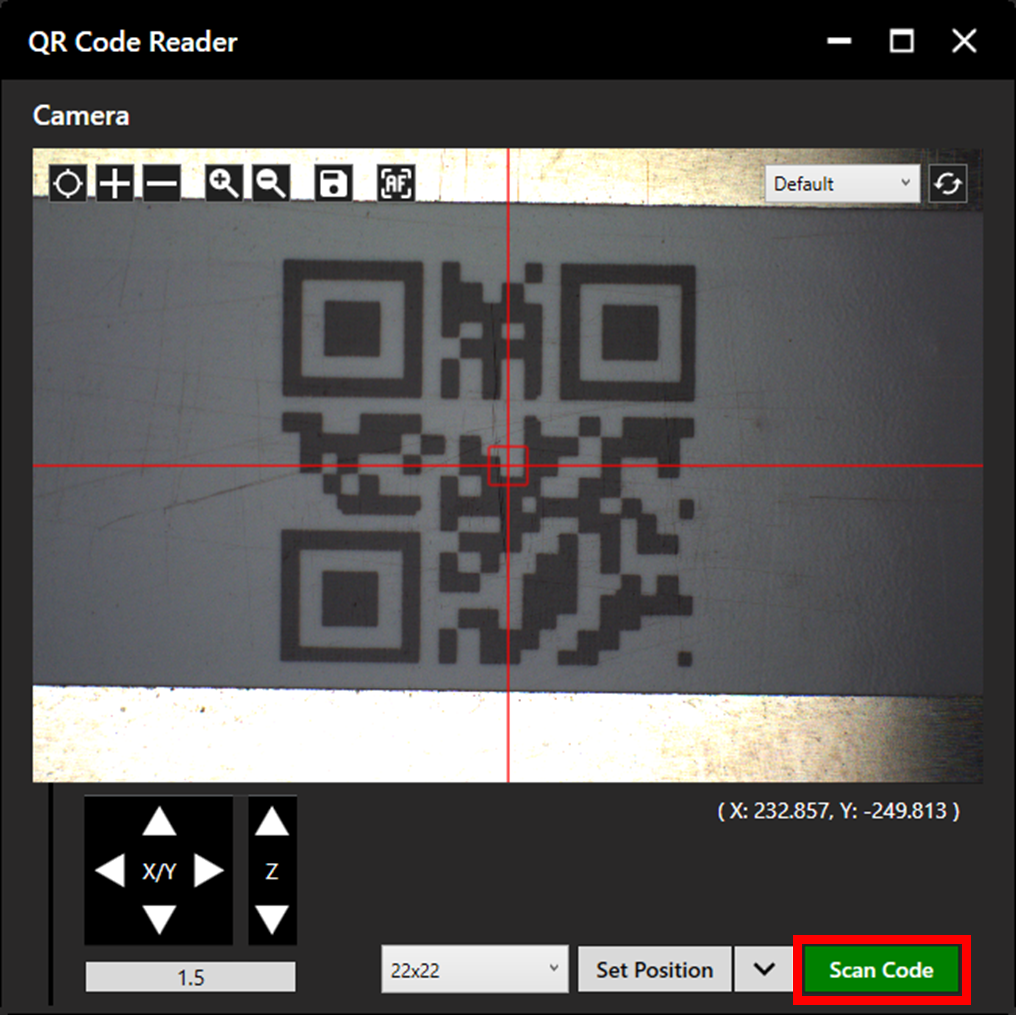
When a QR code is scanned, any file within the Default Gerber Directory which contains the associated string will be loaded in to the queue. Alternatively, if a folder name contains the associated string, all files within the folder will be loaded into the queue.
File extensions can be used to further automate the queue creation process by automatically assigning layers. For more information on using file extensions click here.
Endpoint Type
To change the endpoint type, open the settings and select the Queue tab.
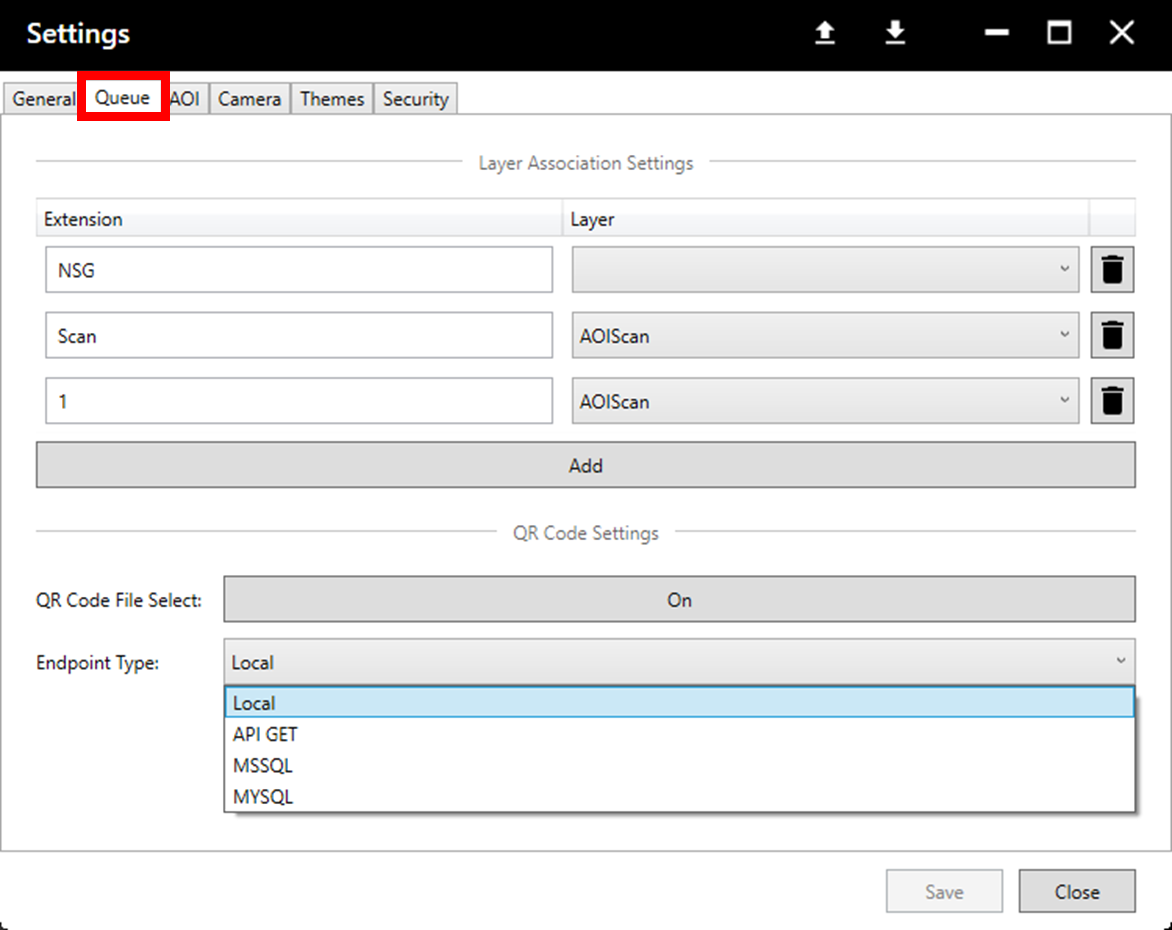
API GET
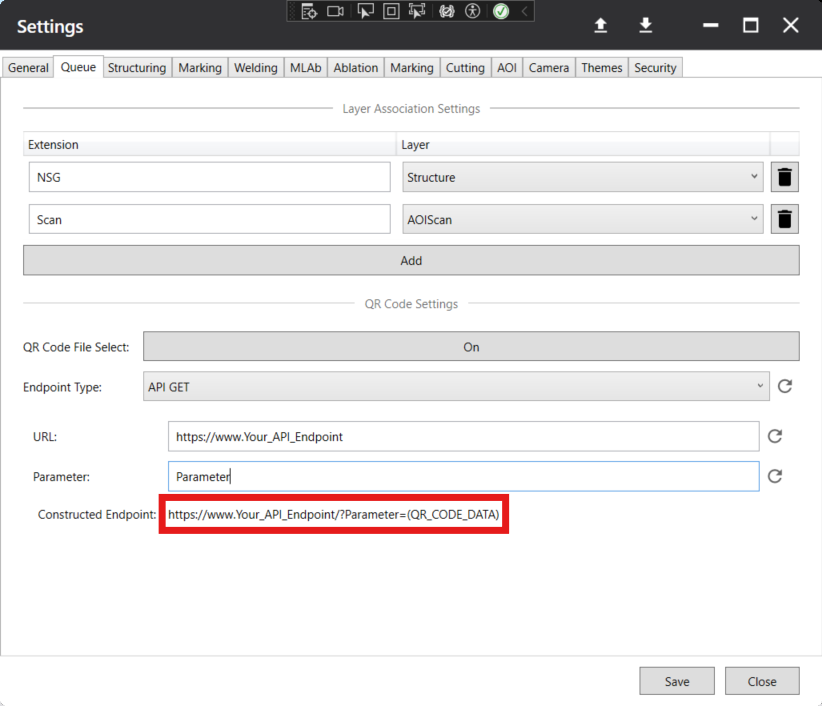
The API endpoint option will send the QR code data to a specified internet endpoint via a GET request. Any file within the Default Gerber Directory which contains the endpoints response will then be loaded in to the queue. Alternatively, if a folder name contains the endpoints response, all files within the folder will be loaded into the queue.
Specify the internet endpoint by filling in the “URL” and “Parameter” fields; the complete endpoint will be shown below.
MSSQL
WARNING: Database user credentials are needed for this process. For security reasons we recommend setting up an API endpoint.
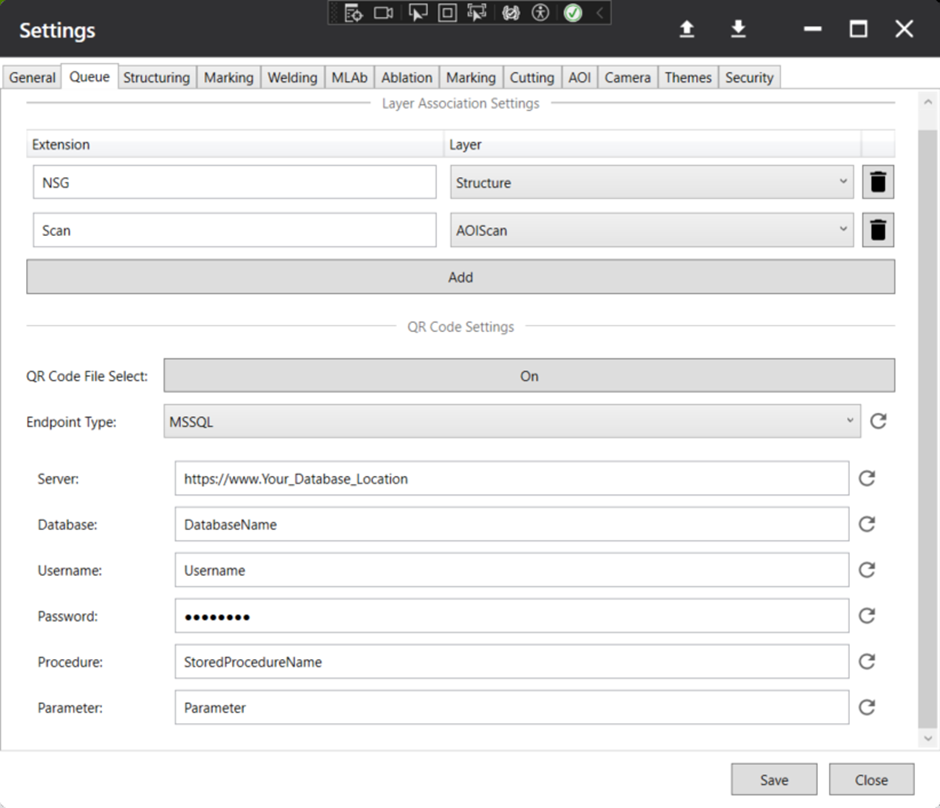
The MSSQL endpoint option will send the QR code data to a specified database endpoint via a user defined stored procedure. Any file within the Default Gerber Directory which contains any of the database response values will then be loaded in to the queue. Alternatively, if a folder name contains any of the database response values, all files within the folder will be loaded into the queue.
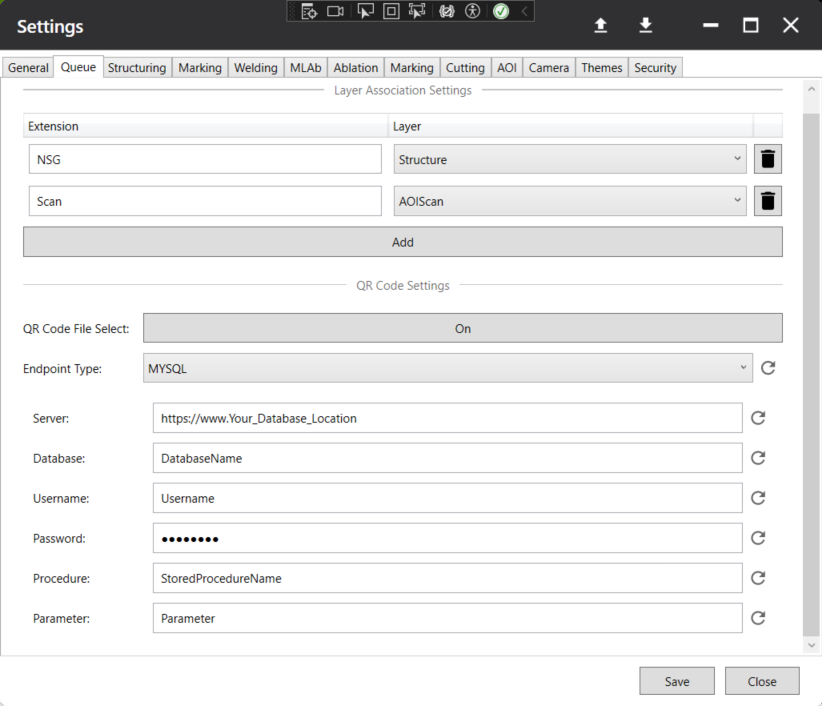
MYSQL
WARNING: Database user credentials are needed for this process. For security reasons we recommend setting up an API endpoint.
The MYSQL endpoint option will send the QR code data to a specified database endpoint via a user defined stored procedure. Any file within the Default Gerber Directory which contains the any of the database response values will then be loaded in to the queue. Alternatively, if a folder name contains the any of the database response values, all files within the folder will be loaded into the queue.