
When updating the Watt Laser Suite app, settings will automatically be pulled from the previous version. However, if rolling back to a previous version for example, the settings will not automatically transfer across. This guide shows how to manually transfer settings.
Access the version folders in: "C:\Users\[USERNAME]\AppData\Local\WattLaserSuite\WattLaserSuite_StrongName_*".
*The StrongName folder has additional characters following this name.
This can also be accessed by searching "%AppData%" in the search bar, which opens "C:\Users\[USERNAME] AppData\Roaming\". From there, navigate to the path detailed previously.
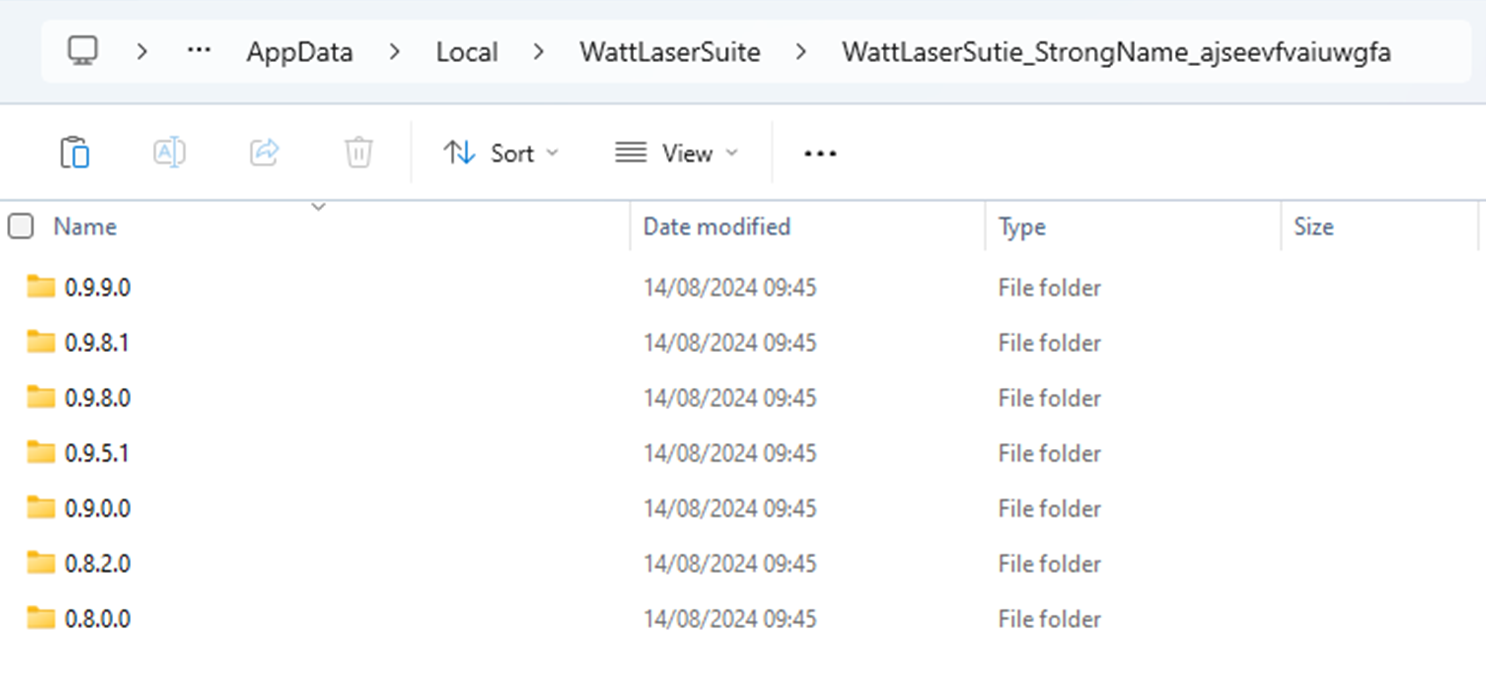
Within each version folder is the associated config file.
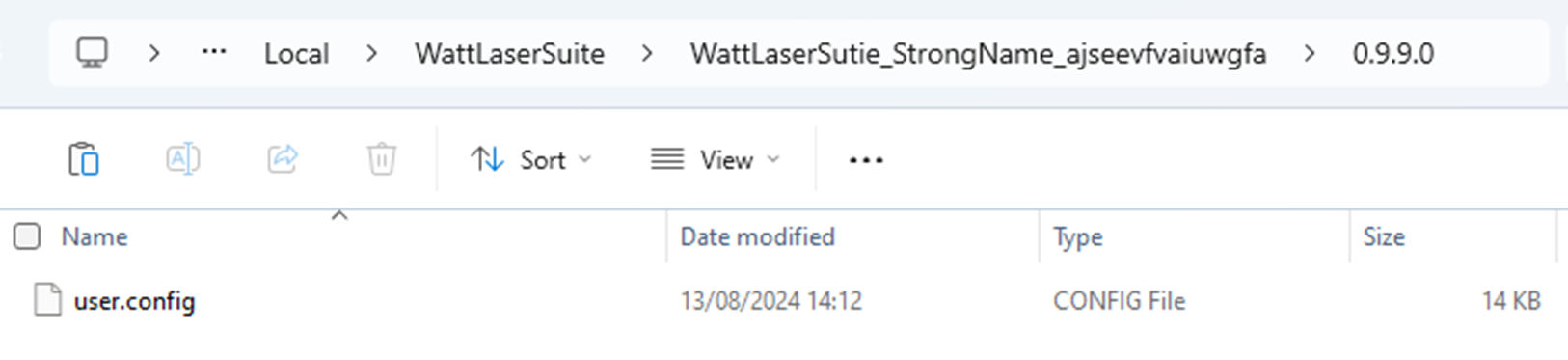
It is recommended to make a backup copy of the config file that is going to be replaced. Store this copy outside of these folders.
To transfer files from one version to another, copy the config file from the version folder with the correct settings and replace the config file in the destination folder.
Restart the Watt Laser Suite app. The new settings and recipes should be in place.