
TABLE OF CONTENTS
Creating and Editing Marking Recipes
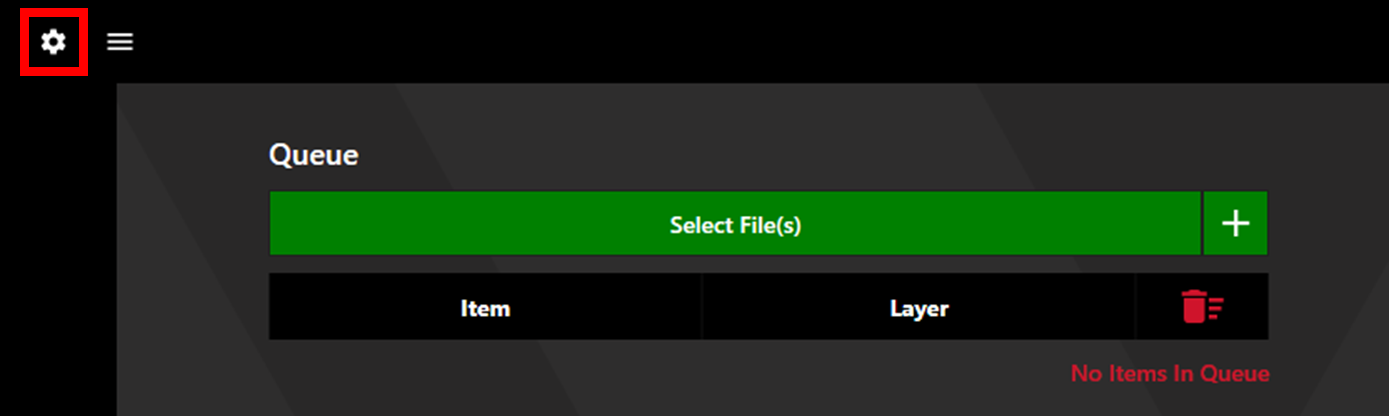
Access Settings by clicking the settings cog in the upper left corner.
Select the Marking tab. Any existing marking recipes are available to edit via the dropdown menu. To create a new recipe click the '+' icon. Recipes can be duplicated and deleted using the copy and delete buttons respectively. Set a recipe to the default by clicking the bookmark button. Click Save to save changes.
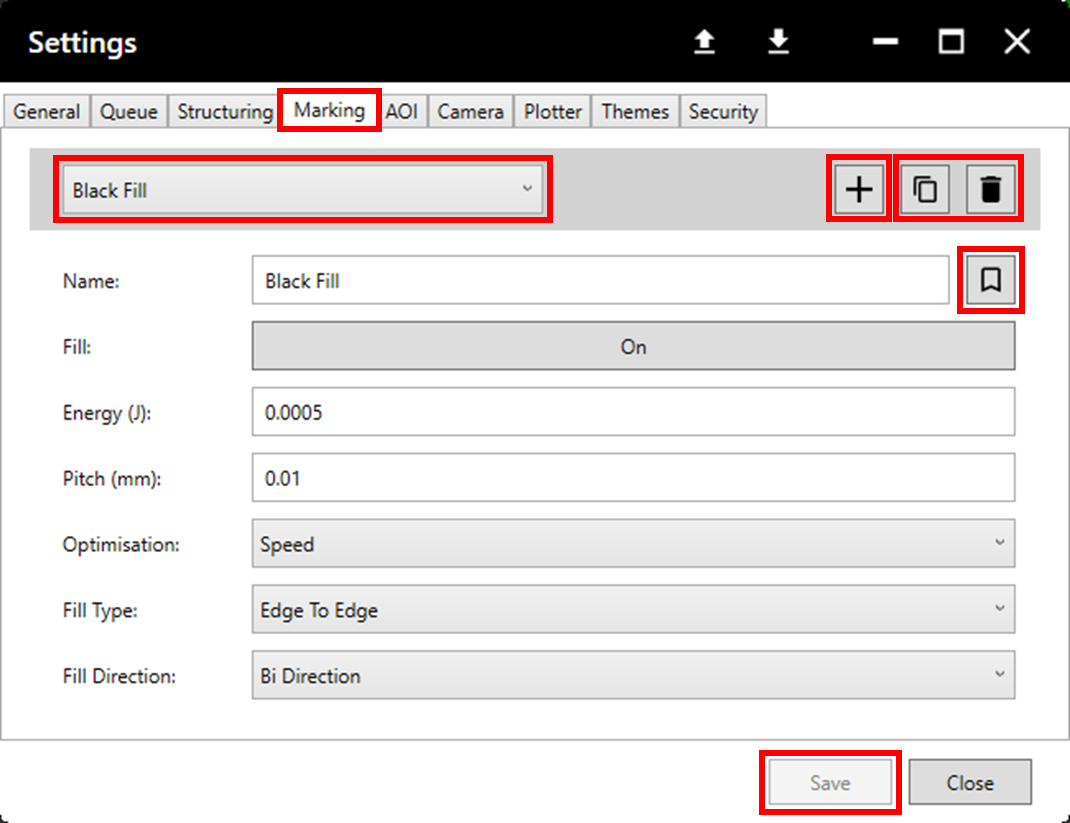
Recipes consist of various parameters, the table below explains what each parameter means.
| Field | Description |
| Name | Name used to identify the recipe. |
| Fill | Whether the marking will be filled or just an outline. |
| Energy | Energy in millijoules used to mark. |
| Pitch | Spacing between laser pulses in millimetres. |
| Optimisation | Speed of marking - lower speed can increase scanner accuracy. "Speed" is full speed, "Default" is half speed, and "Quality" is quarter speed. |
| Fill Type | Pattern used for fill*. |
| Fill Direction | Whether the fill is marked all from left to right or alternates each row*. |
*Ignored if fill is set to off.
Sample Settings
Below are some sample settings for common marking scenarios. These should be used as a starting point, as some tweaking may be required depending on the material, thickness, etc.
To create a recipe for outlines (unfilled marking) use the following settings but set Fill to Off.
| Black Fill | |
| Fill | On |
| Energy | 0.0005 |
| Pitch | 0.01 |
| Optimisation | Speed |
| Fill Type | Edge to Edge |
| Fill Direction | BiDirection |
| White Fill | |
| Fill | On |
| Energy | 0.0001 |
| Pitch | 0.02 |
| Optimisation | Default |
| Fill Type | Edge to Edge |
| Fill Direction | BiDirection |