
Access the Gage R&R Process via the menu button in the top left corner.
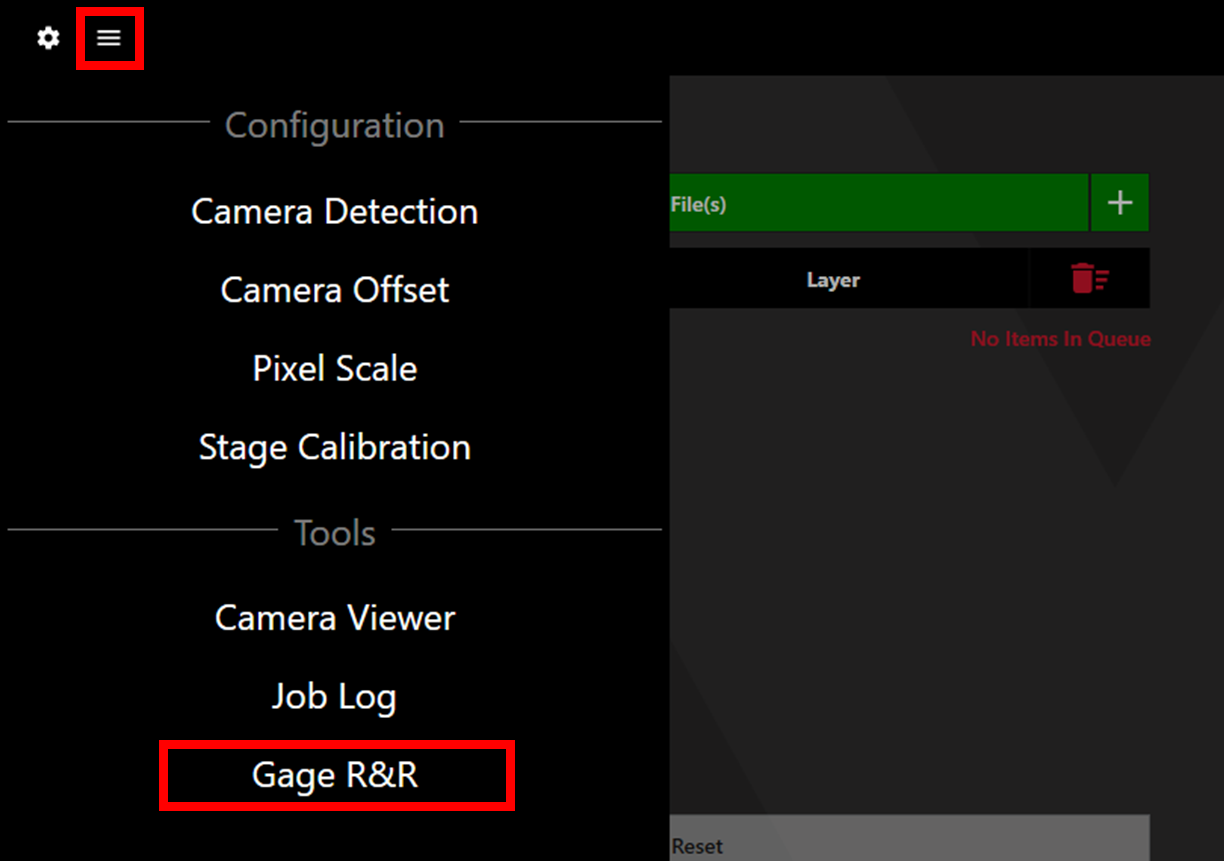
It is recommended that the Gage R&R File attached at the end of this article is used for this process, though any file can be used.
Click Browse and load the desired file.
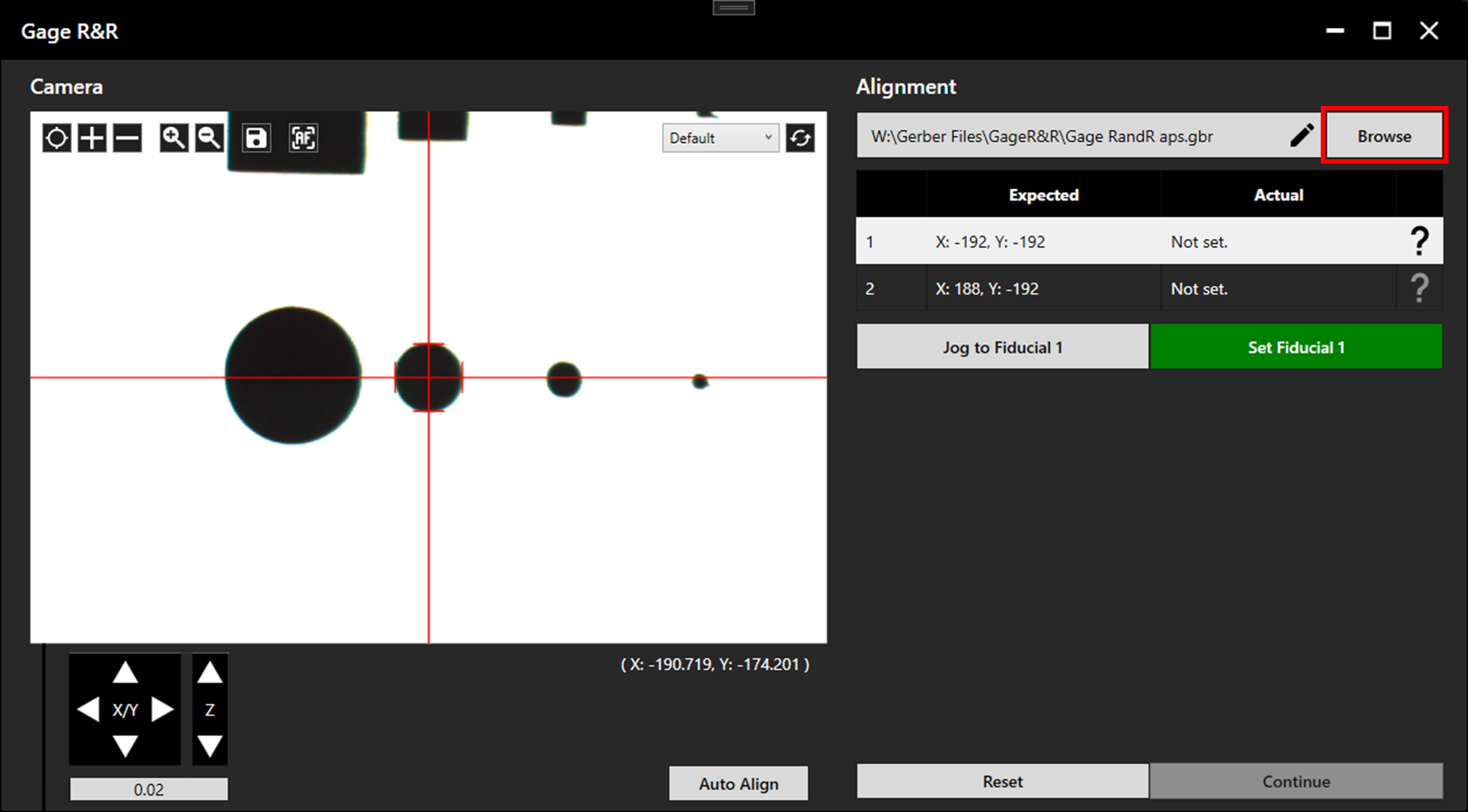
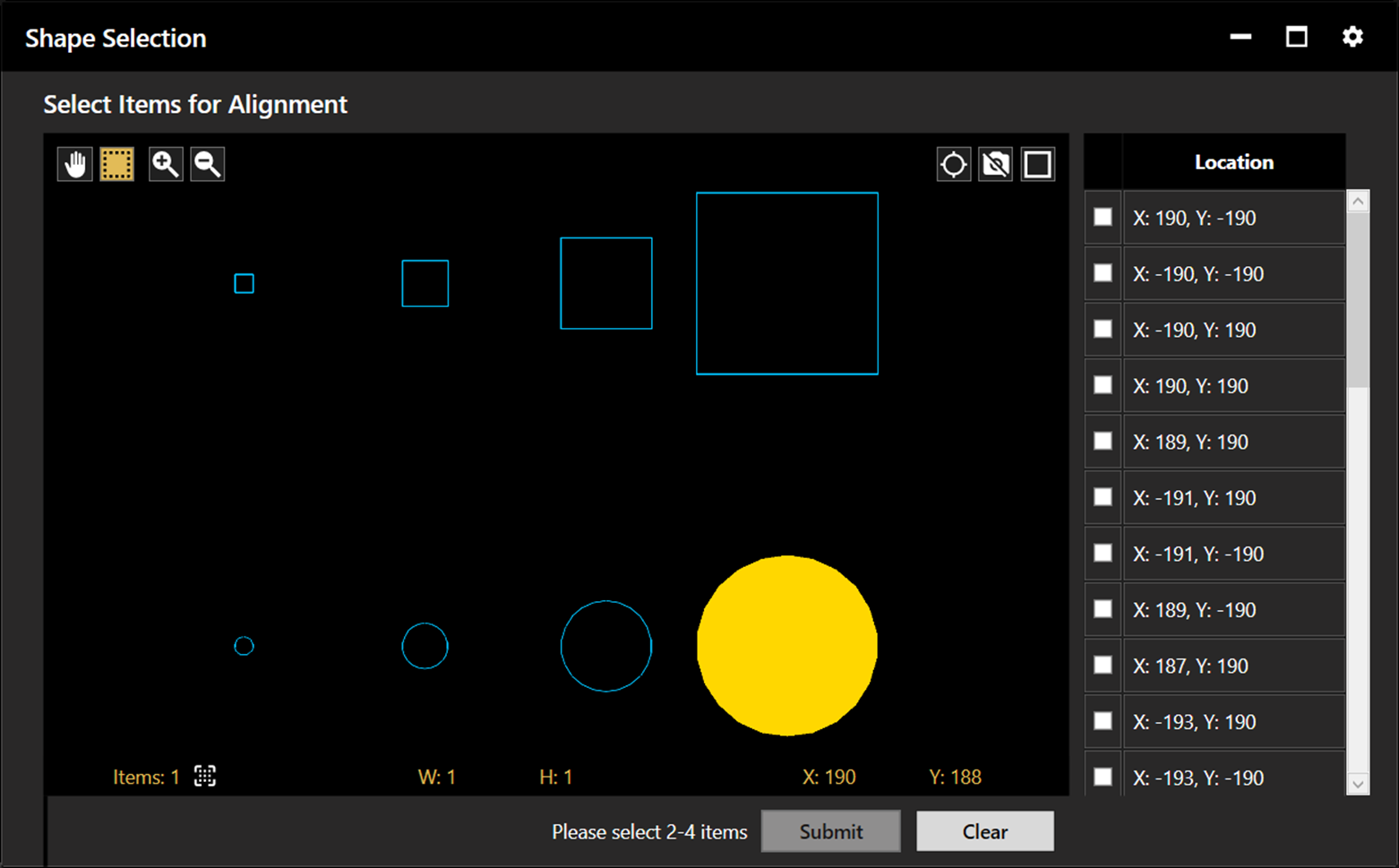
If required, the operator will be prompted to select alignment apertures. The chosen apertures should be in some way distinctive, whether by location or shape, so they can be located during alignment.
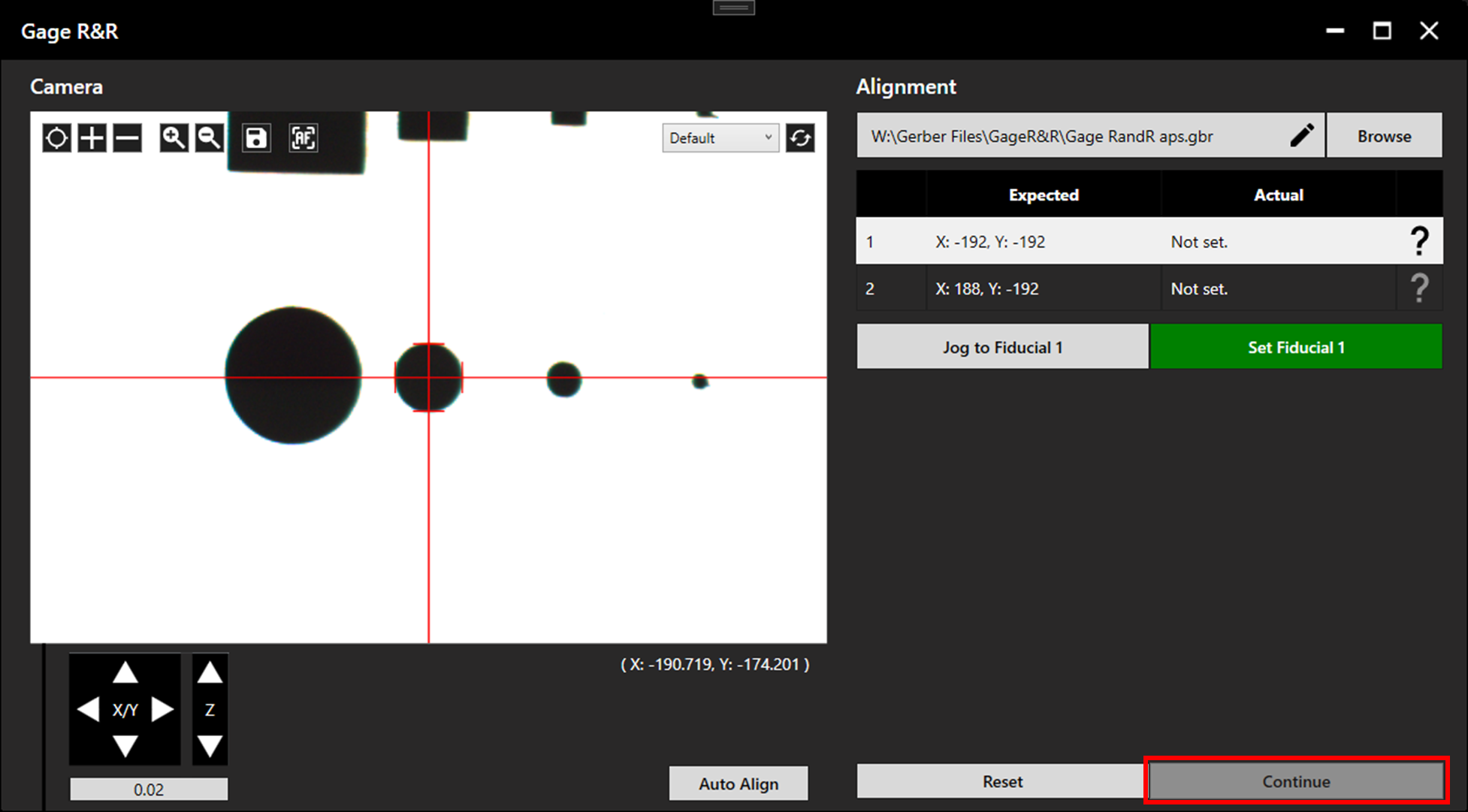
Align to the fiducials. For more detail on alignment click here. Click Continue once alignment is complete.
The camera will align to the first aperture. Autofocus if required (not applicable to the SE12). Click Batch Measure to measure all points, or click Measure to measure a single point at a time.
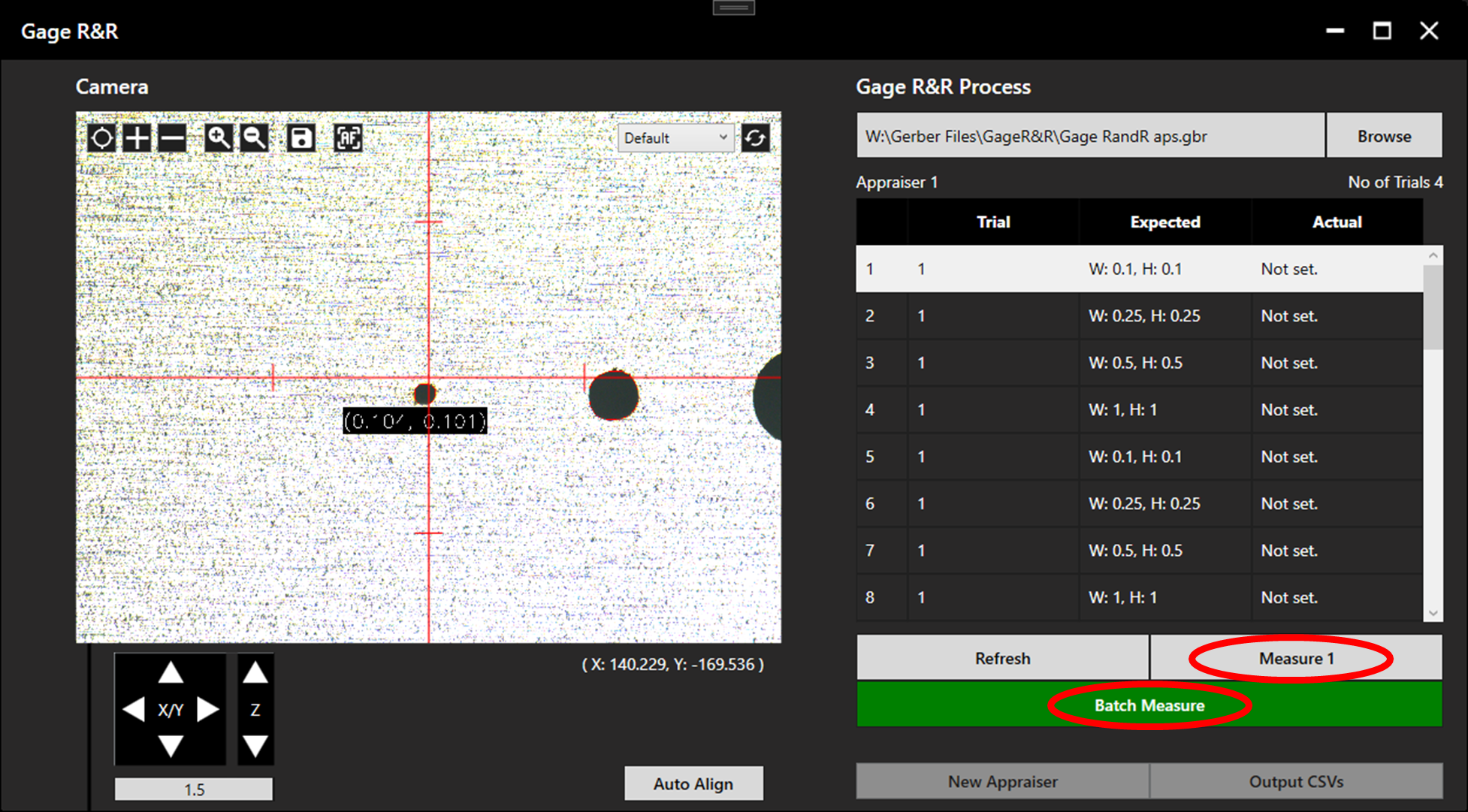
Once all points have been measured, click New Appraiser. The first set of measurements is not lost. Repeat alignment and measurement with a new operator.
Once all operators/appraisers (maximum 3) have completed the alignment and measurement process, click Output CSVs and select the desired destination folder.
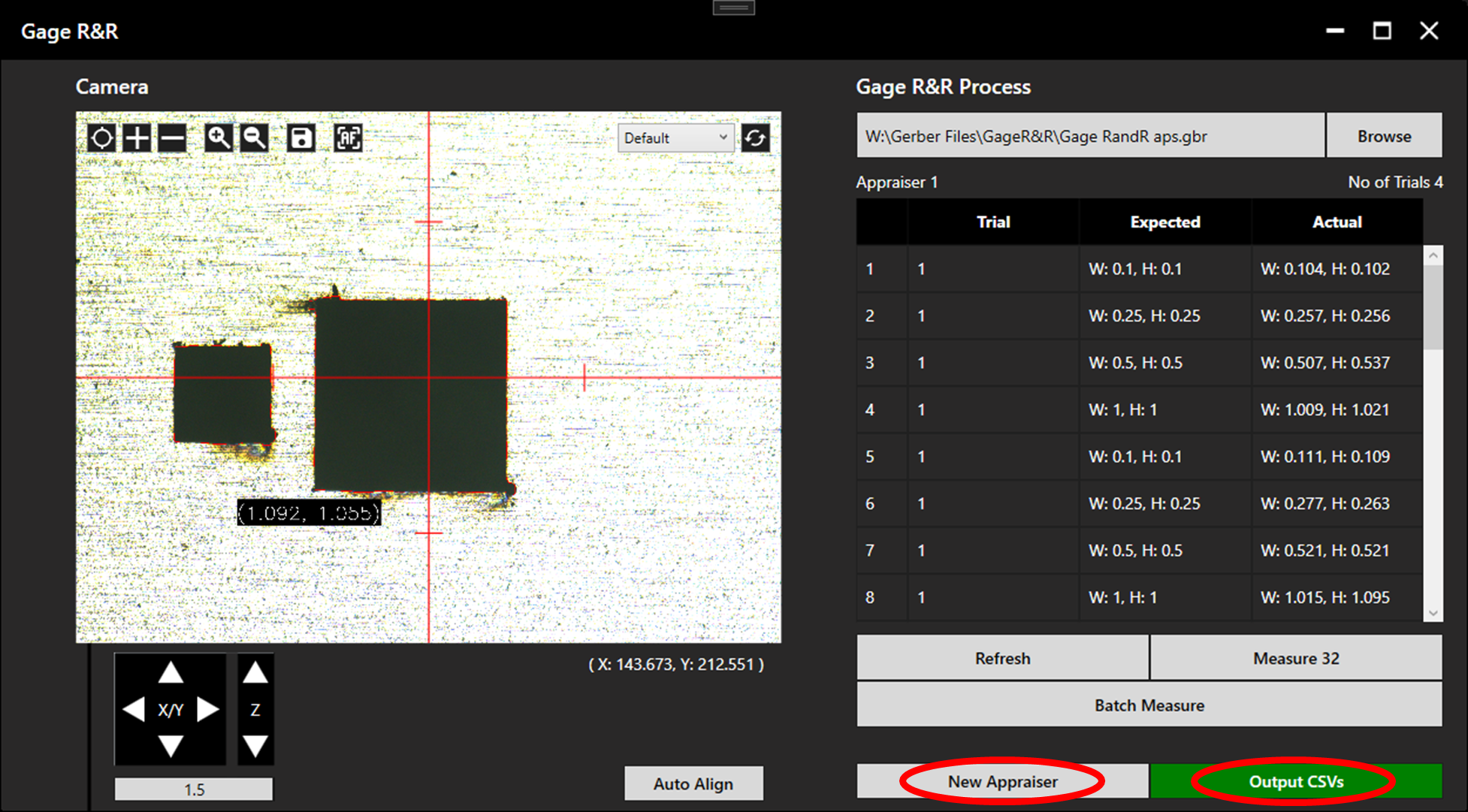
Access the Gage R&R calculation template attached at the end of this article. It contains three tables representing the three appraisers/operators. This template is limited to ten parts per trial.
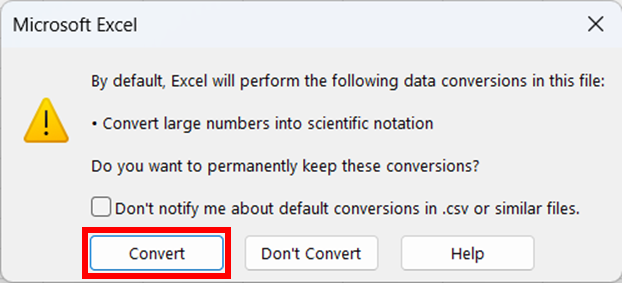
Open the Appraiser_1 csv file. If the following warning appears, click Convert.
Each row represents a different trial. Select a maximum of ten columns and copy these across to the relevant Appraiser table in the calculation template.
It is important to note which columns are chosen for entry into the template, as the same columns must be copied for appraisers 2 and 3.
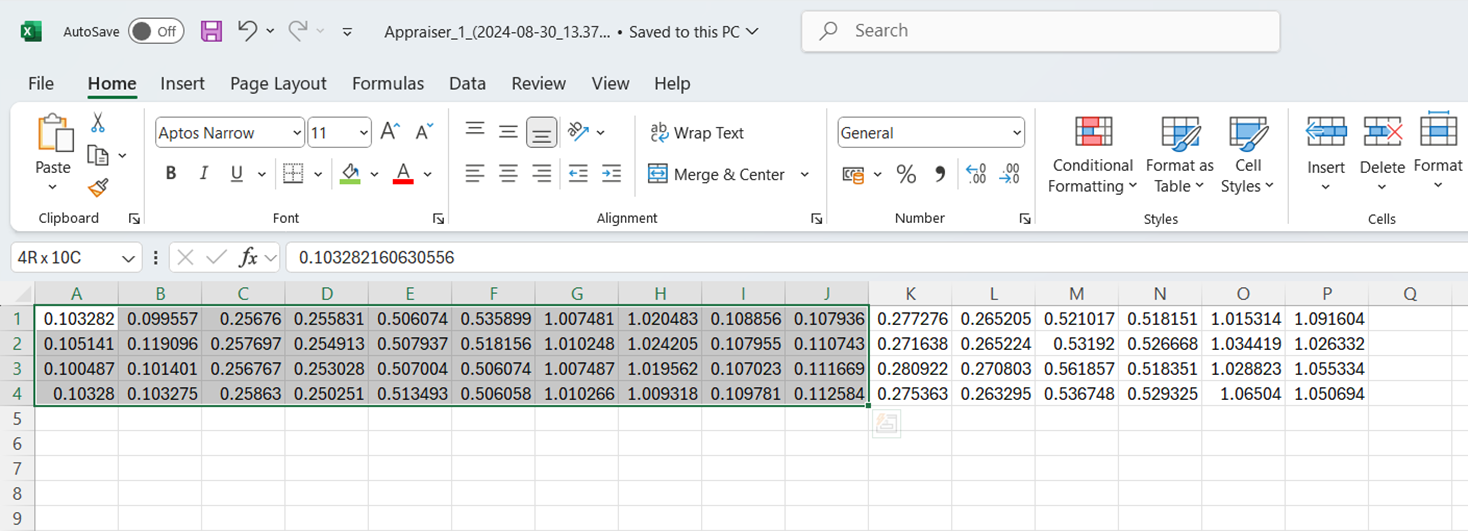
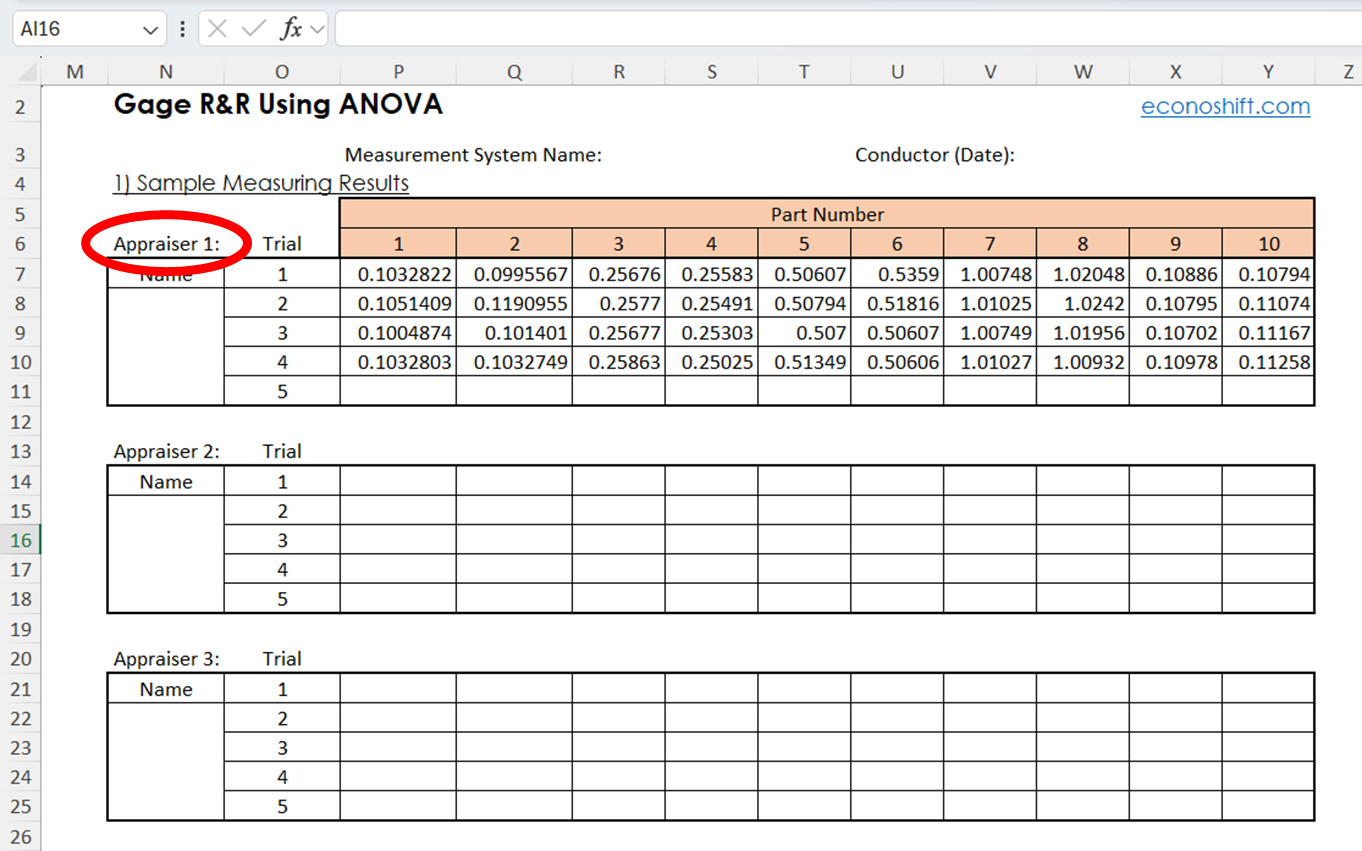
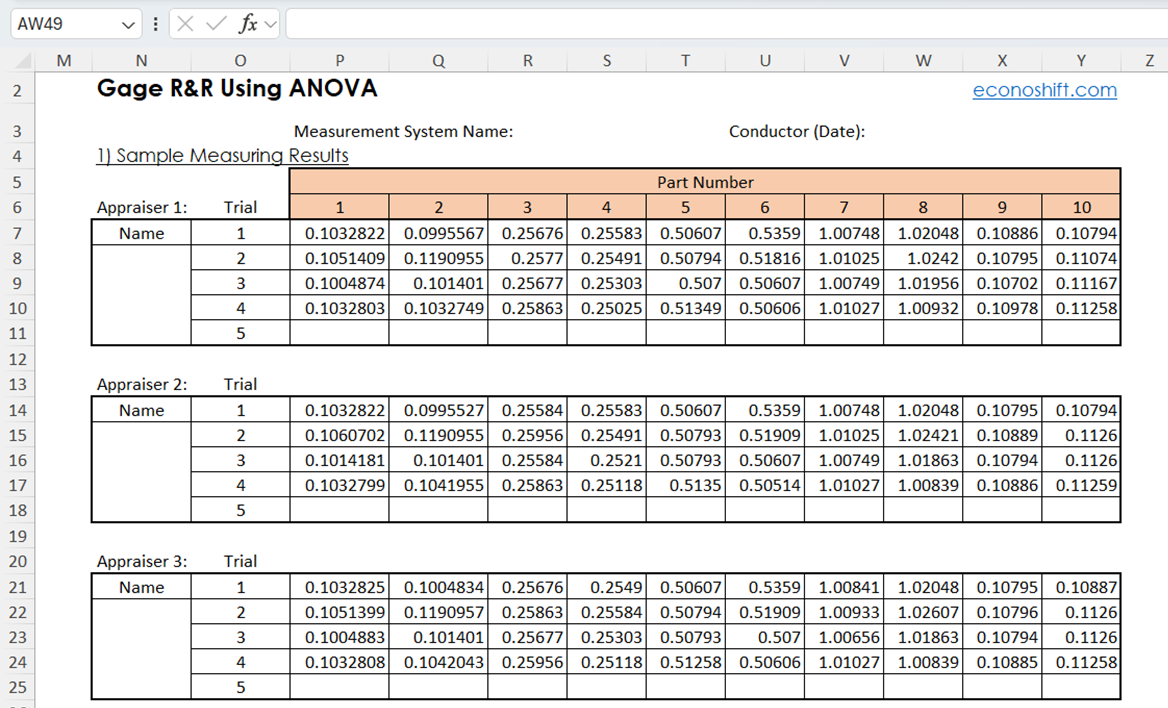
Repeat this process for the other appraisers.
The final results will be displayed below the tables.
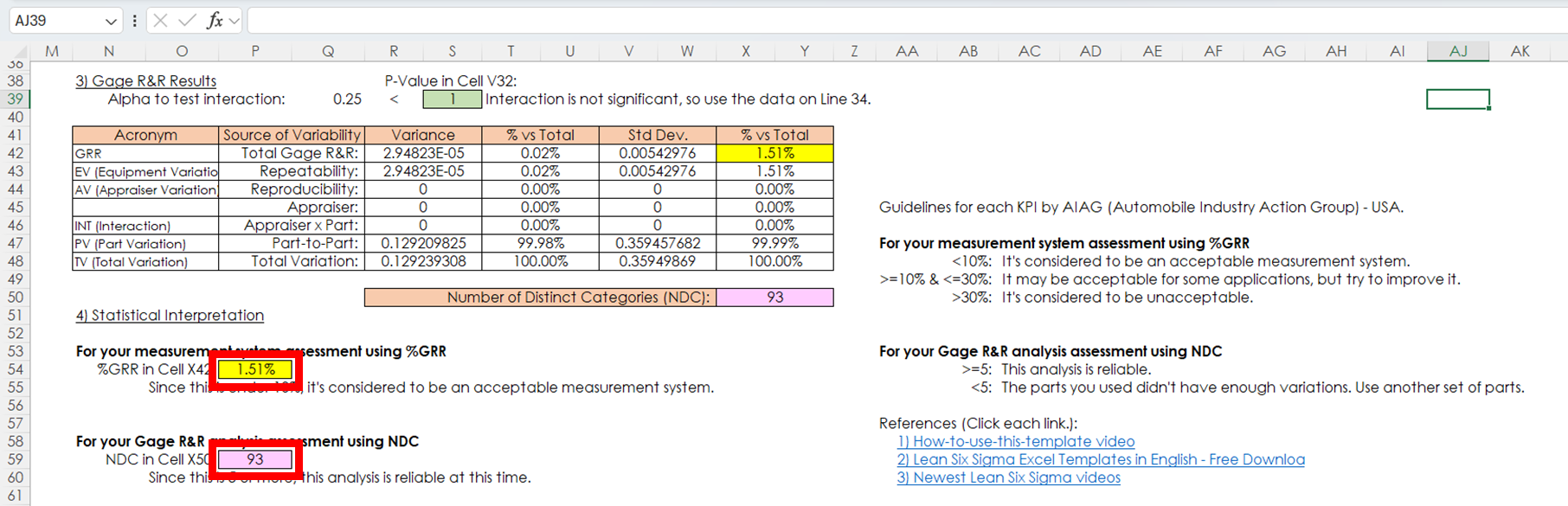
See the template for more information on interpretation of these results. The template also includes some additional information and instruction regarding general Gage R&R Analysis.