TABLE OF CONTENTS
Setup
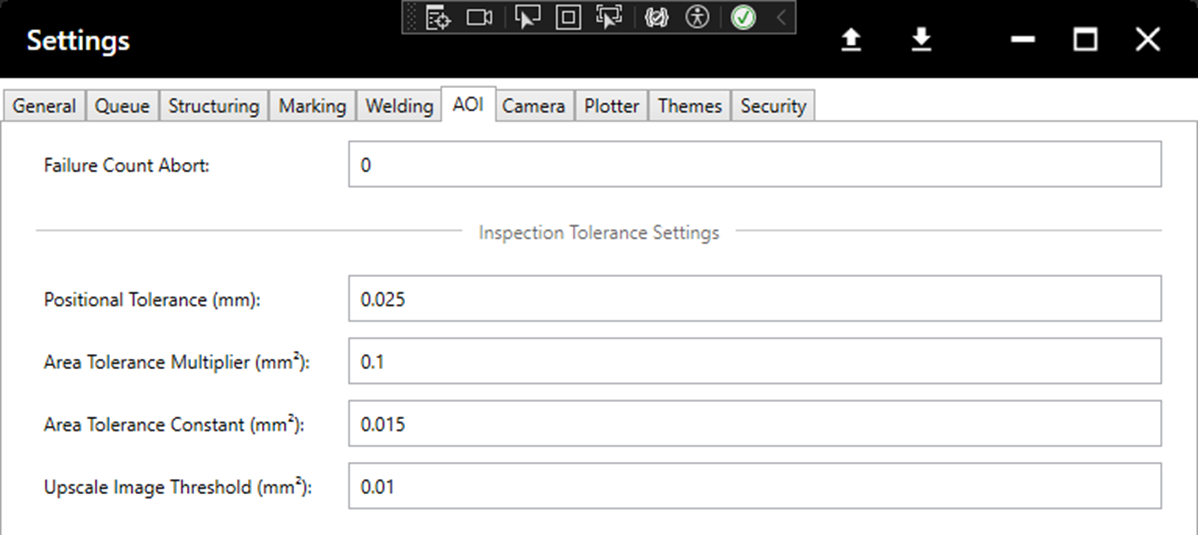
Set the Inspection Tolerances to the desired values via Settings > AOI.
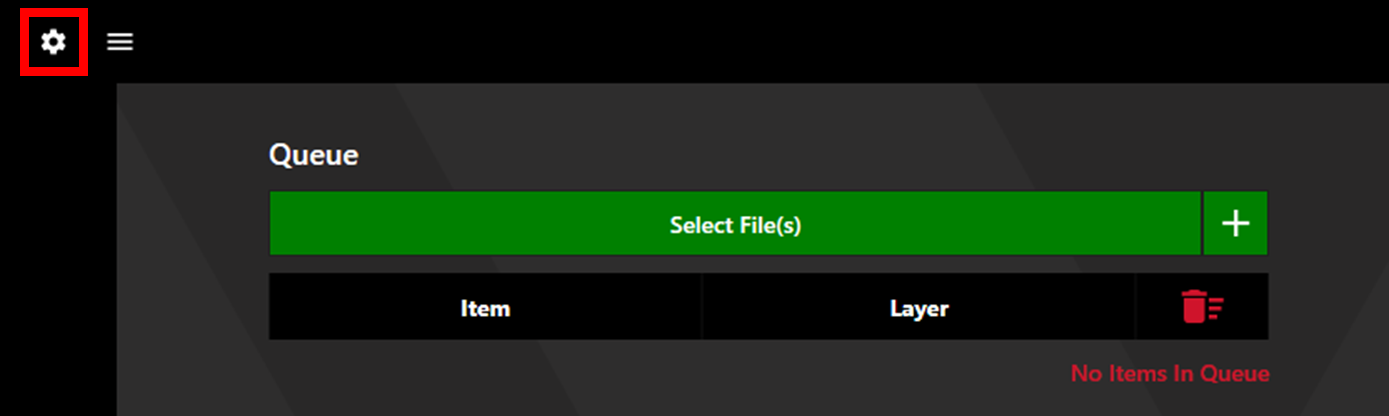
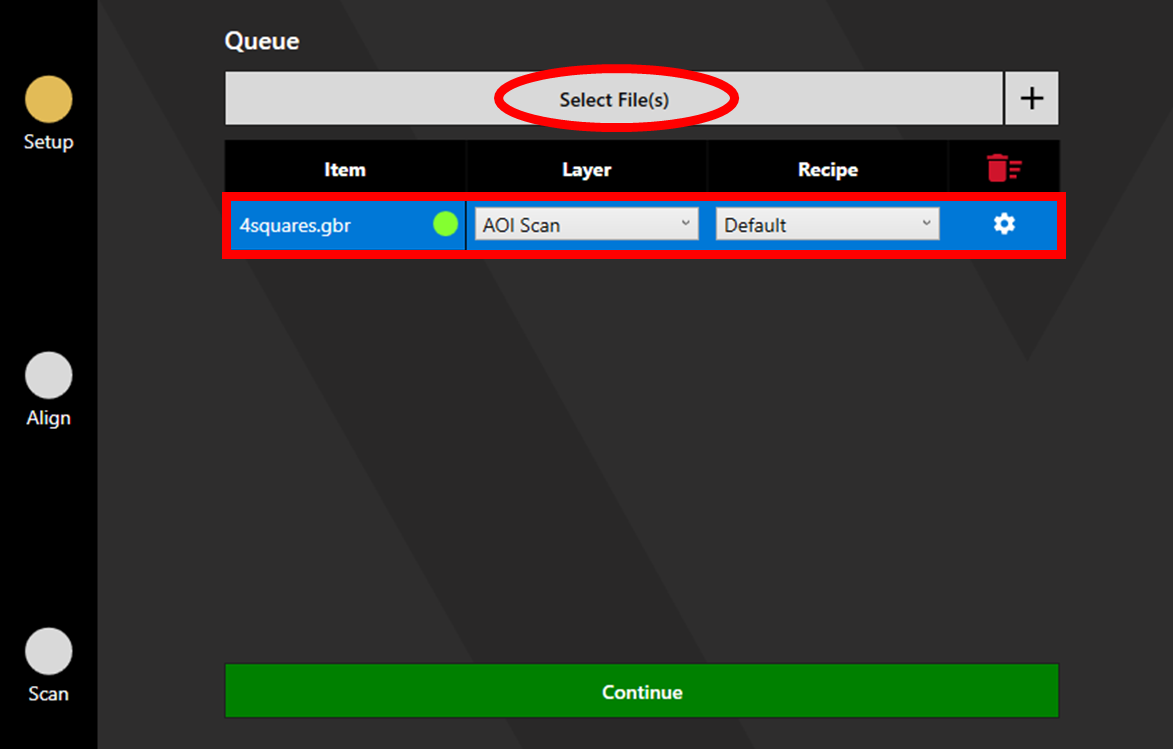
Load the file for scanning by clicking Select File(s). Set the Layer to Scan, and choose the appropriate Recipe for the desired Camera Lighting Settings and Detection Settings. If using an alignment file, add this file and set the layer to Alignment. Click Continue to proceed to Alignment.
Alignment
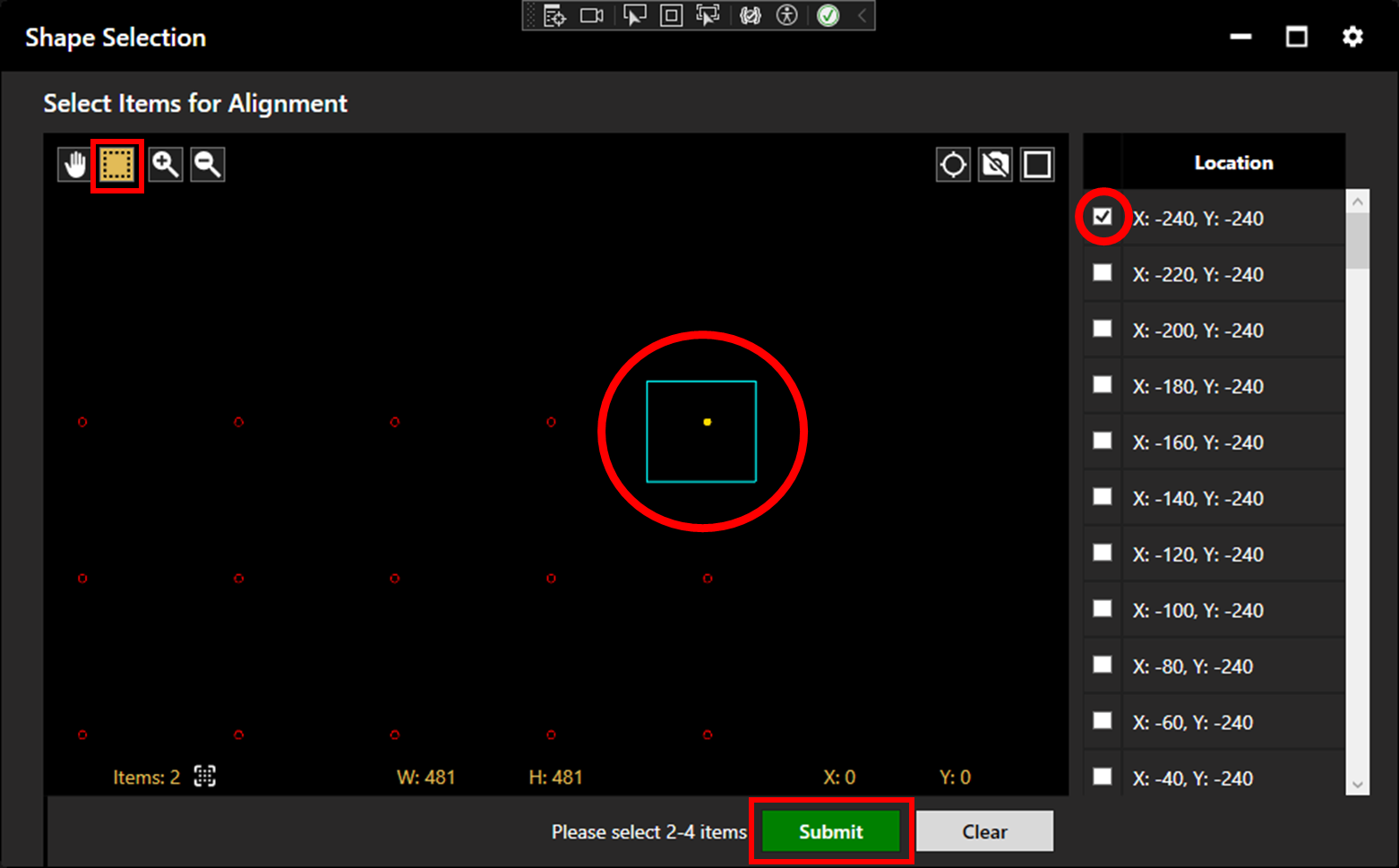
If the alignment file (scanning file if no alignment file is used) contains more than two apertures, the operator will be requested to select 2 - 4 alignment points. These can be selected within the plotter by clicking or window selection, or from the location list.
Once apertures have been selected, click Submit.
The camera will jog to the expected location of the first fiducial. Auto Focus the camera (Note: The SE12 does not have autofocus. It should already be in focus), then navigate to the fiducial aperture using the click jog and the X/Y pad.
Note: The chosen apertures should be in some way distinctive, whether by location or shape, so they can be located during alignment. Click the question mark next to the alignment point coordinates to check which apertures were chosen.
Note: When aligning with the SE12, click remove backlash after moving to maintain an accurate position.
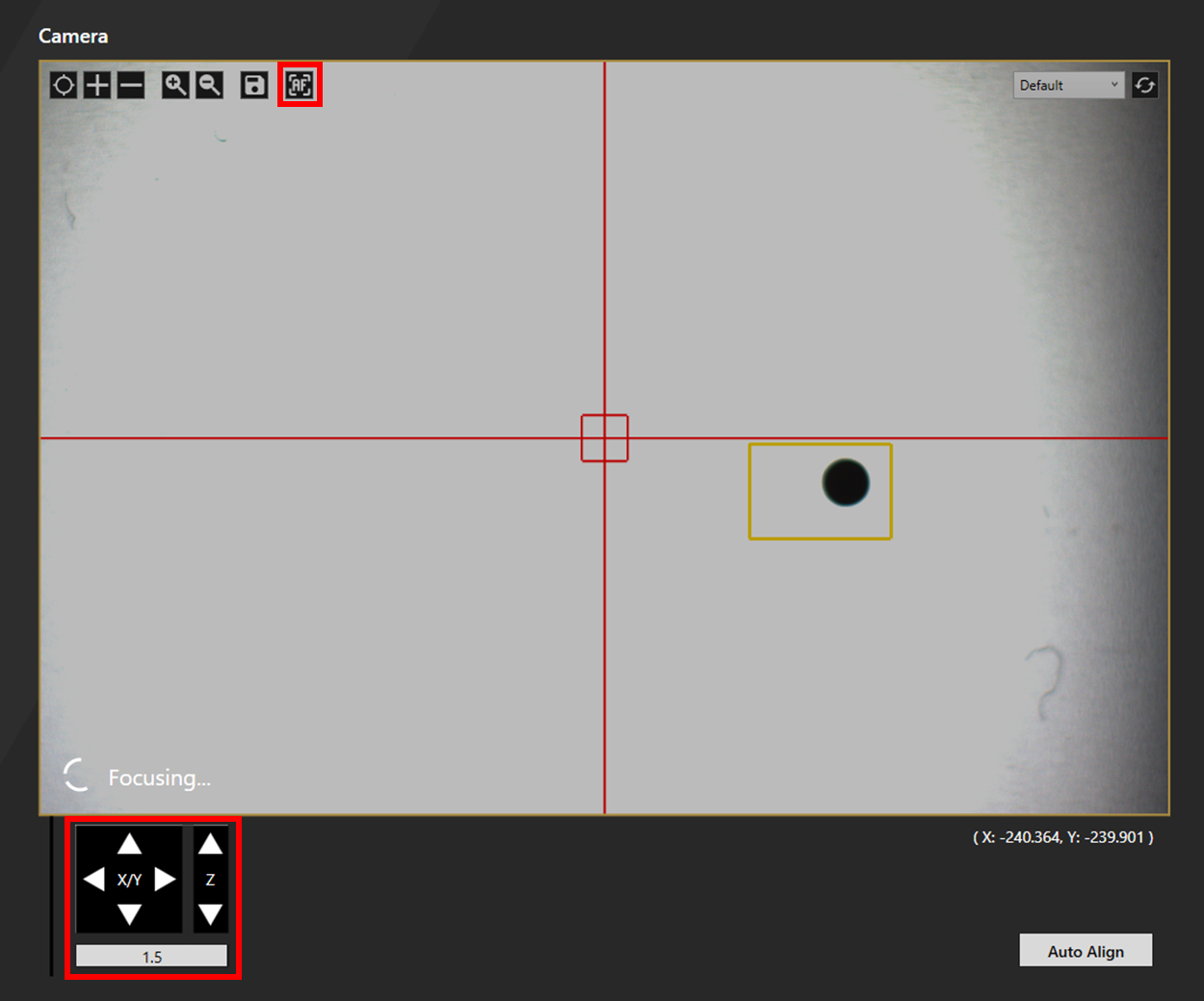
Align to the fiducial then select Set Fiducial 1. Repeat this process with the other fiducial(s) then click Continue.
More detail on alignment can be found here.
Inspection
Click Process to begin inspection.
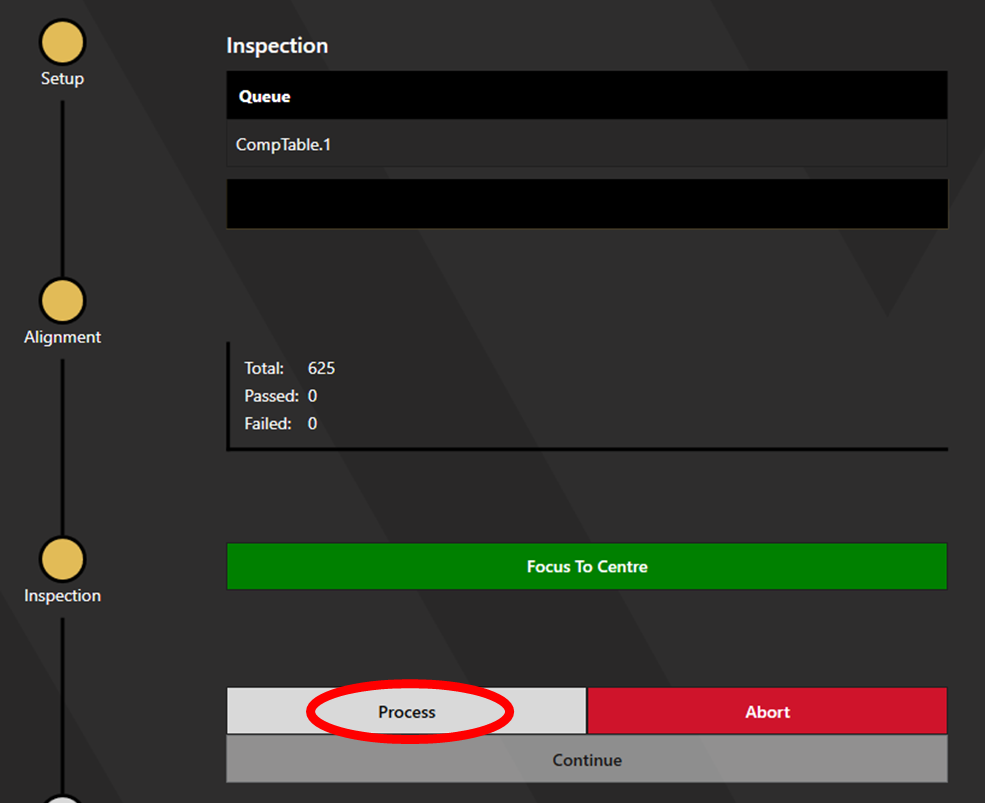
While inspection is running, a progress bar shows the estimated time remaining, and the total, passed, and failed apertures are displayed.
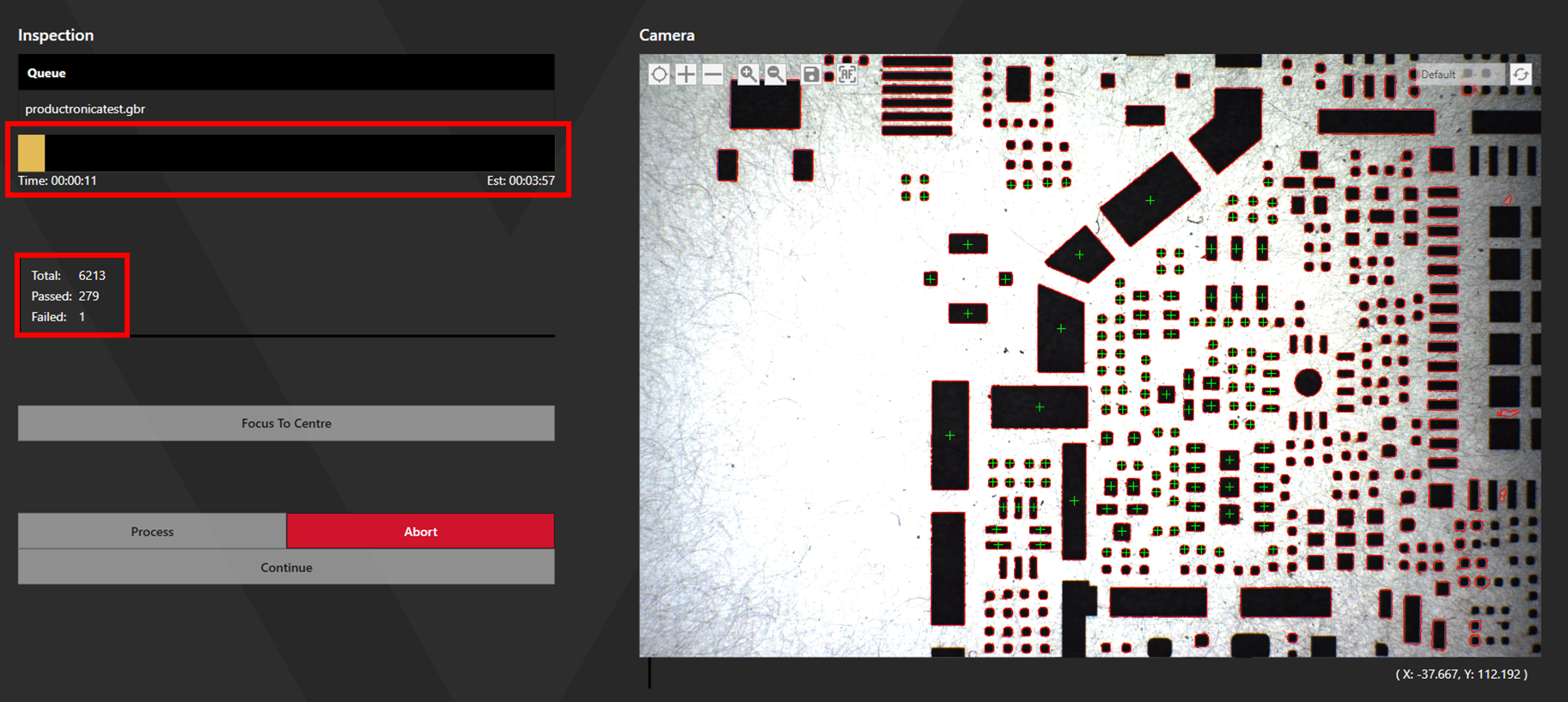
Once inspection is complete, click Continue to proceed to Review.
Review
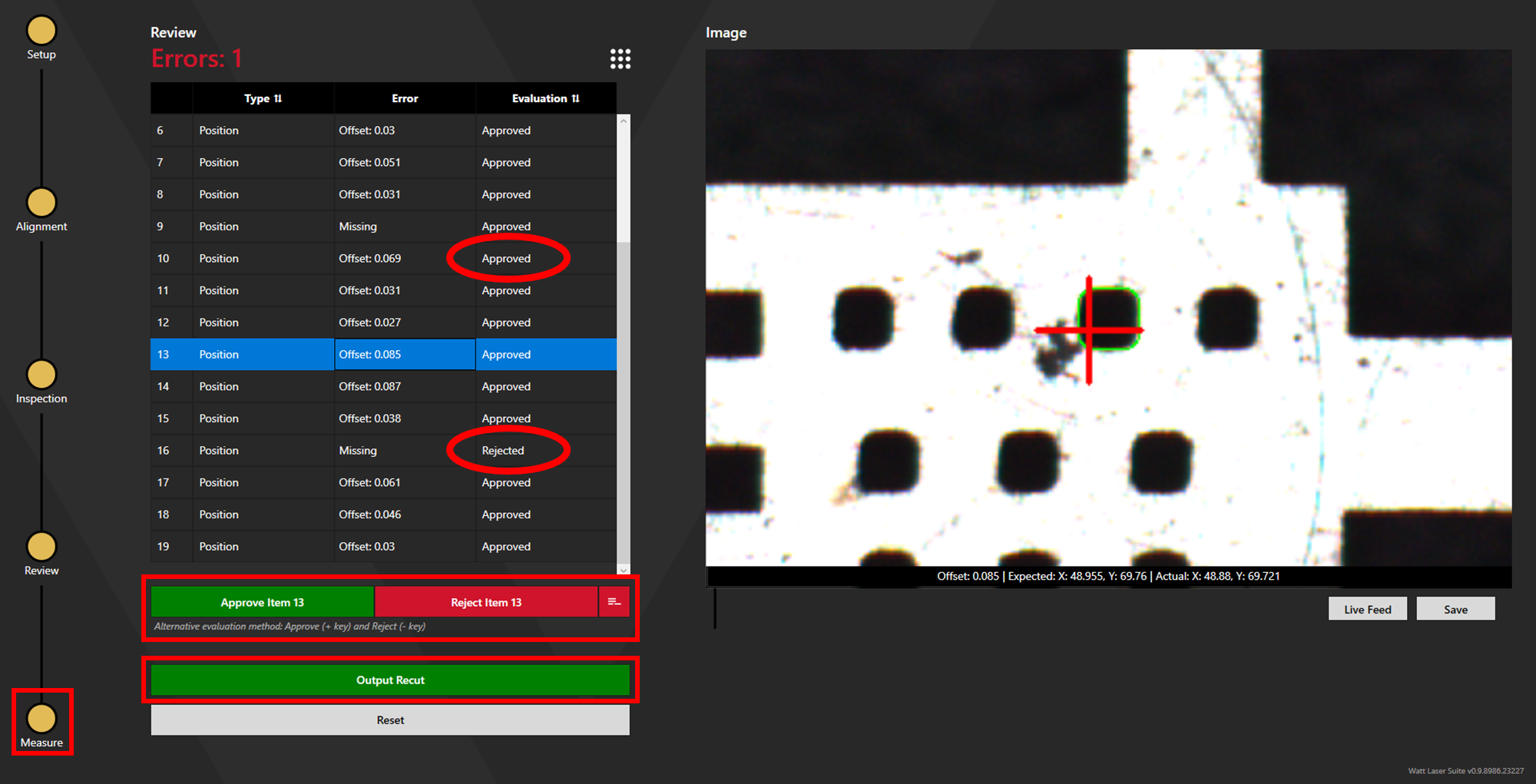
The review page displays the identified errors for approval or rejection. The type of error is stated and an image of the aperture is shown. Approve or reject each aperture. This can also be done using the + (approve) or - (reject) buttons.
If all apertures are approved, the scan conformance report can be created or measuring can begin depending on the whether measuring is a part of the chosen process.
If any apertures are rejected, a recut file can be produced featuring only these apertures by clicking Output Recut File.
Failure Types
During review, each failure has an assigned type of failure.
- Missing: The aperture was not detected at all.
- Clog: Something is stuck in the aperture (for example a hanger or old solder paste). This is controlled by the clog detection settings. See the Detection Calibration article.
- Position: The aperture centre is offset from it's proper position. This is controlled by the Positional Tolerance.
- Size: The total area of the aperture is incorrect. This is controlled by the Area Tolerance Constant/Multiplier.
- Shape: The shape is detected to be different from the shape it should be.
Click the continue to proceed to measuring.
Measuring
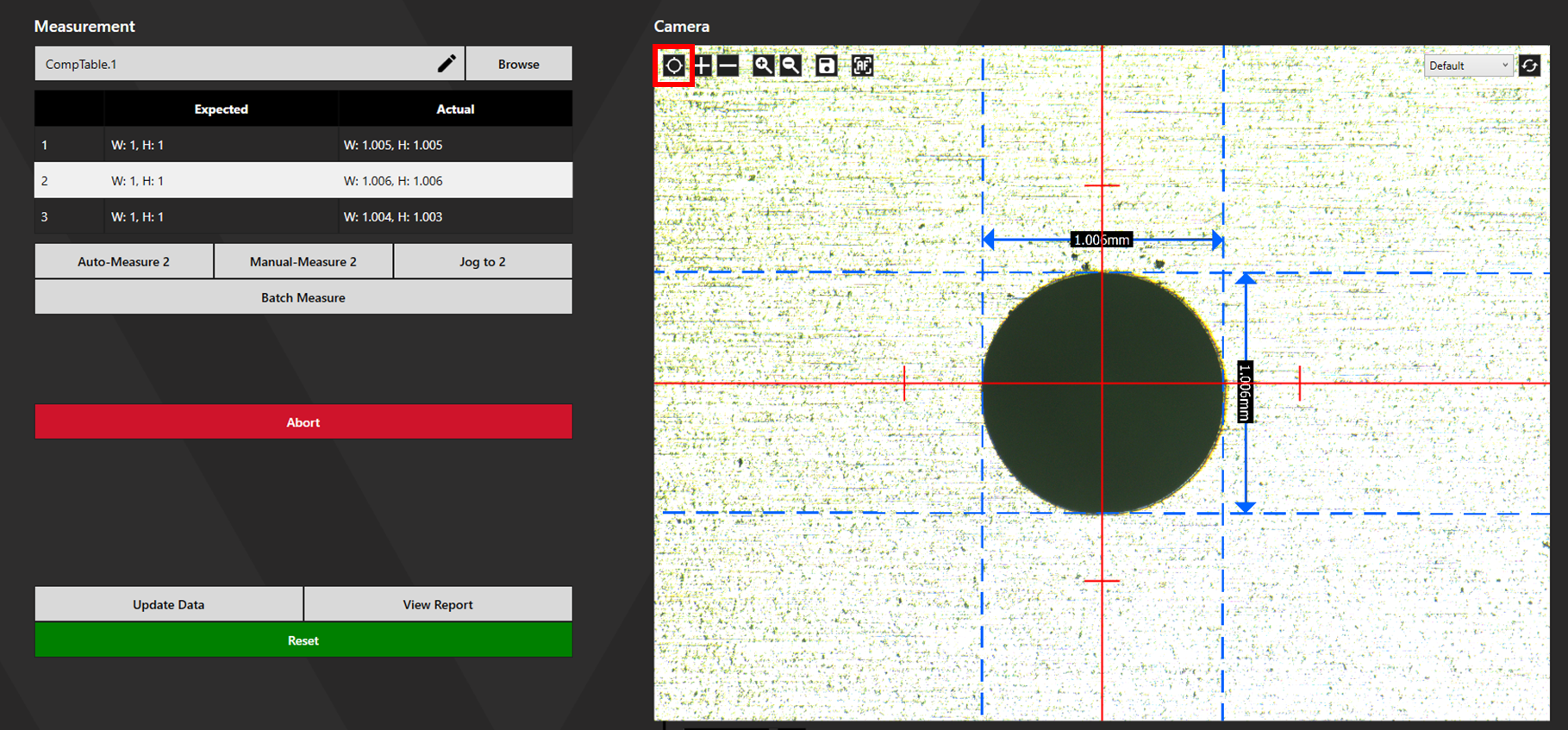
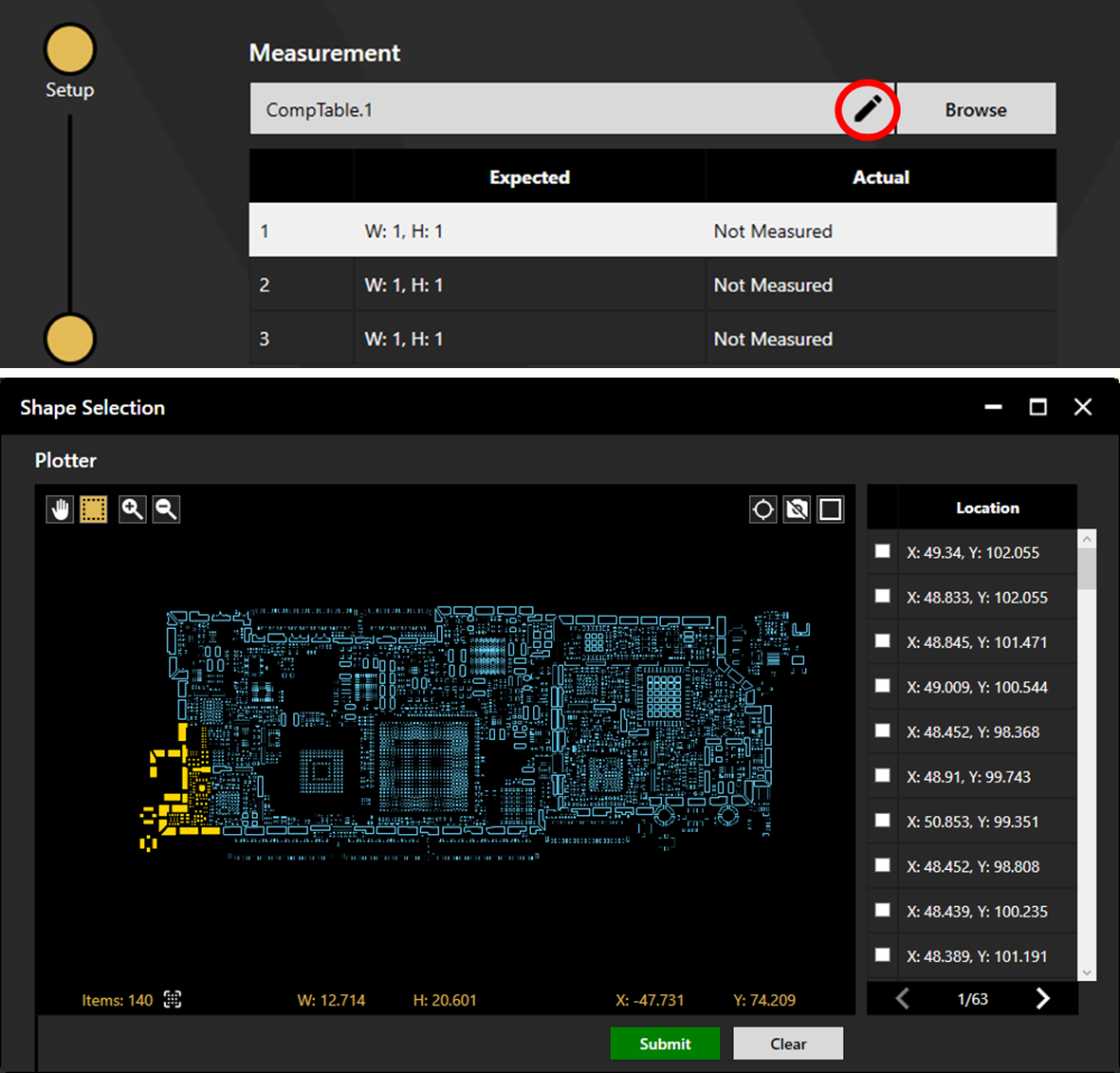
The three smallest apertures are automatically chosen for measurement. To choose alternate apertures click the pen icon next to the file name. This can also be used to select a greater quantity of apertures by clicking/box selecting from the plotter or by choosing them from the Location list. Once the desired apertures are selected, click Submit to add them to the measurement list.
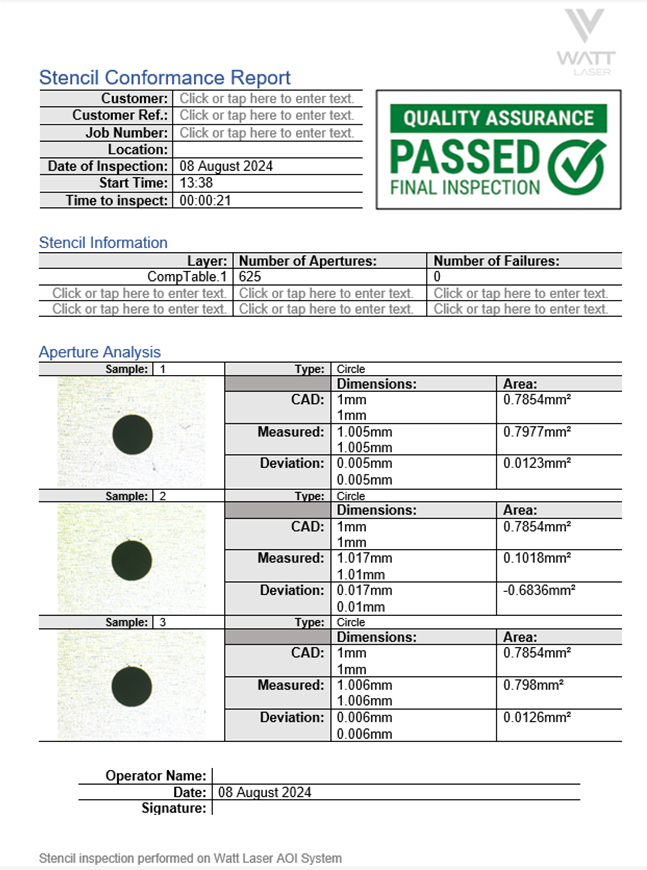
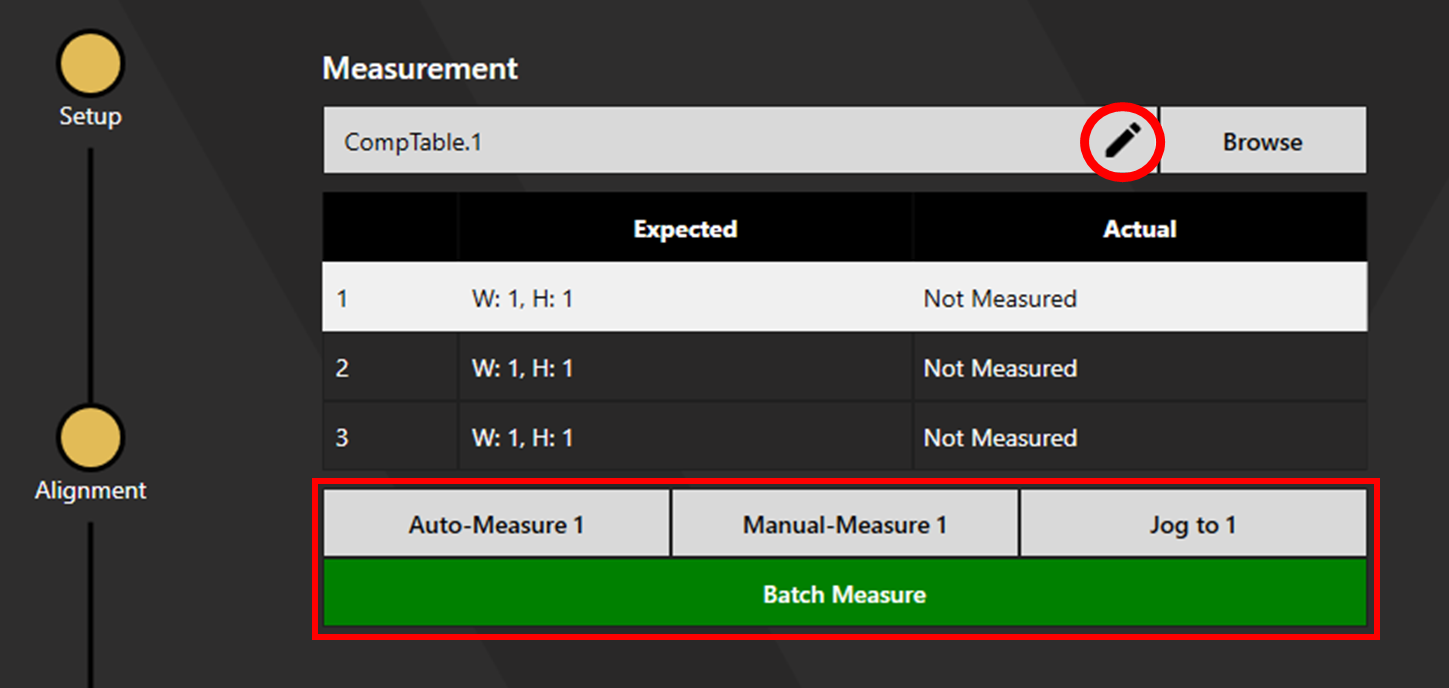
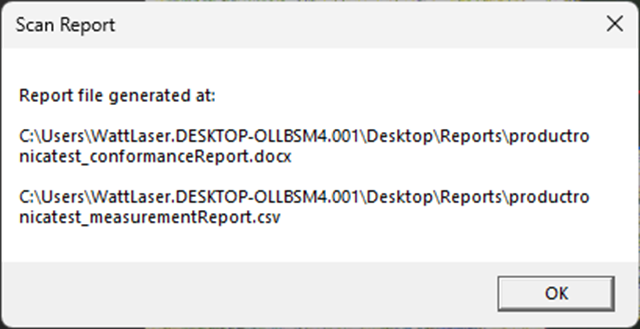
Auto-Measure will measure the selected aperture. Manual measure allows the operator to manually measure the selected aperture. The jog to option moves to the selected aperture. Batch measure automatically measures all apertures present in the Measurement table. When batch measurement is completed, the stencil conformance report and csv file are automatically generated.
The measured dimensions are displayed once measured. If an aperture is remeasured, the most recent measurement is displayed. Toggle the red cross hair using the highlighted crosshair button.
Selecting Update Data will update the report file with any new measurement. Clicking View Report opens a word file containing the Stencil Conformance Report. This report is based on a template file. Detail on customising the conformance report template can be found here.