TABLE OF CONTENTS
Setup
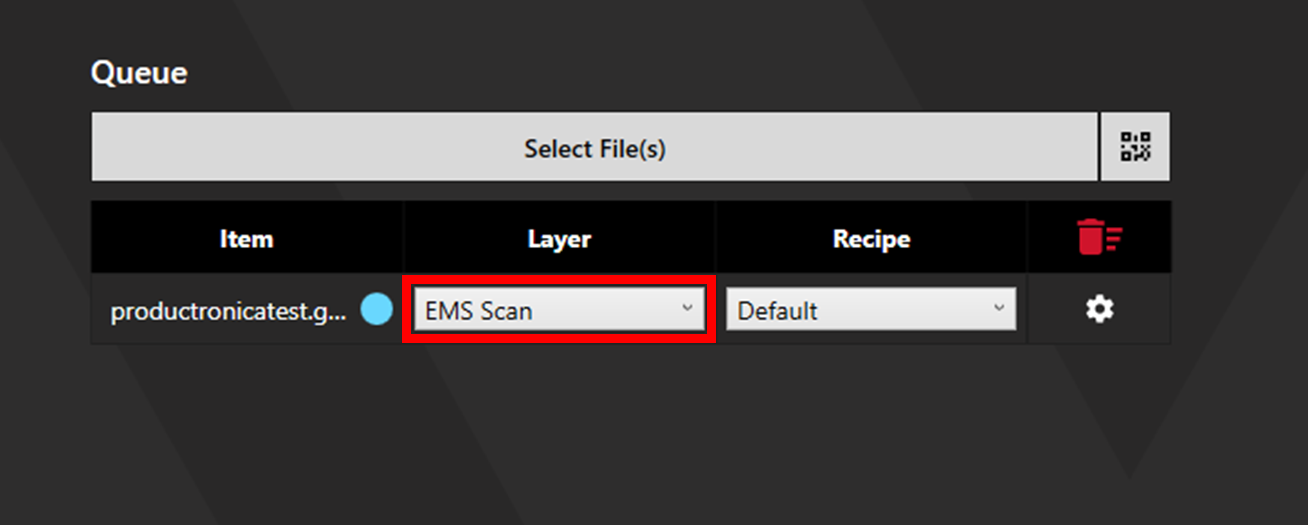
The AOI EMS process can be used to track and compare stencil measurement data. This can be done after completing scanning/measuring or immediately after selecting files by setting the layer to "EMS View". Setting the layer to EMS View will skip scanning and measuring, proceeding immediately to the Stencil Status stage.
The alignment, inspection, and measuring process is the same as that of regular AOI, and the steps are the same. However, inspection conducted within the regular AOI Process will not be stored for comparison. Therefore, ensure the EMS Scan layer is selected then follow the same steps shown in the AOI Process Guide.
Stencil Status
After completing the standard AOI Scan Process, the Status stage will display "Stencil Good" or "Stencil Unusable!" depending on the results of the most recent scan. If there are 1 or more failures following the review stage, "Stencil Unusable!" will be shown.
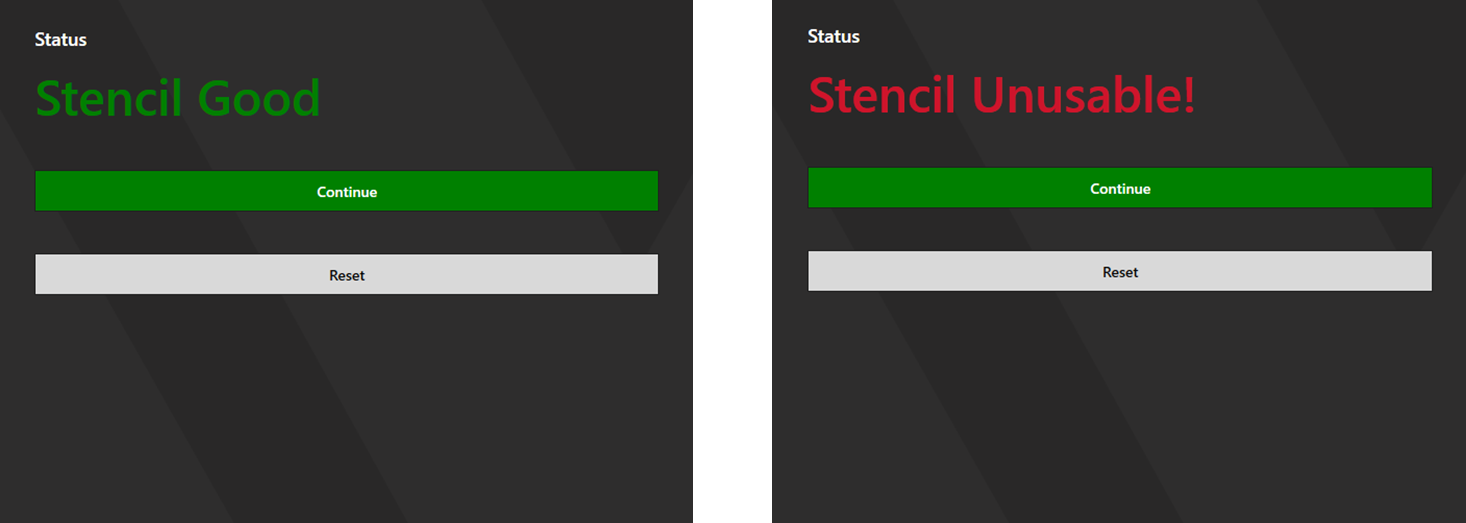
Click Continue to proceed to Comparison. The comparison stage can be password locked by setting a password in the settings. To do this, click the settings cog in the upper left corner, and select the security tab.
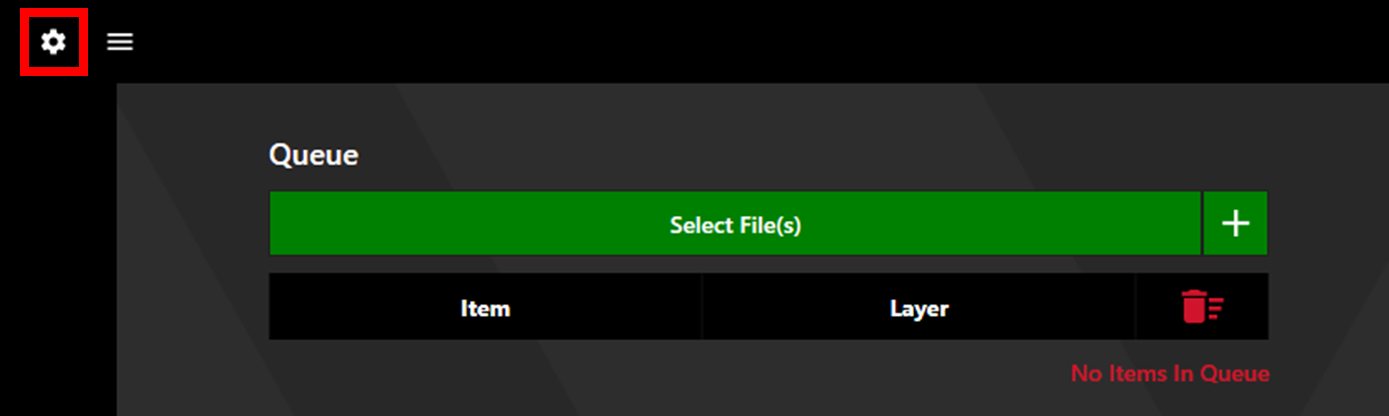
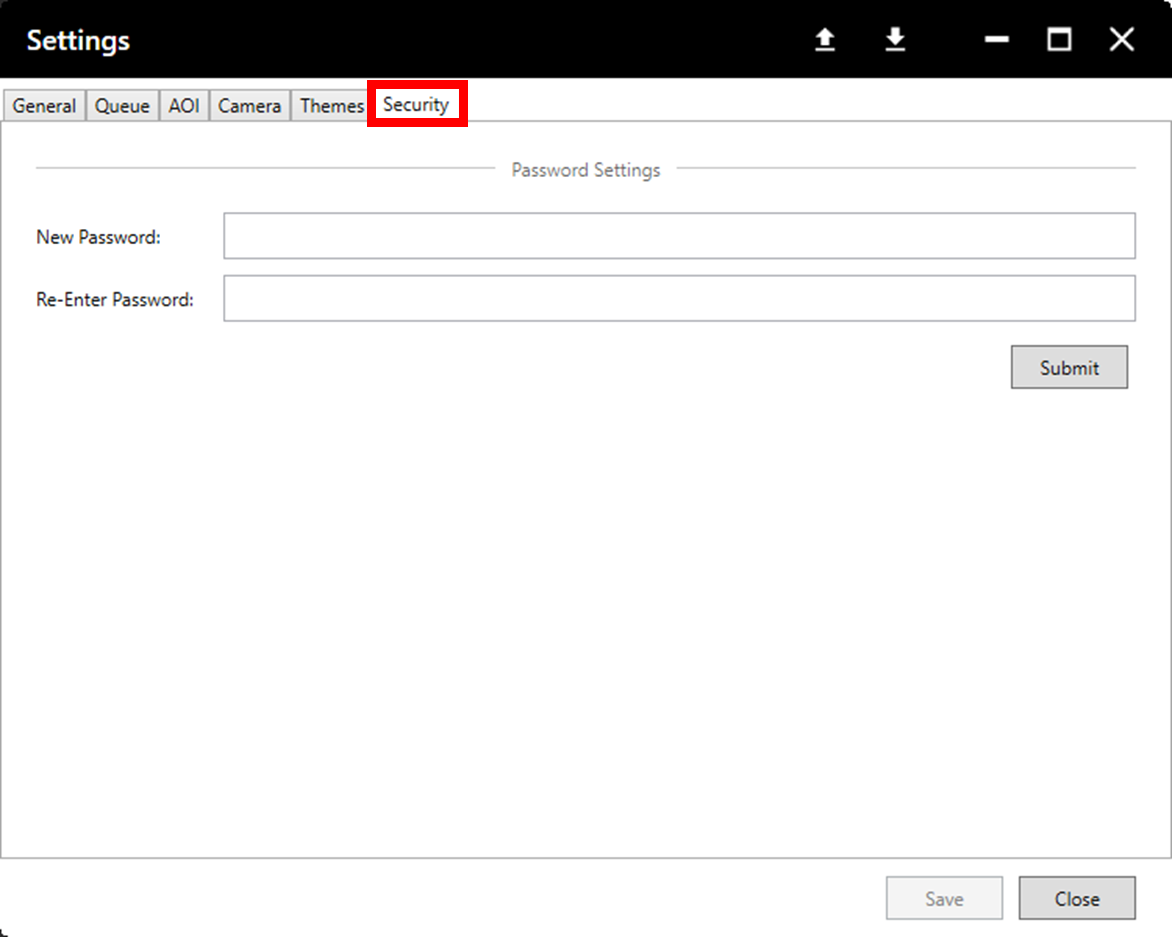
Set a password then click save.
Date and Aspect Selection
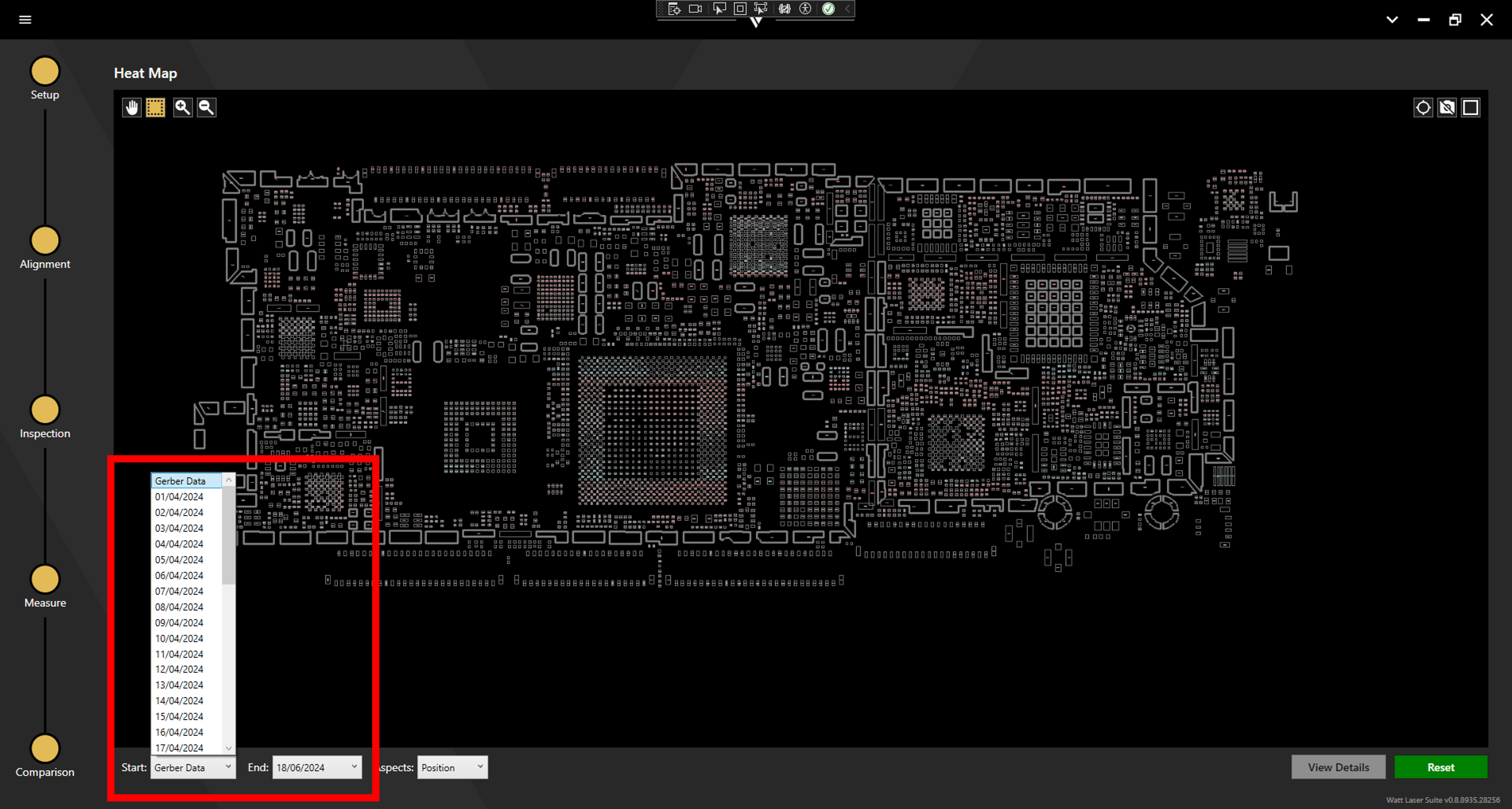
Within the comparison process the gerber file will be displayed. First, choose start and end dates from the drop-down menus at the bottom left of the window. These menus will contain the original gerber data and the dates of the previous scans relevant to the chosen file.
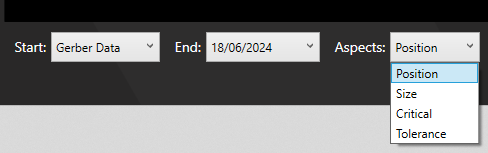
Select the desired aspect from the drop-down menu.
Position
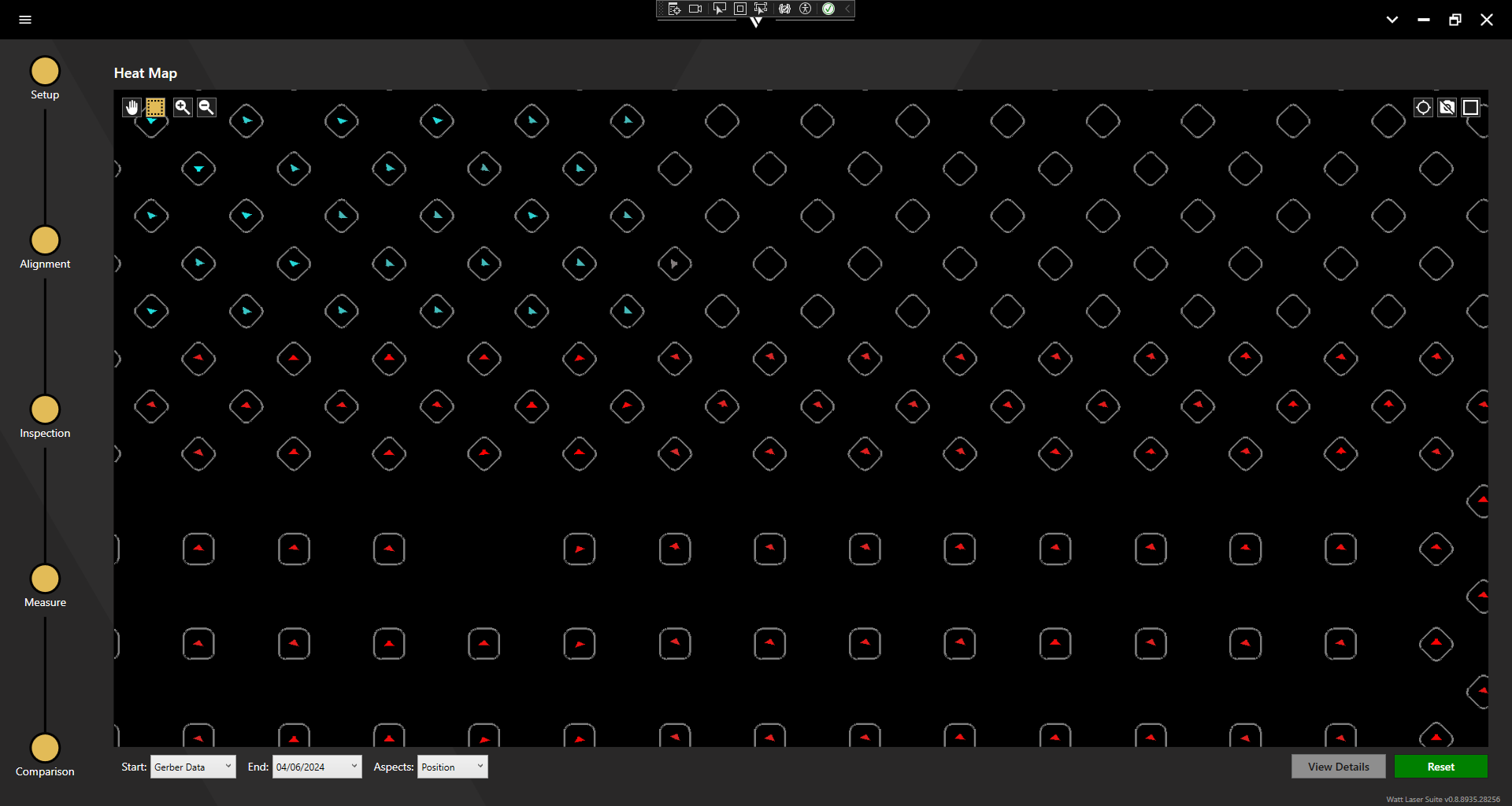
The position aspect compares the centre-points of individual apertures between the two chosen dates. The direction of change is shown with arrows. Where no positional change is found, no arrow is displayed. Apertures which have moved away from the centre of the stencil are displayed with red arrows, while apertures which have moved closer to the centre are displayed with blue arrows.
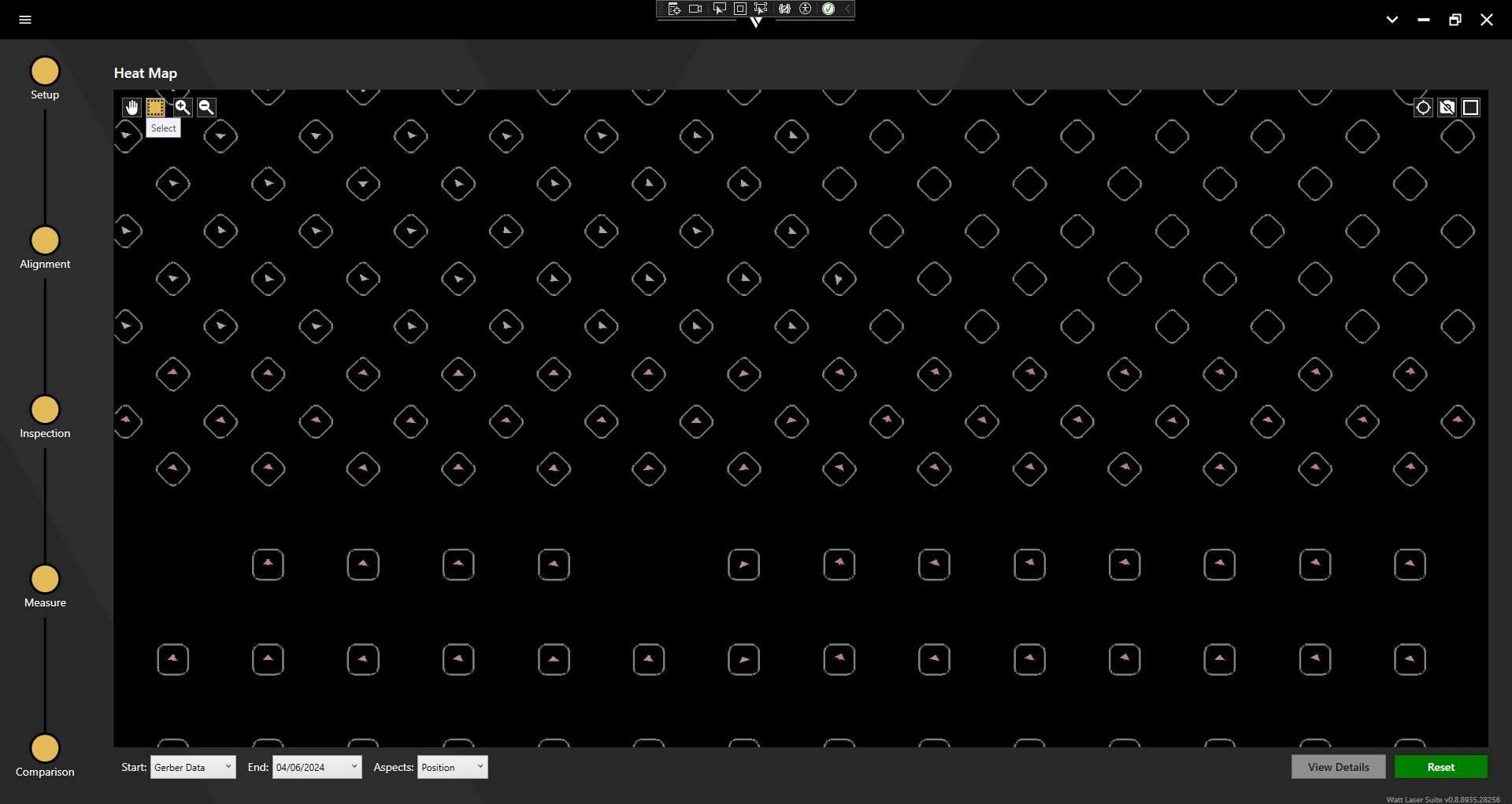
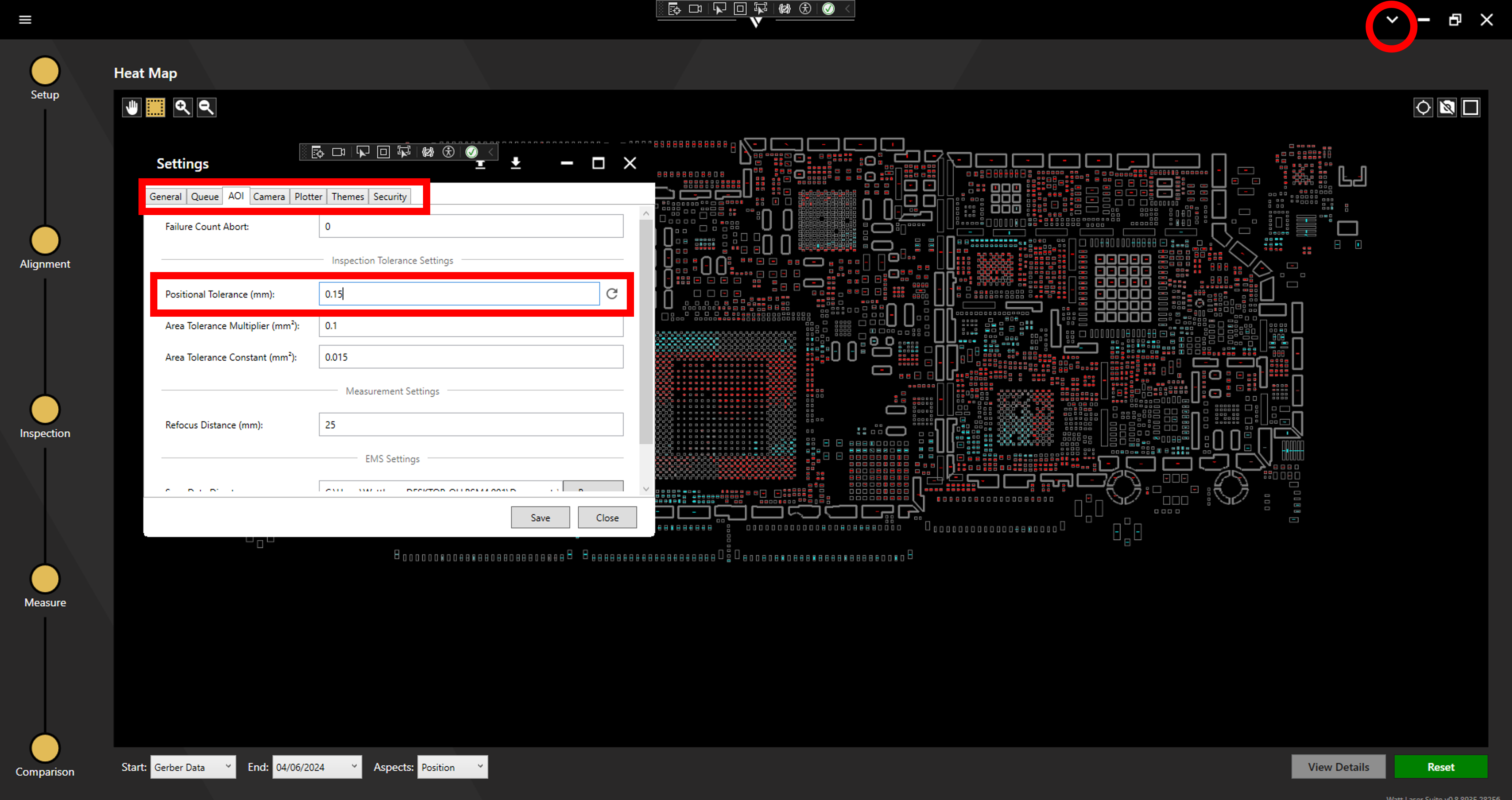
The colour saturation is a function of both the magnitude of the positional change and the set positional tolerance. The saturation increases as the positional change reaches a greater percentage of the positional tolerance. While the above and below images are from the same set of data, the lower image features greater saturation because the positional tolerance was reduced.
To adjust the positional tolerance, access the settings via the drop-down menu in the top right of the window and select the AOI tab.
Size
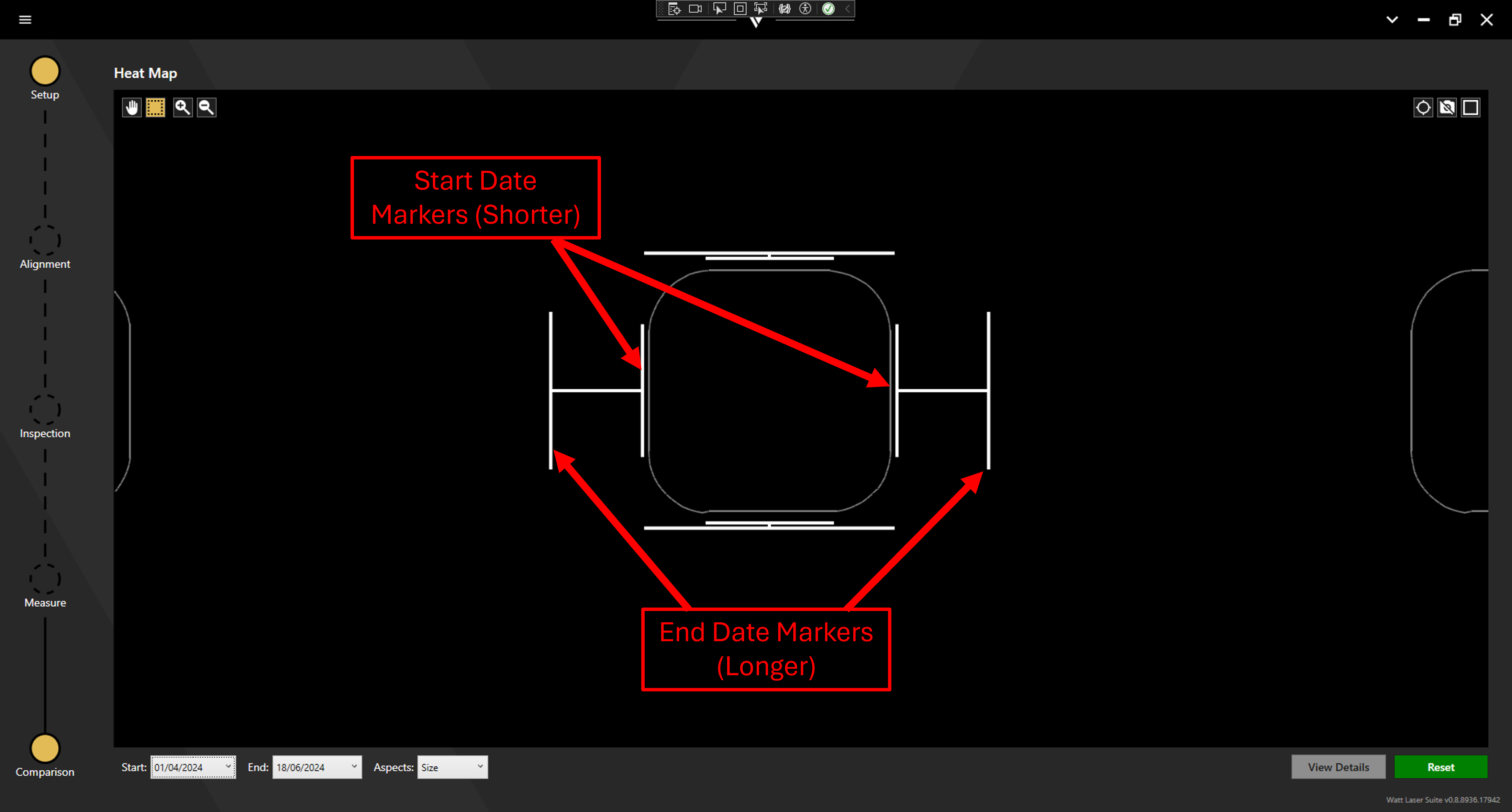
The size aspect compares the dimensions of individual apertures between the two chosen dates. The size on the chosen dates are shown with sets of white bars. Where the shorter/thinner bars outline the size at the start date, and the longer/wider bars outline the size at the end date.
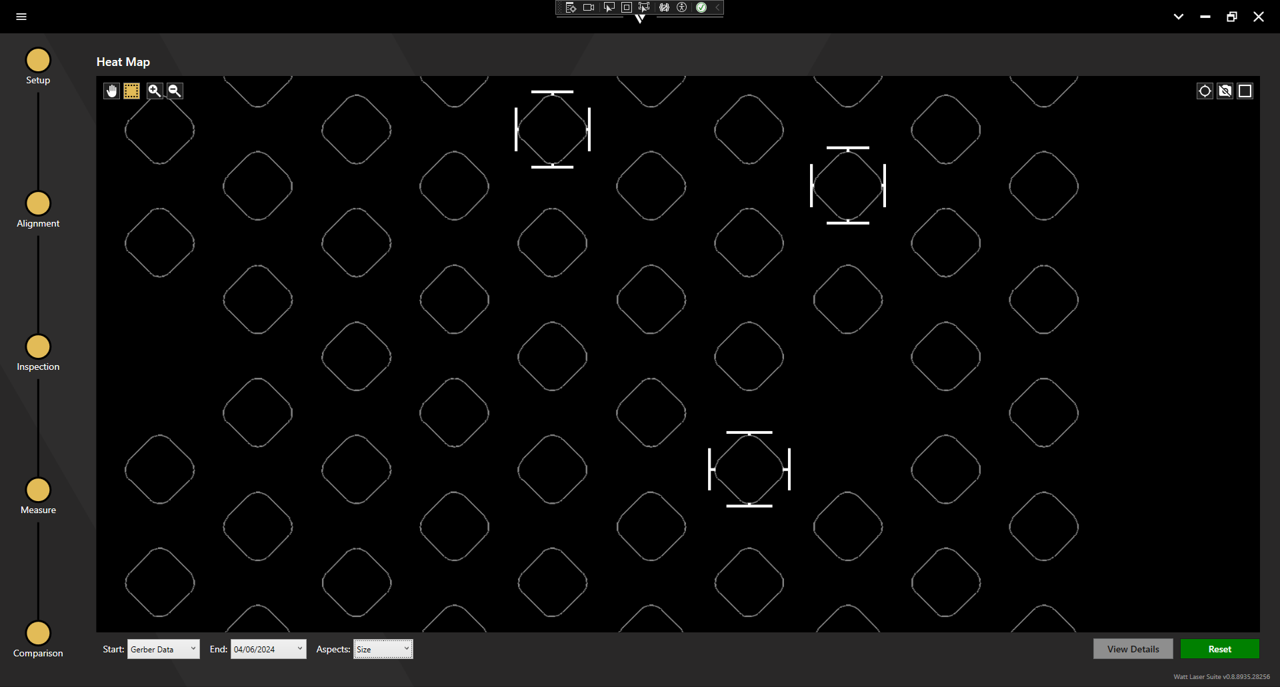
When comparing to the original gerber data, the white bars are shown representing the new measurements but are not included for the gerber data as this can be seen in the original shape. Where no difference is found, no bars are shown.
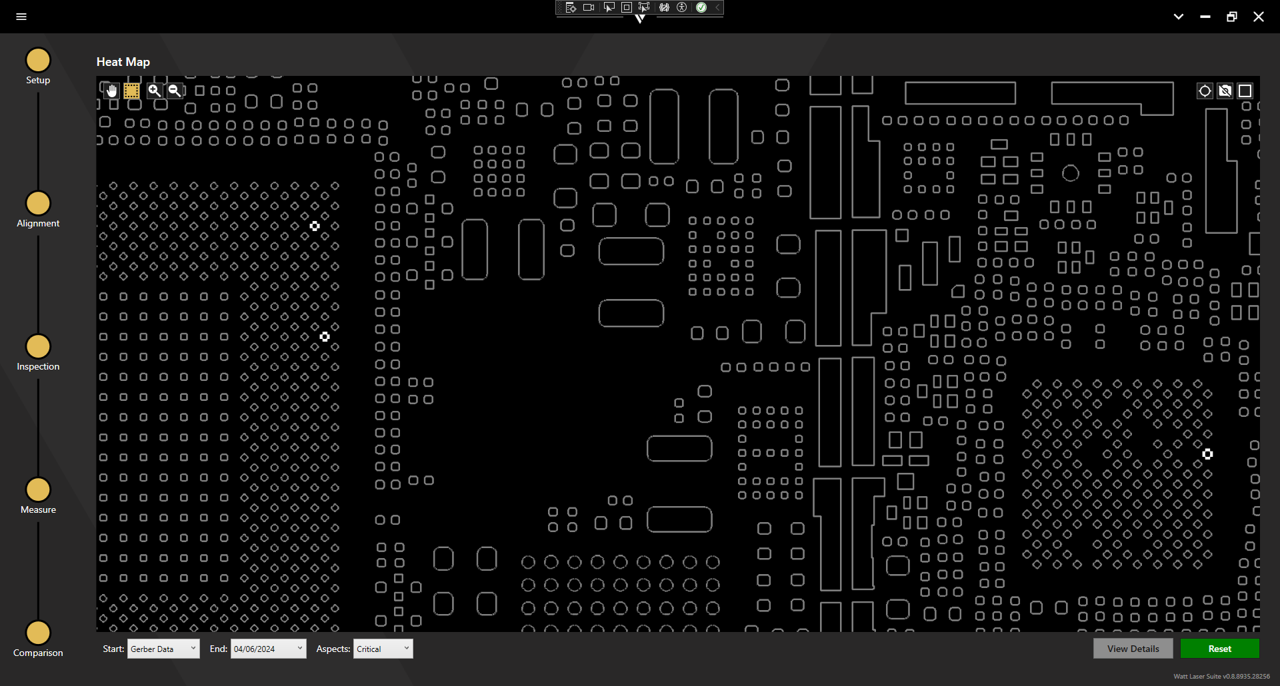
Critical
The critical aspect shows the same data as the size aspect, but only for the specific apertures which had been measured in the Measure process.
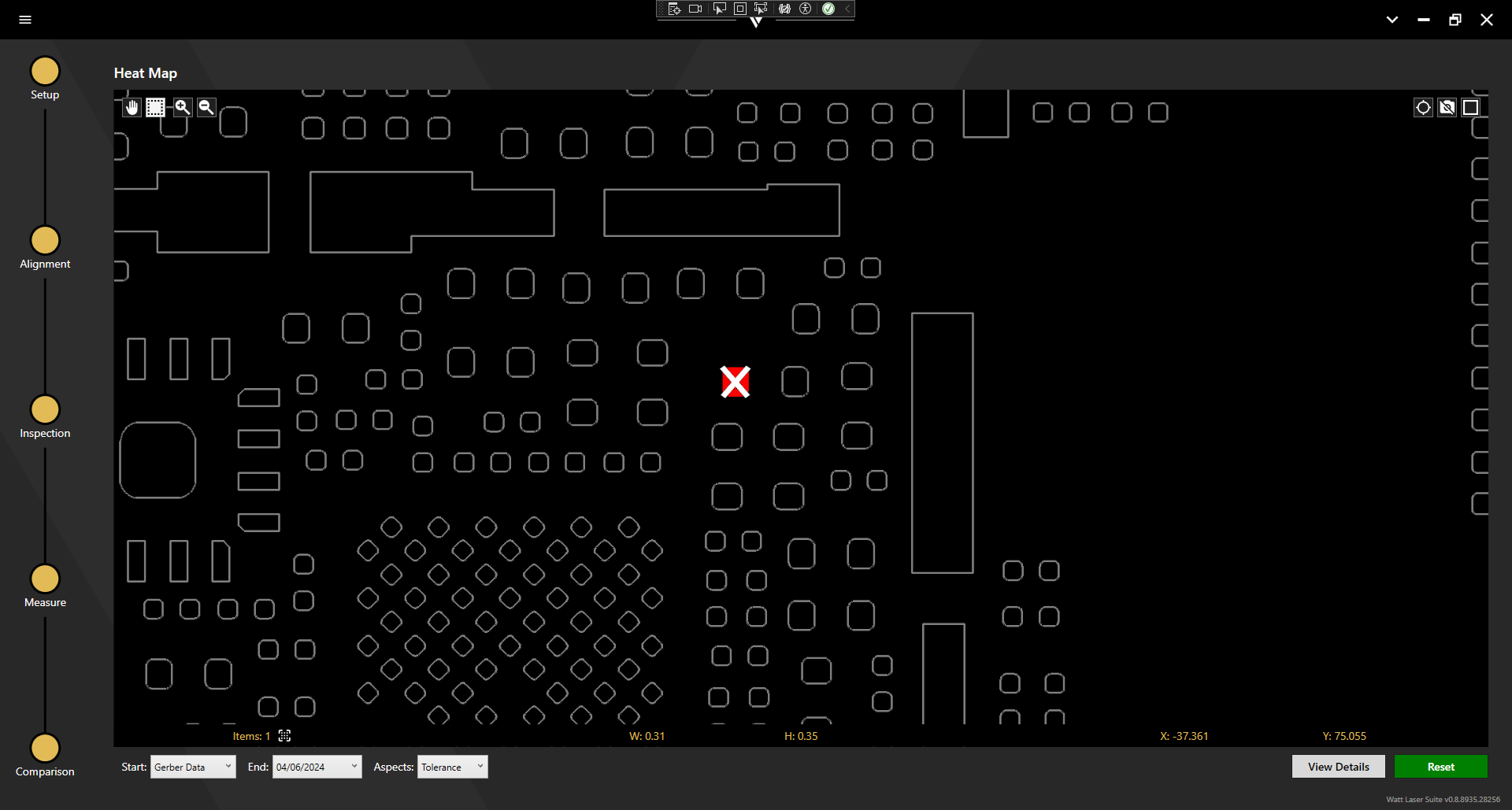
Tolerance
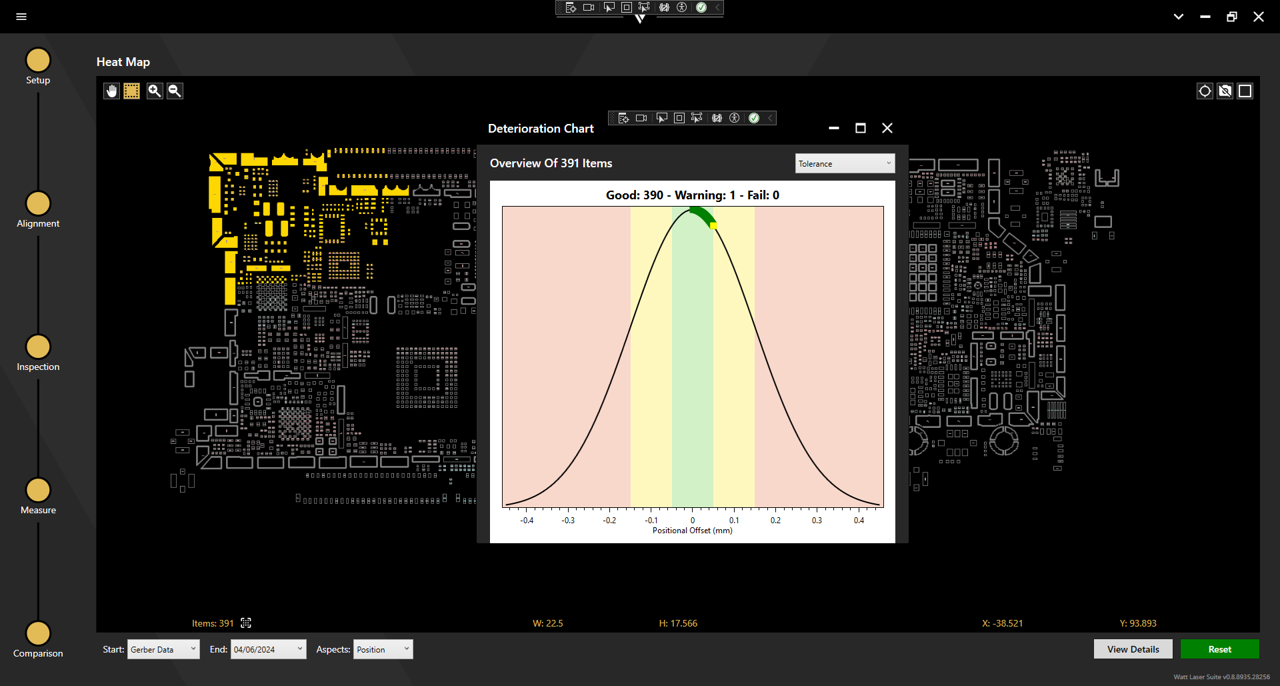
The tolerance aspect highlights apertures which are outside of tolerance in any way (position/size/shape).
Graphing (View Details)
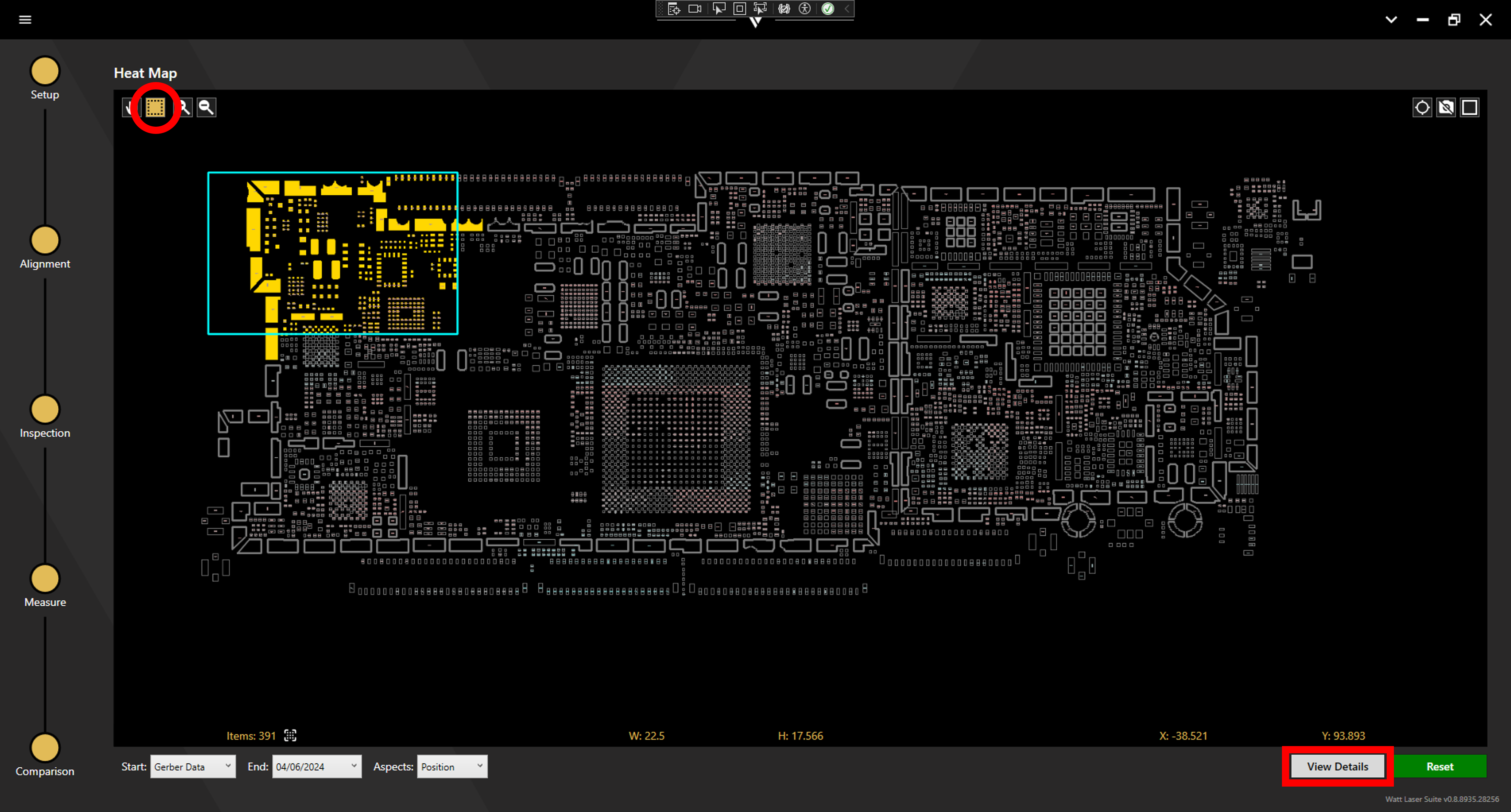
The change across the entire chosen time-frame can be seen using the View Details function. First, select apertures in the viewport using the selection tool in the upper left of the window or by clicking on individual apertures. Next, select View Details in the bottom right of the window to view the Deterioration Chart.
The desired aspect can be chosen from a drop-down menu in the the upper right of the Deterioration Chart window. For the position, size, and critical aspects, a graph is displayed showing the Data and Trend across the chosen time-frame. Note that if only one data point is available no graph will be displayed.
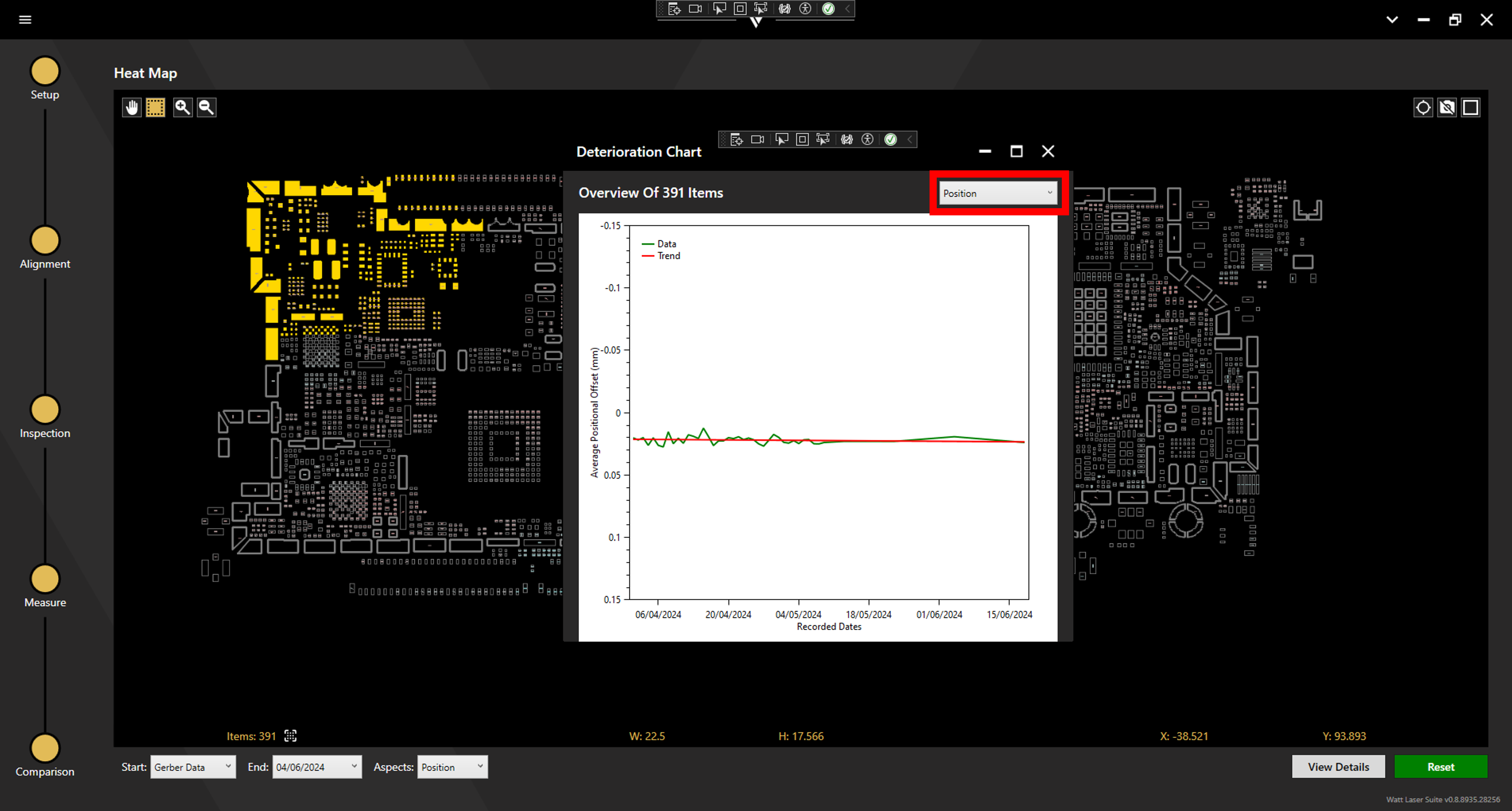
The tolerance chart plots the positional offset of all selected apertures within the green (well within tolerance), yellow (warning), or red zone (outwith tolerance).