TABLE OF CONTENTS
- 1. Accessing Camera Offset Calibration
- 2. Machine Specific Differences
- 3. Laser - Scanning Camera Offset
- 4. Scanning Camera - Measuring Camera Offset
Before calibrating camera offset, ensure Camera Lighting Settings and Detection Settings are correctly calibrated.
1. Accessing Camera Offset Calibration
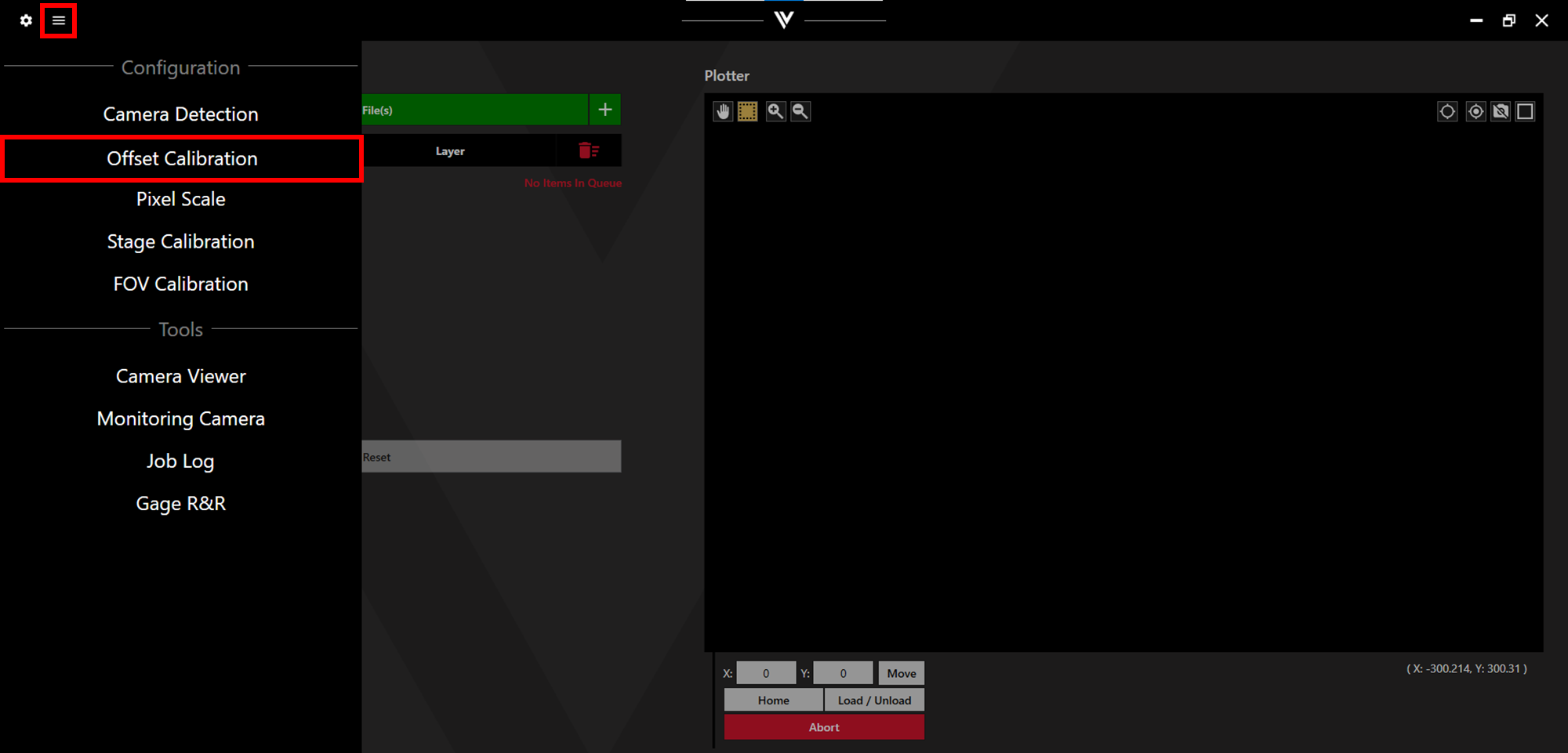
Click on the menu button in the top left corner and select Offset Calibration.
2. Machine Specific Differences
This process varies between machine types.
SE12 Pro: Follow the full guide.
SE12: Follow section 3. Laser - Scanning Camera Offset. Additionally, before marking and during alignment, Remove Backlash must be clicked. Moving without removing backlash can result in an inaccurate calibration. This machine will also require that the cone be lifted and dropped manually. Follow the on-screen prompts.
QC100: Follow section 4. Scanning Camera - Measuring Camera Offset.
3. Laser - Scanning Camera Offset
Load a stencil onto the machine and secure in place with the vacuum.
Move the scanner over a clear, vacuumed part of the stencil.
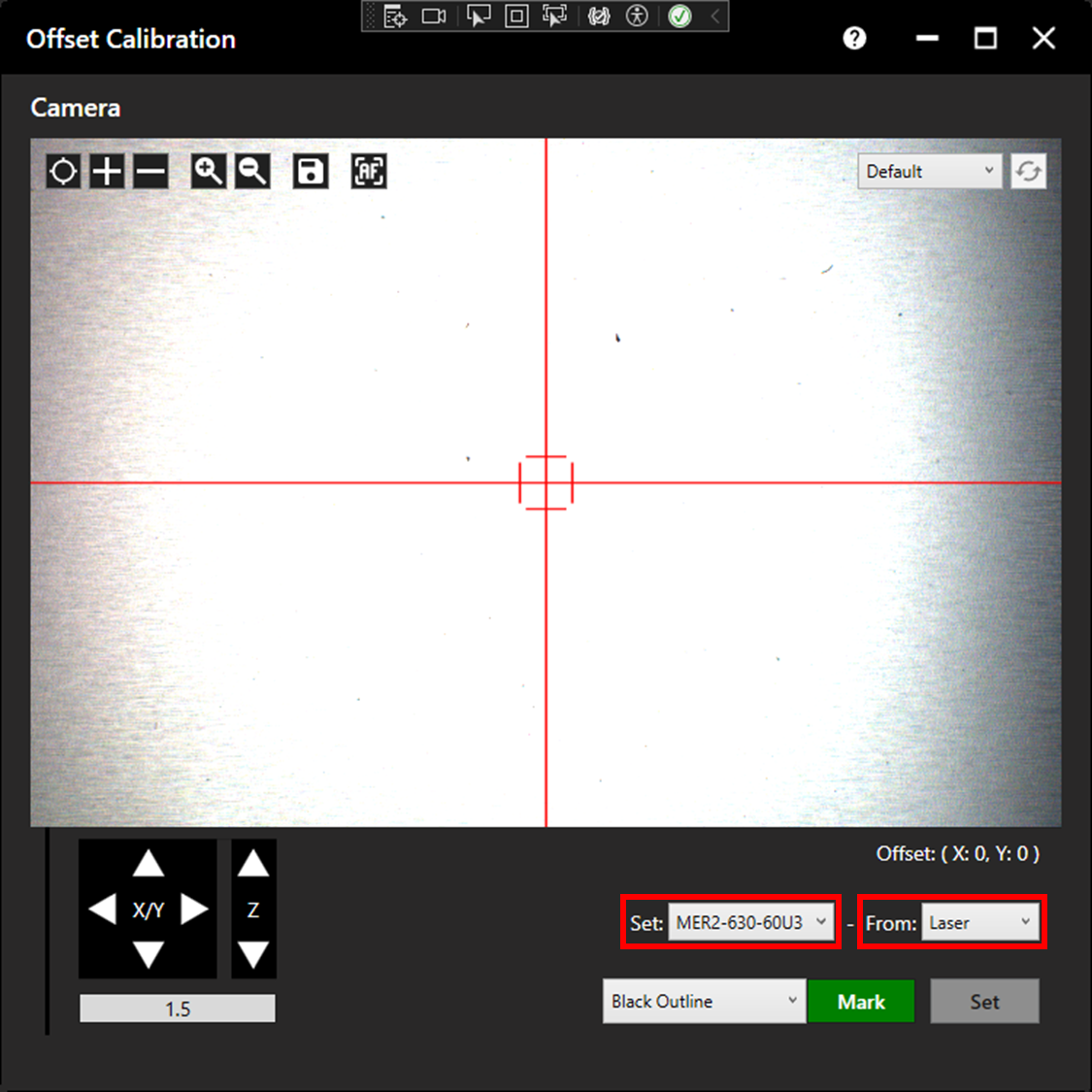
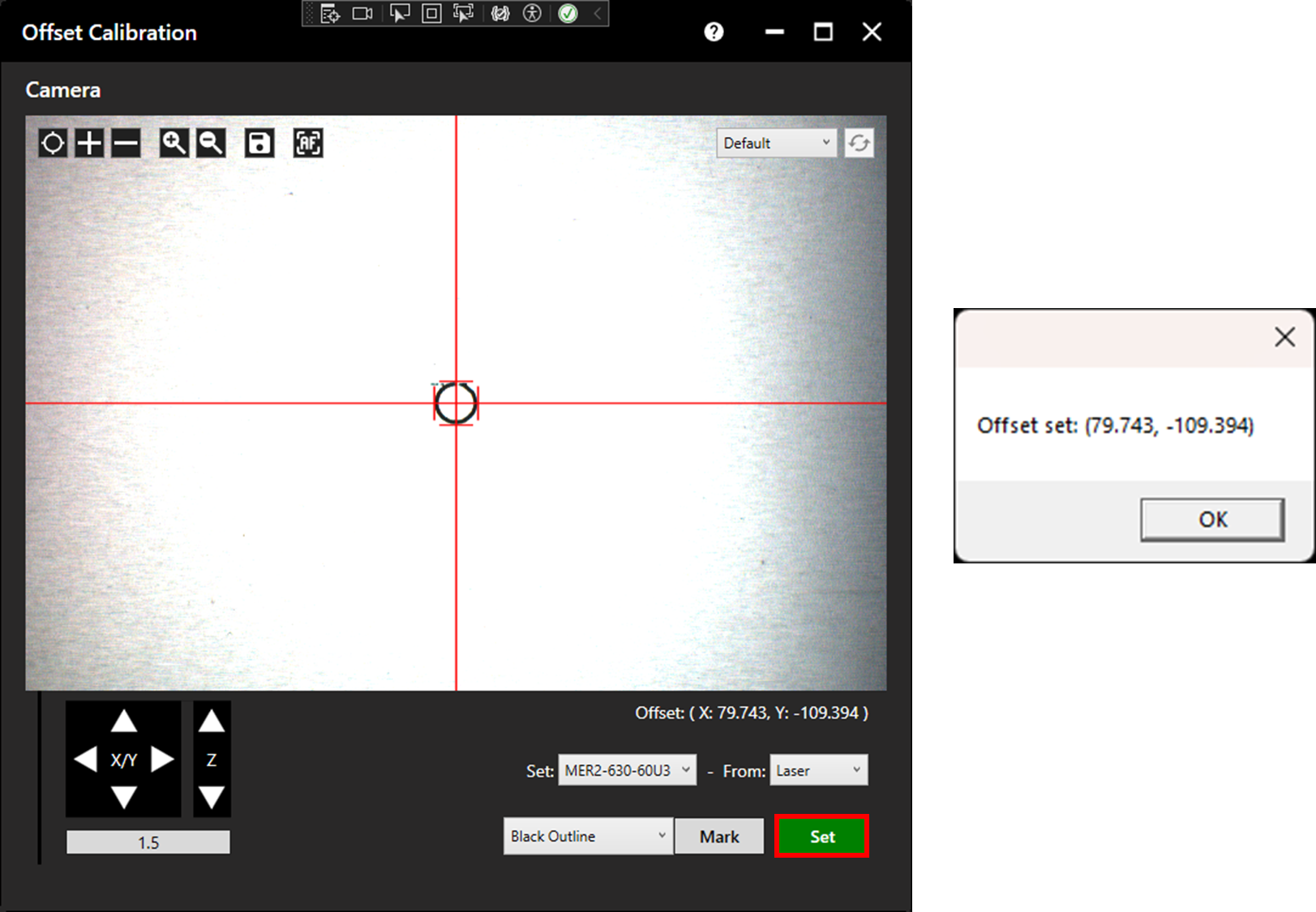
From the dropdown menus, select Set: MER2-630-60U3 (this is the scanning camera) - From: Laser.
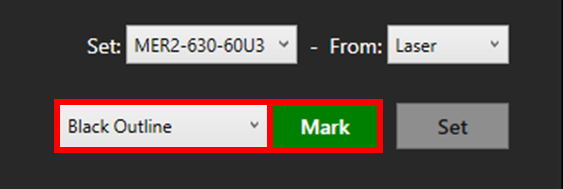
Select an appropriate recipe (Black Outline is usually ideal) then click Mark to output.
Following output, the camera will move to the expected location of the marked circle. Align to the circle and click Set. A pop-up will appear displaying the newly set offset.
4. Scanning Camera - Measuring Camera Offset
If the Laser - Scanning Camera process has just been completed, the previously created mark can be reused. Otherwise a stencil with a distinctive aperture or mark will be required for alignment.
From the dropdown menus, select Set: MER2-1220-32U3 (this is the measuring camera) - From: MER2-630-60U3 (this is the scanning camera).
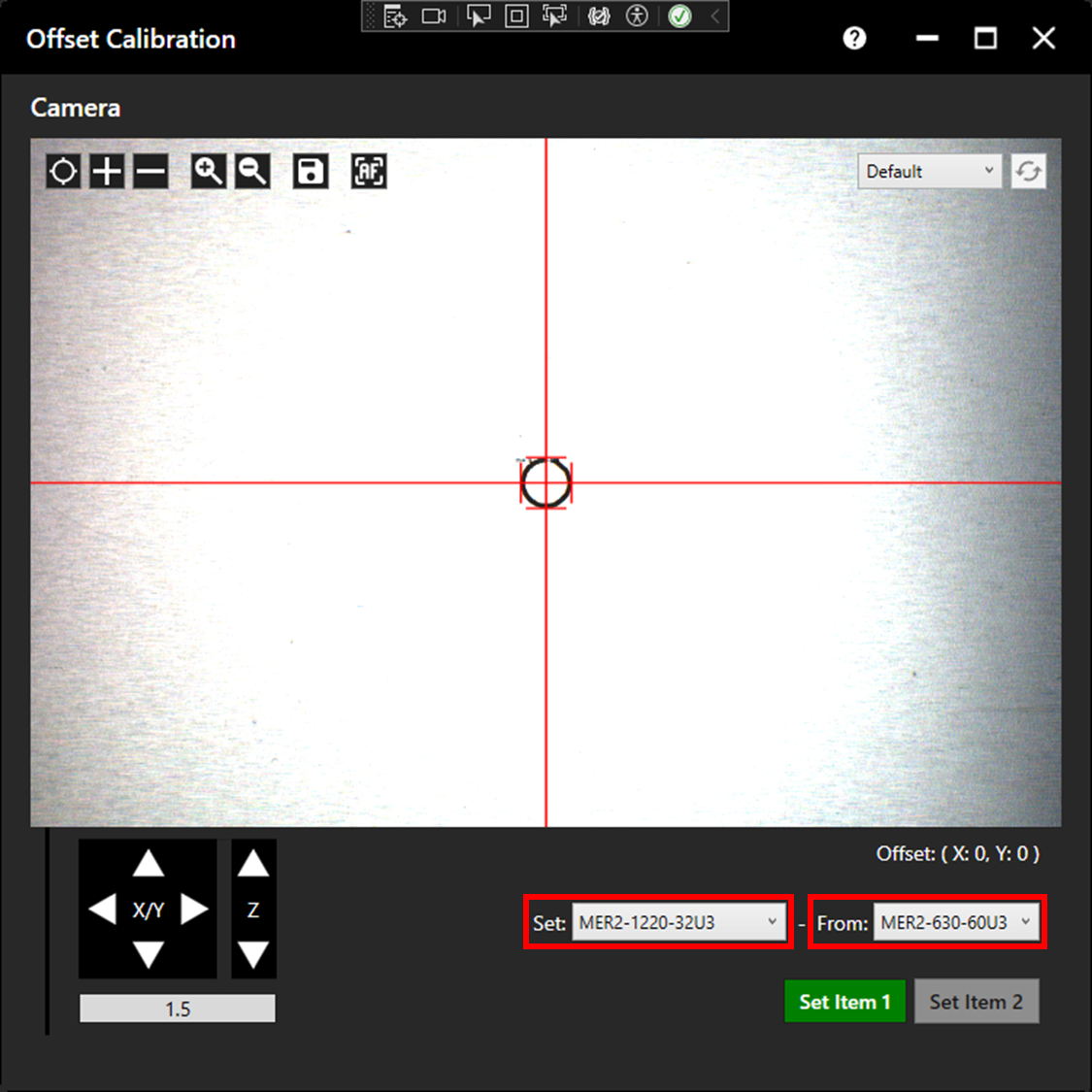
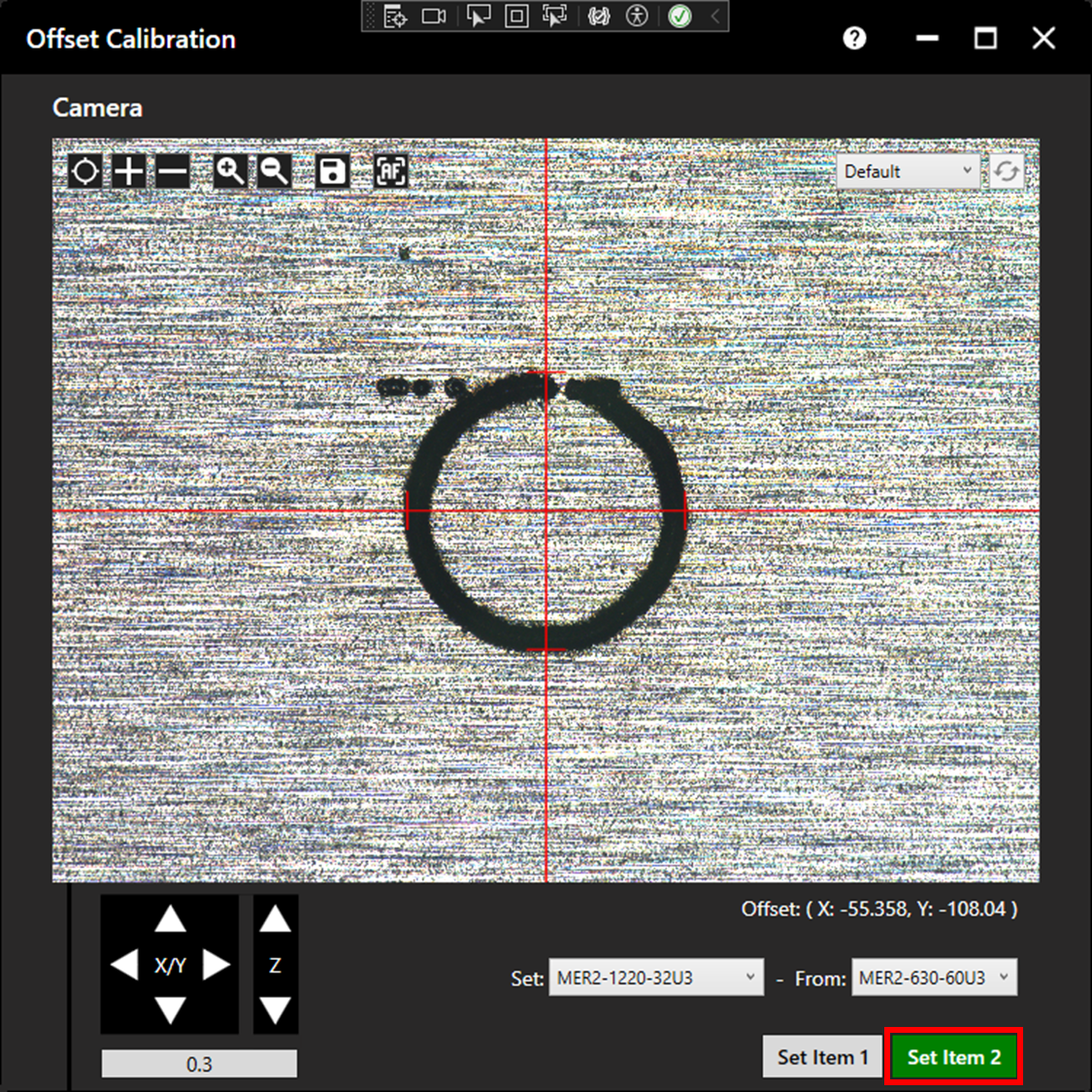
Align to the mark/aperture then click Set Item 1.
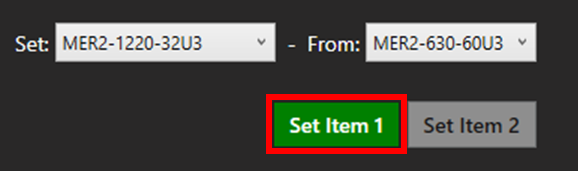
The second camera will move over the expected location of the mark/aperture. Align, and click Set Item 2.