TABLE OF CONTENTS
Setup
The PCB Scan process can be used to adjust gerber data based on the real PCB.
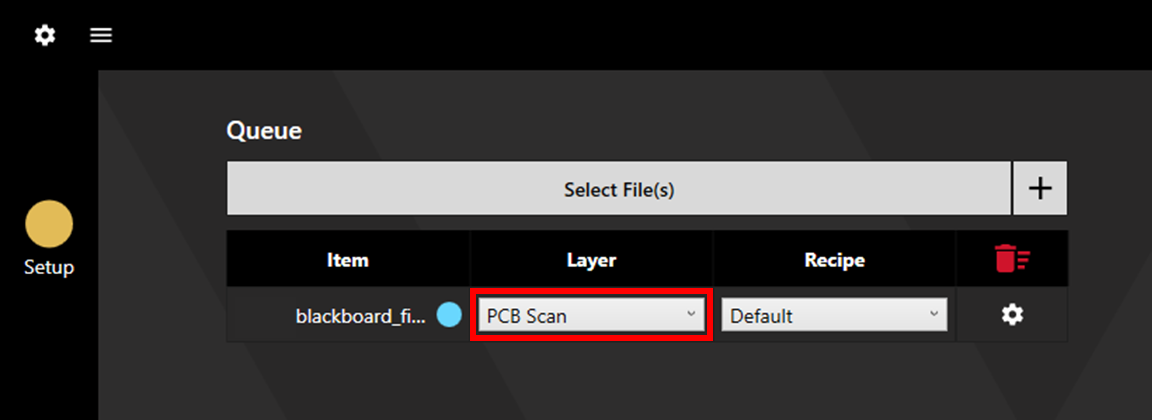
Load the file for scanning by clicking Select File(s). Set the Layer to PCB Scan, and choose the appropriate Recipe for the desired Camera Lighting Settings and Detection Settings. If using a separate alignment file, add this file and set the layer to Alignment. Click Continue to proceed to Alignment.
Alignment
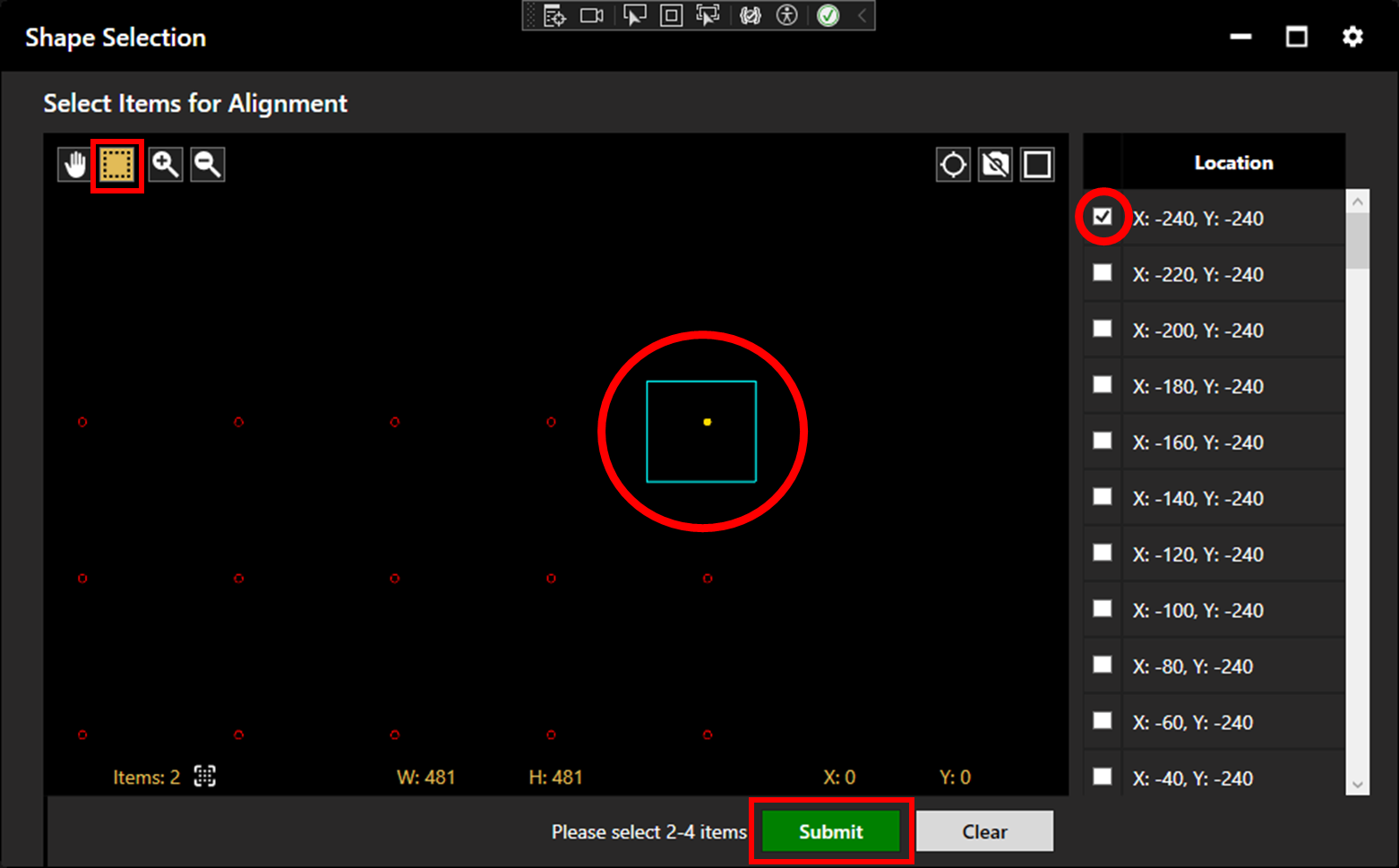
If the alignment file (scanning file if no alignment file is used) contains more than two apertures, the operator will be requested to select 2 - 4 alignment points. These can be selected within the plotter by clicking, by window selection, or from the location list.
Once apertures have been selected, click Submit.
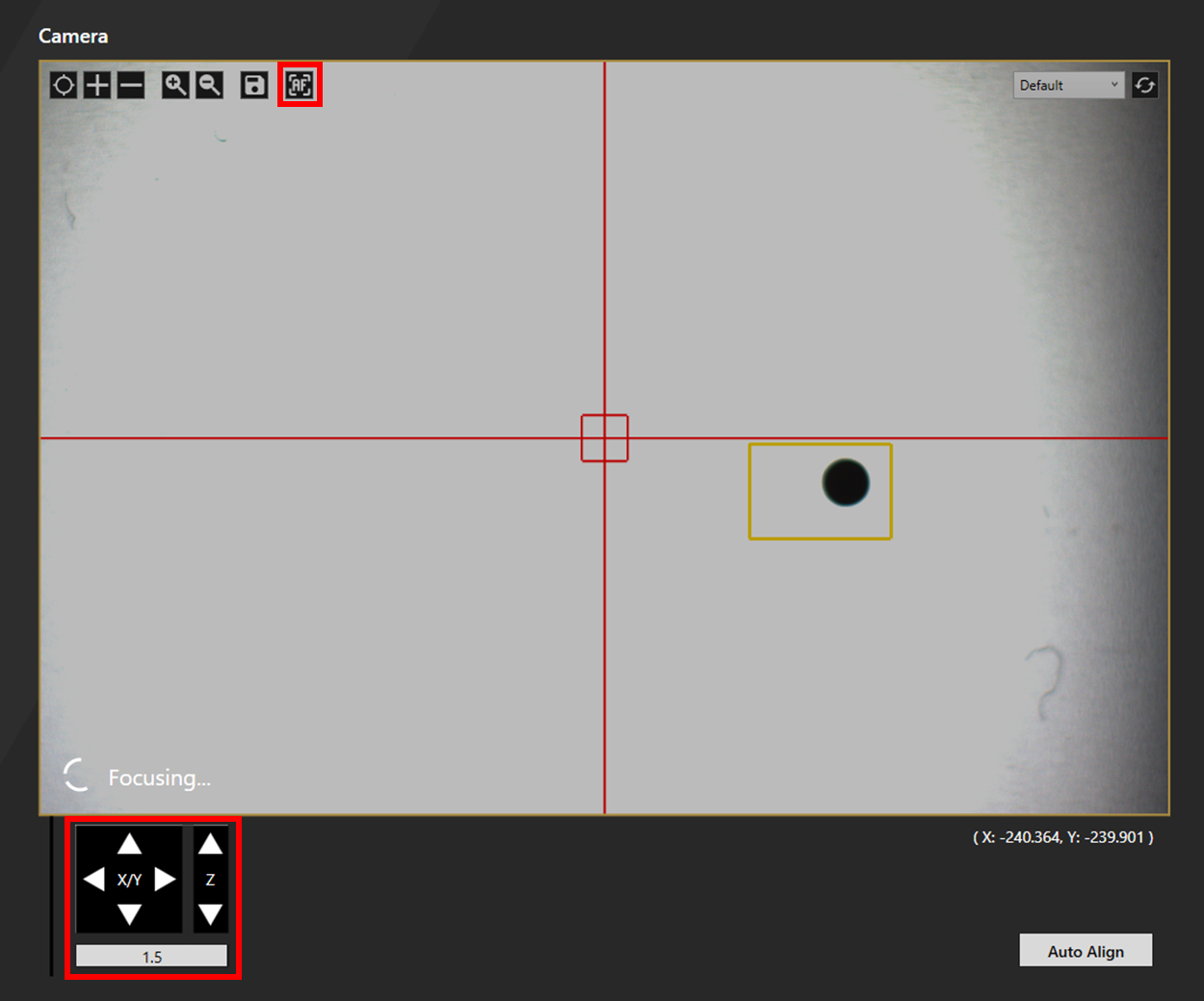
The camera will jog to the expected location of the first fiducial. Auto Focus the camera (Note: The SE12 does not have autofocus. It should already be in focus), then navigate to the fiducial aperture using the click jog and the X/Y pad.
Note: The chosen apertures should be in some way distinctive, whether by location or shape, so they can be located during alignment. Click the question mark next to the alignment point coordinates to check which apertures were chosen.
Note: When aligning with the SE12, click remove backlash after moving to maintain an accurate position.
Align to the fiducial then select Set Fiducial 1. Repeat this process with the other fiducial(s) then click Continue.
More detail on alignment can be found here.
Scanning
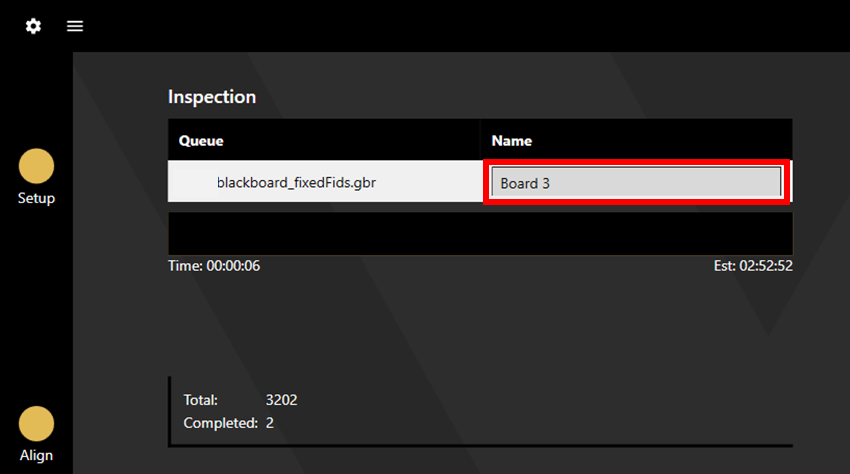
During Scanning, a default name will be given to the board, which can be changed by clicking and typing.
Compare Data
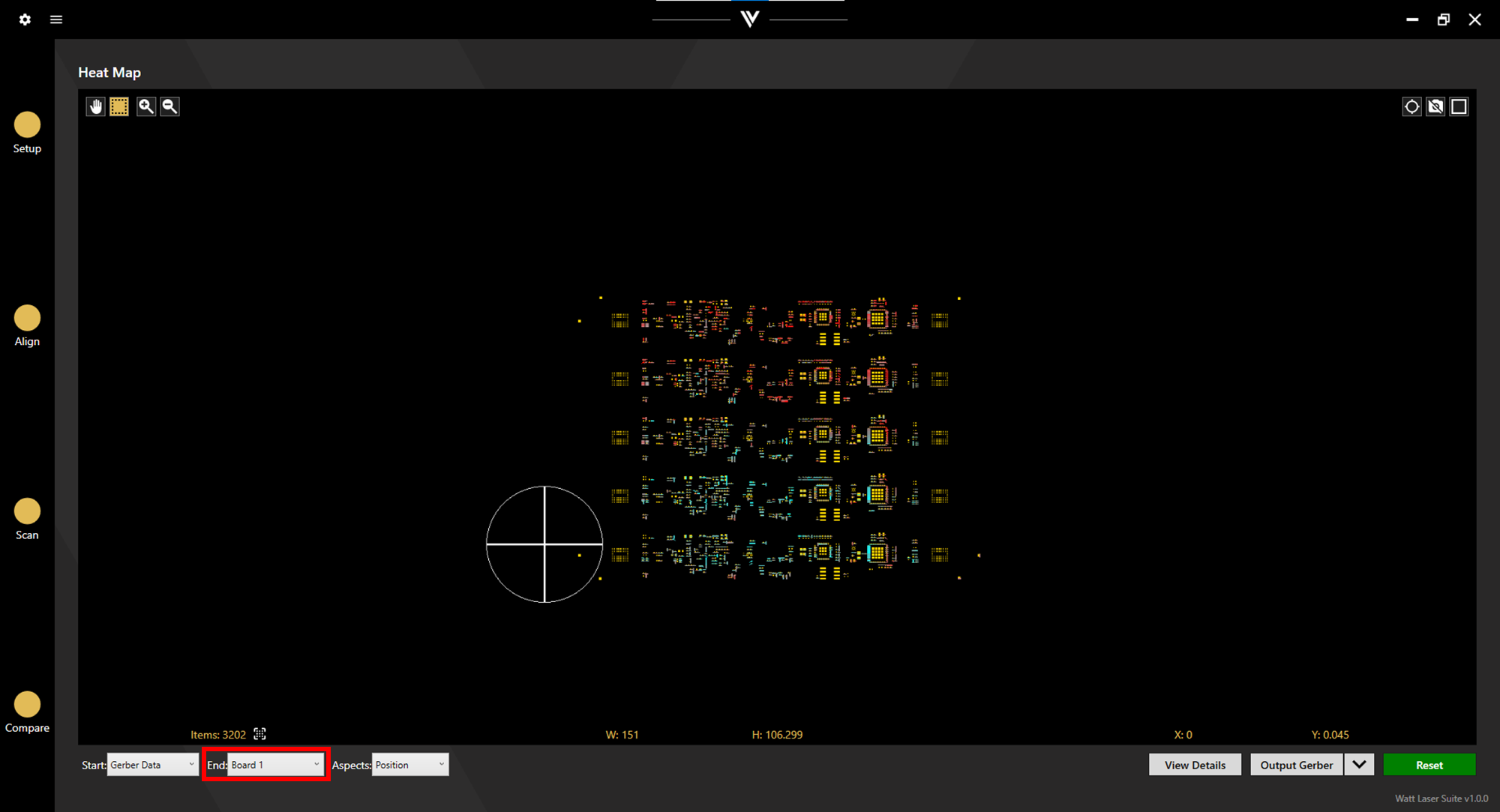
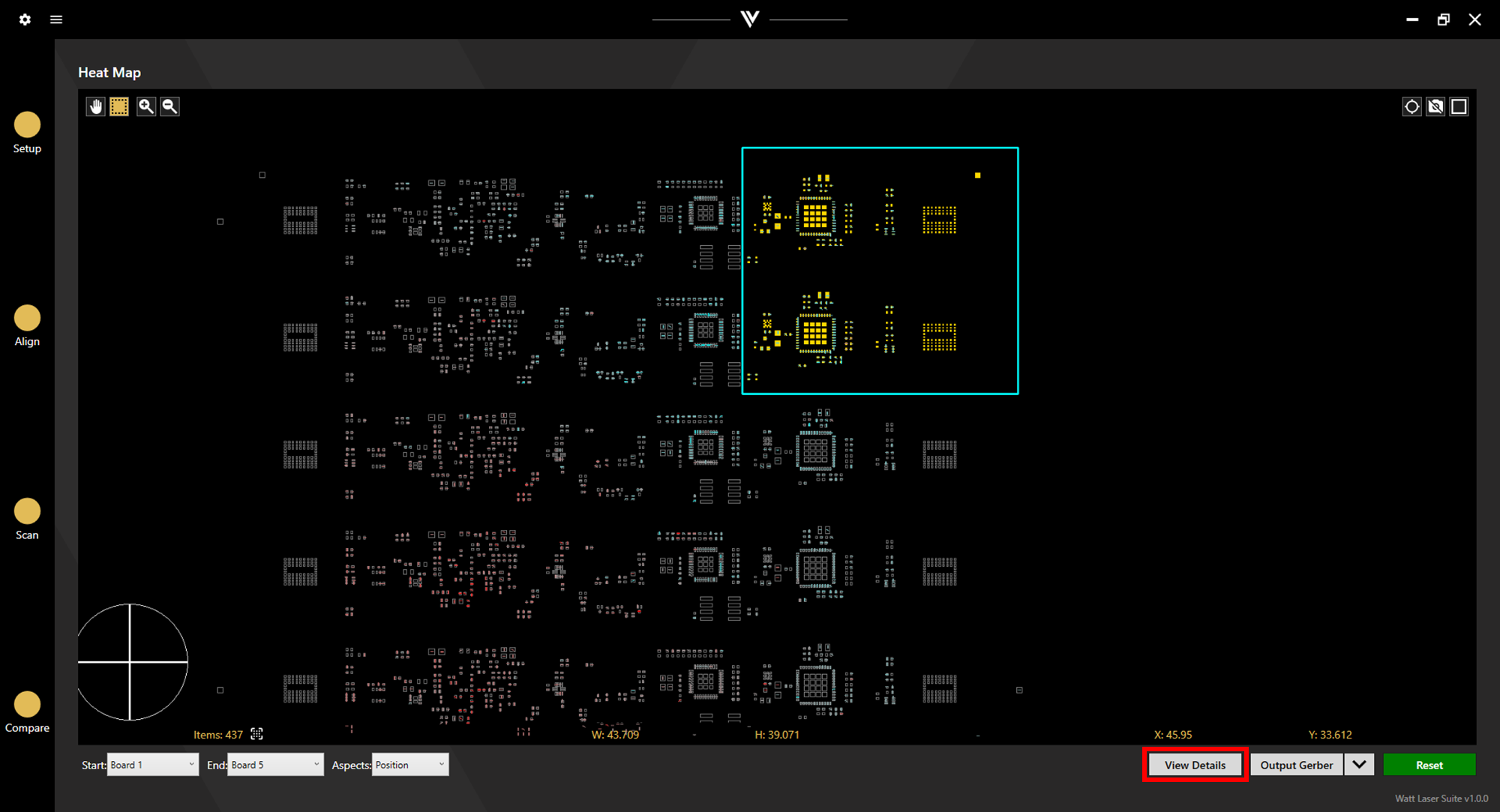
After scanning, continue to the comparison stage. From the "End:" dropdown menu, select the relevant board name. The positional offset between the Gerber Data and the Board will be shown in the Heat Map.
The direction of change is shown with arrows. Where no positional change is found, no arrow is displayed. Apertures which have moved away from the centre of the board are displayed with red arrows, while apertures which have moved closer to the centre are displayed with blue arrows.
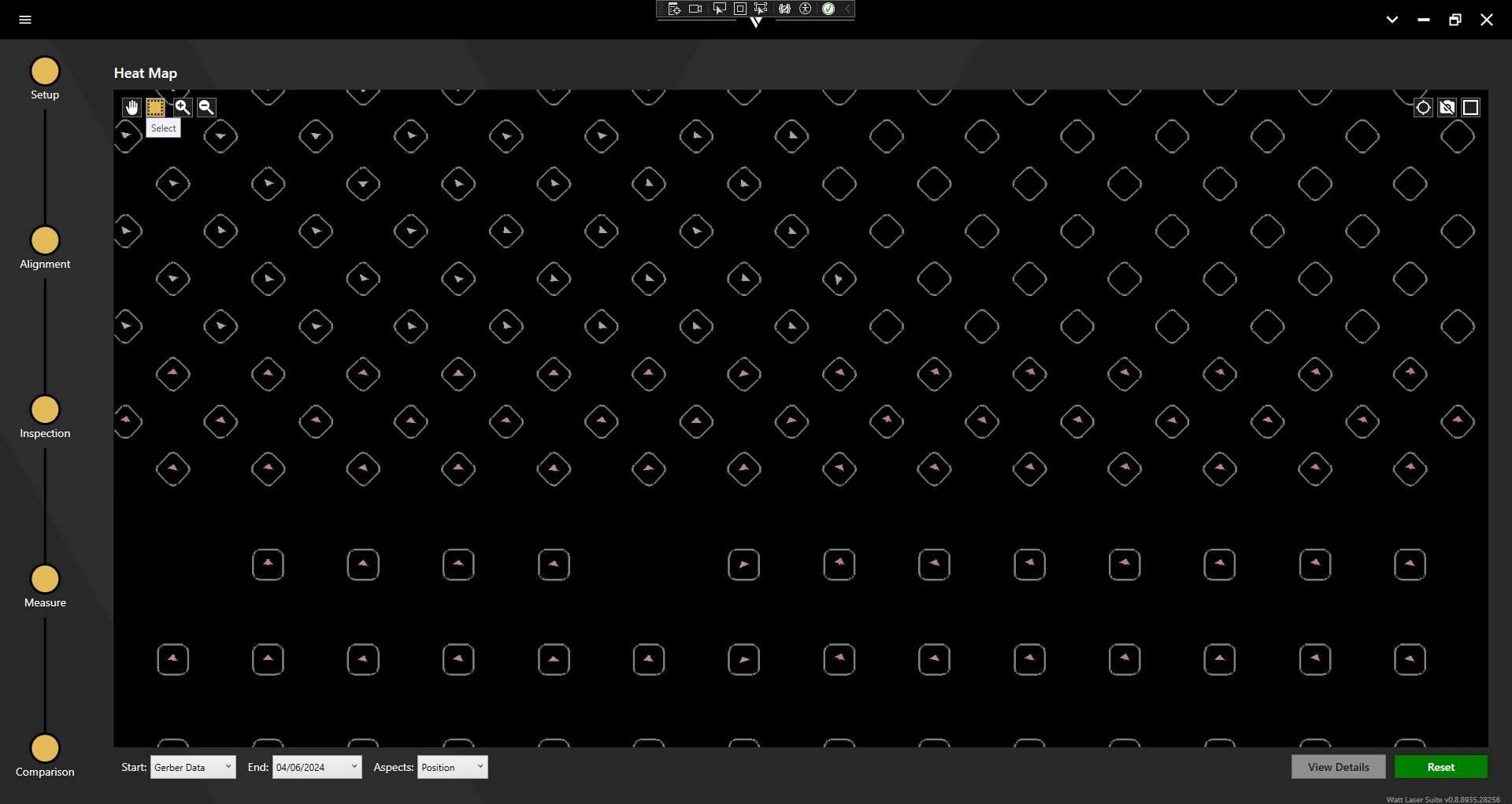
The colour saturation is a function of both the magnitude of the positional change and the set positional tolerance. The saturation increases as the positional change reaches a greater percentage of the positional tolerance. While the above and below images are from the same set of data, the lower image features greater saturation because the positional tolerance was reduced.
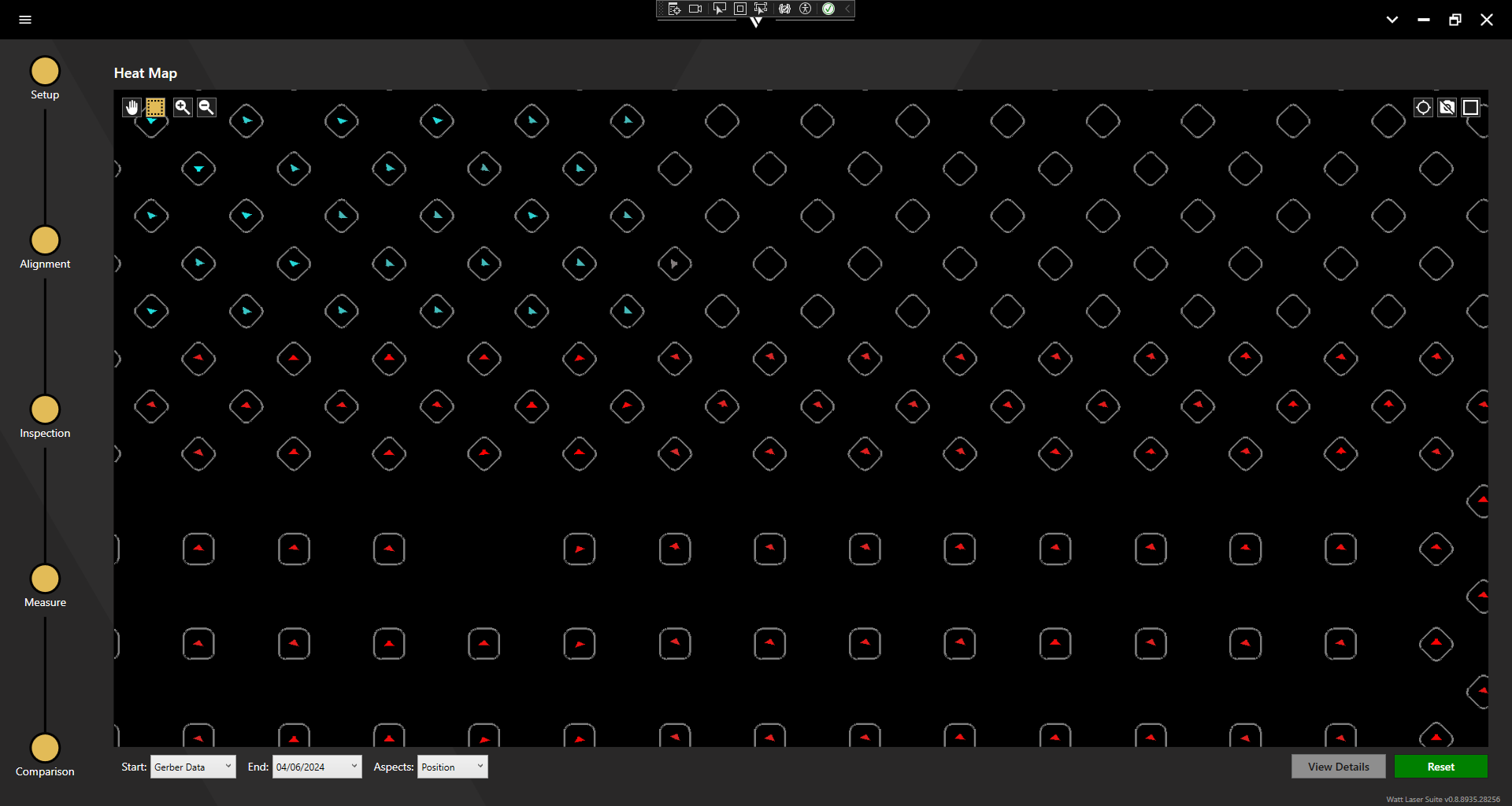
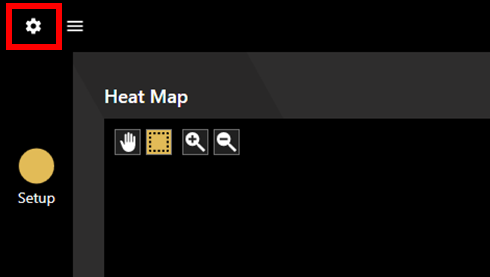
To adjust the positional tolerance, access the settings via the settings cog in the top left of the window and select the AOI tab.
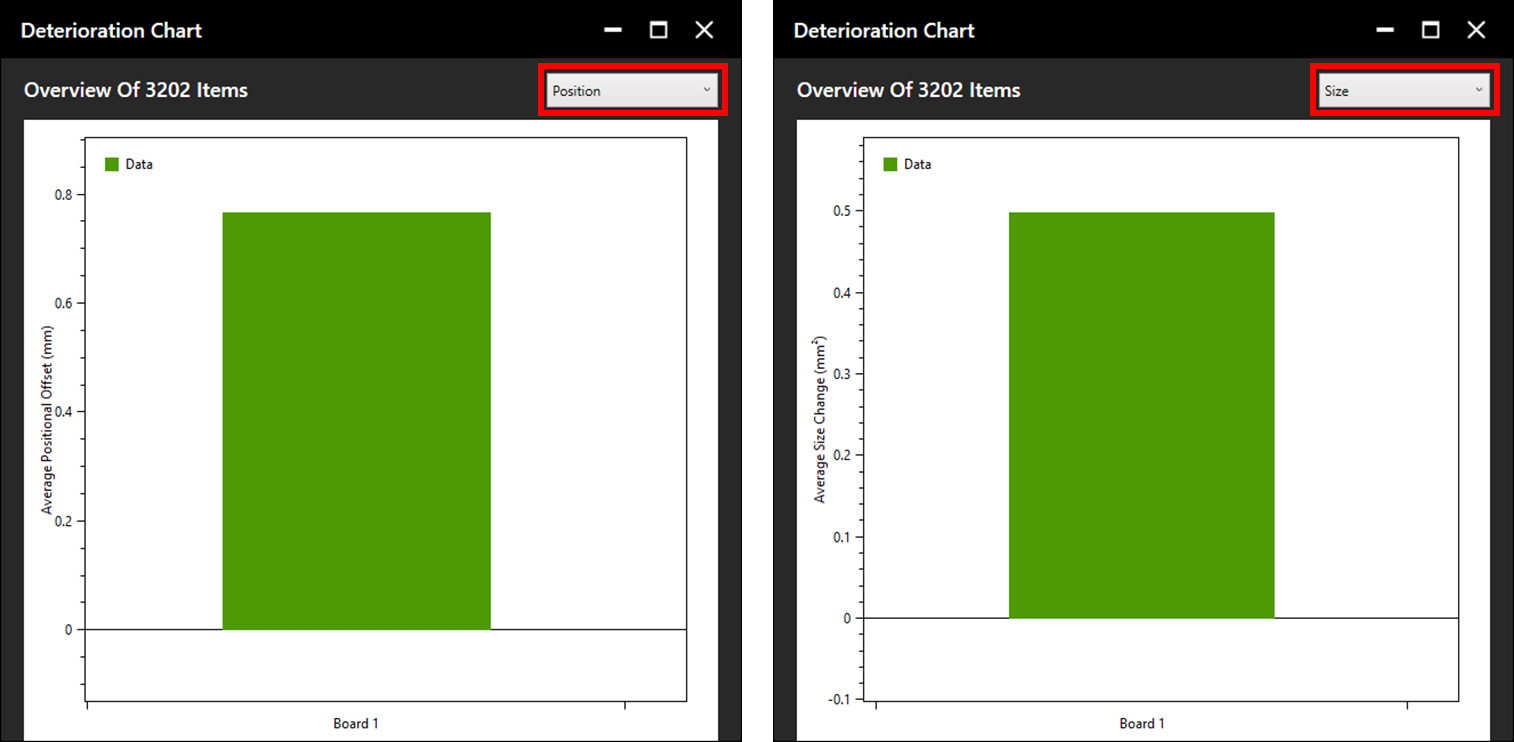
Click View Details to see the Average Positional Offset and the Average Size Change between the Gerber Data and the Board. Toggle between these options via the dropdown menu.
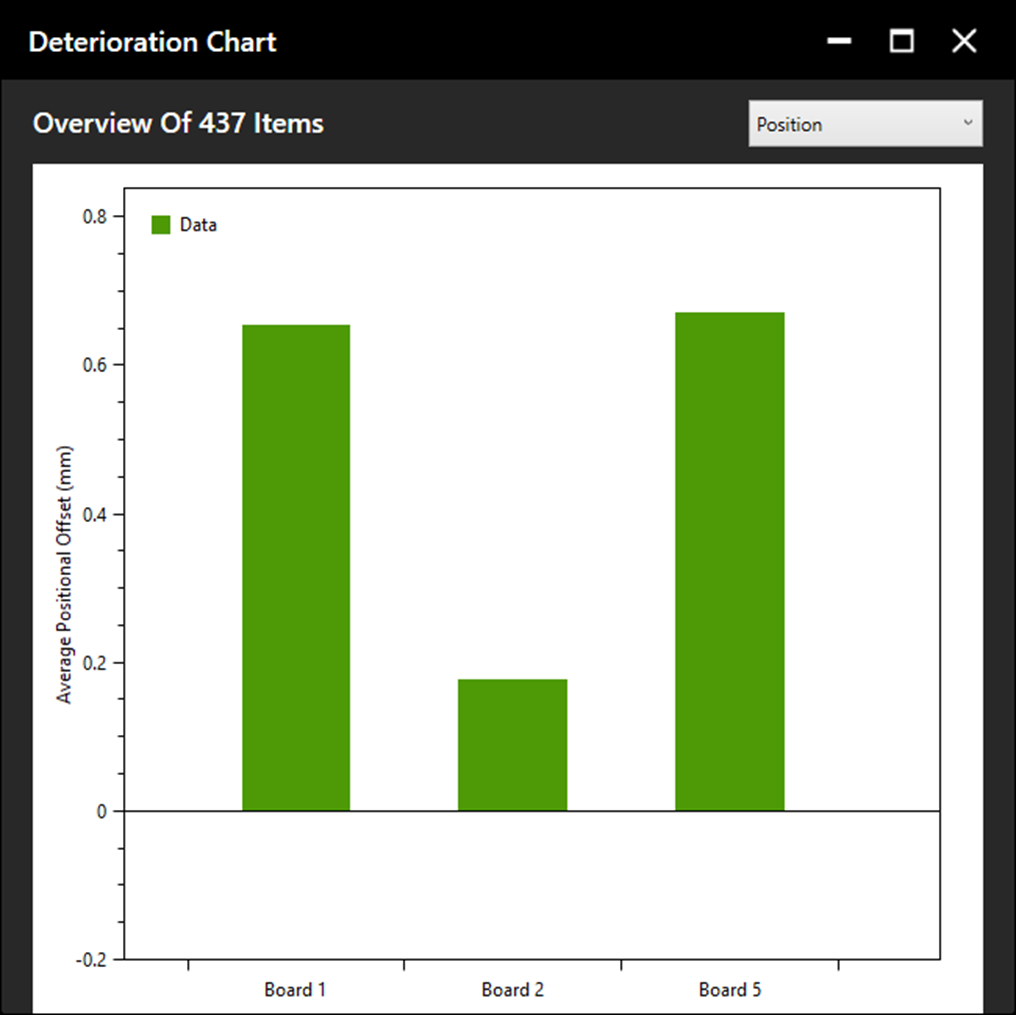
If multiple board scans have been completed based on one gerber file, the View Details option will also show all previous boards for comparison.
View the details for specific points by selecting them in the plotter before clicking View Details.
Output Gerber Data
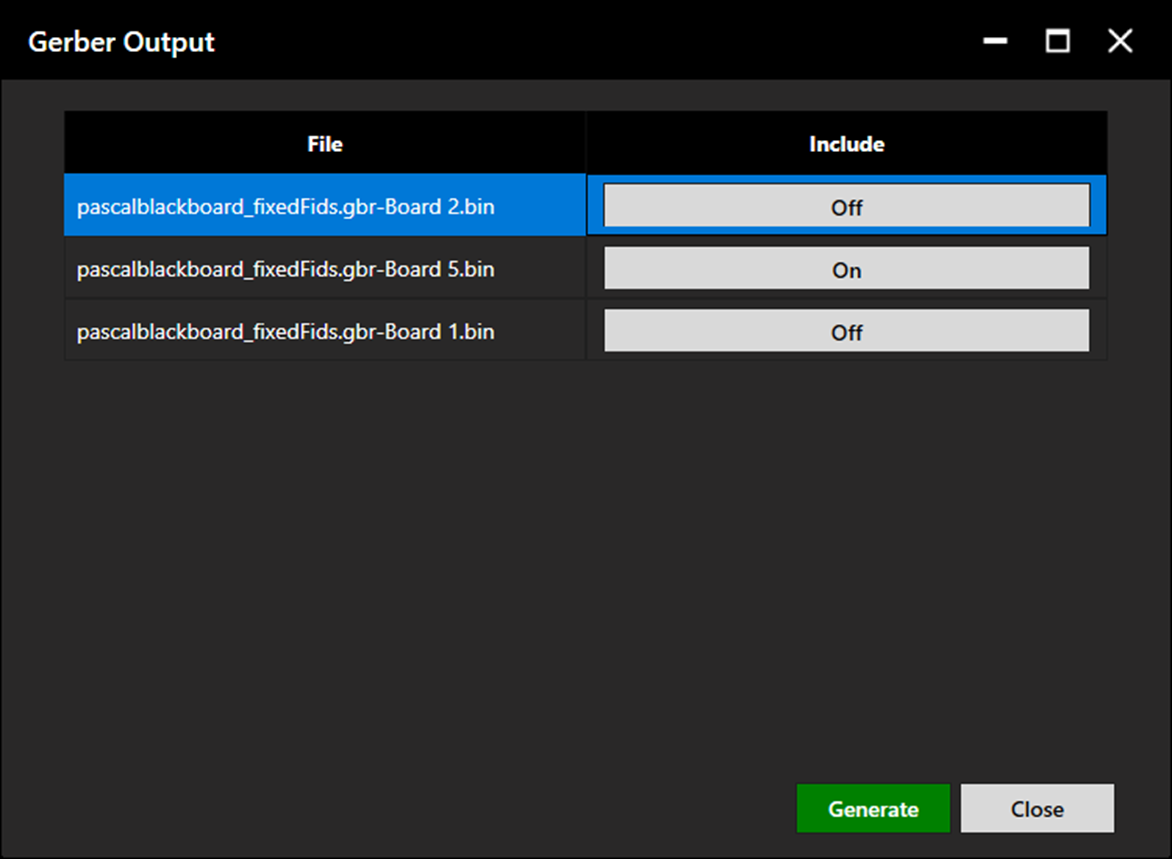
Click Output Gerber to output the adjusted gerber file. This will be exported by default to the same folder from which the scanning file was chosen. The output data can be filtered by clicking the dropdown arrow next to Output Gerber.
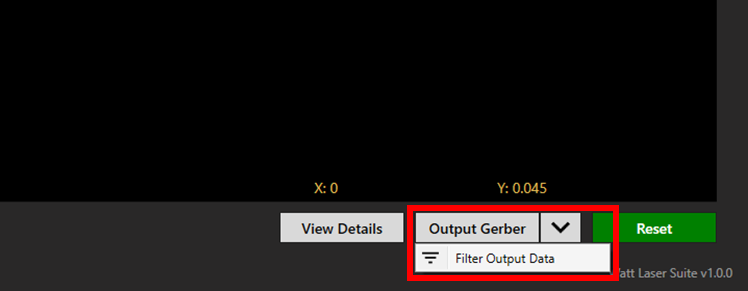
Once the desired data is set, click Generate to output the gerber file.