
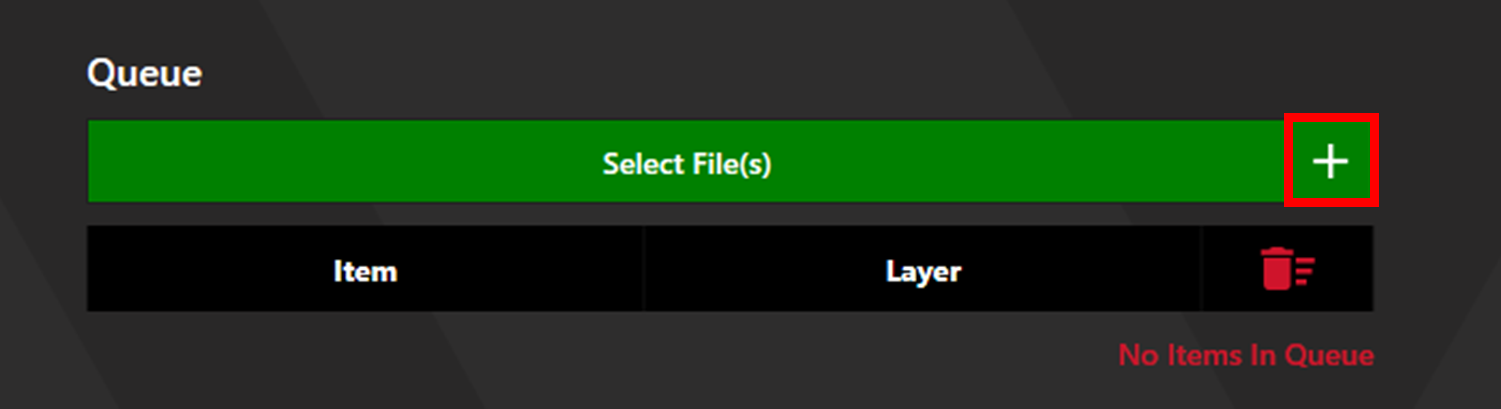
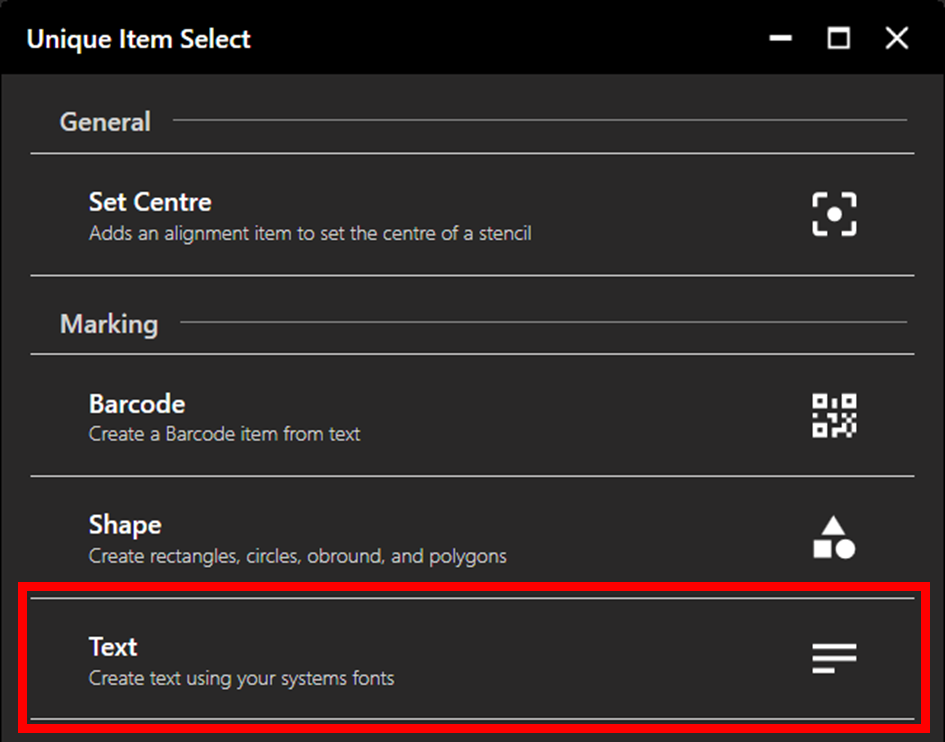
Click the plus button next to Select File(s) to access Unique Item Select, then select Text.
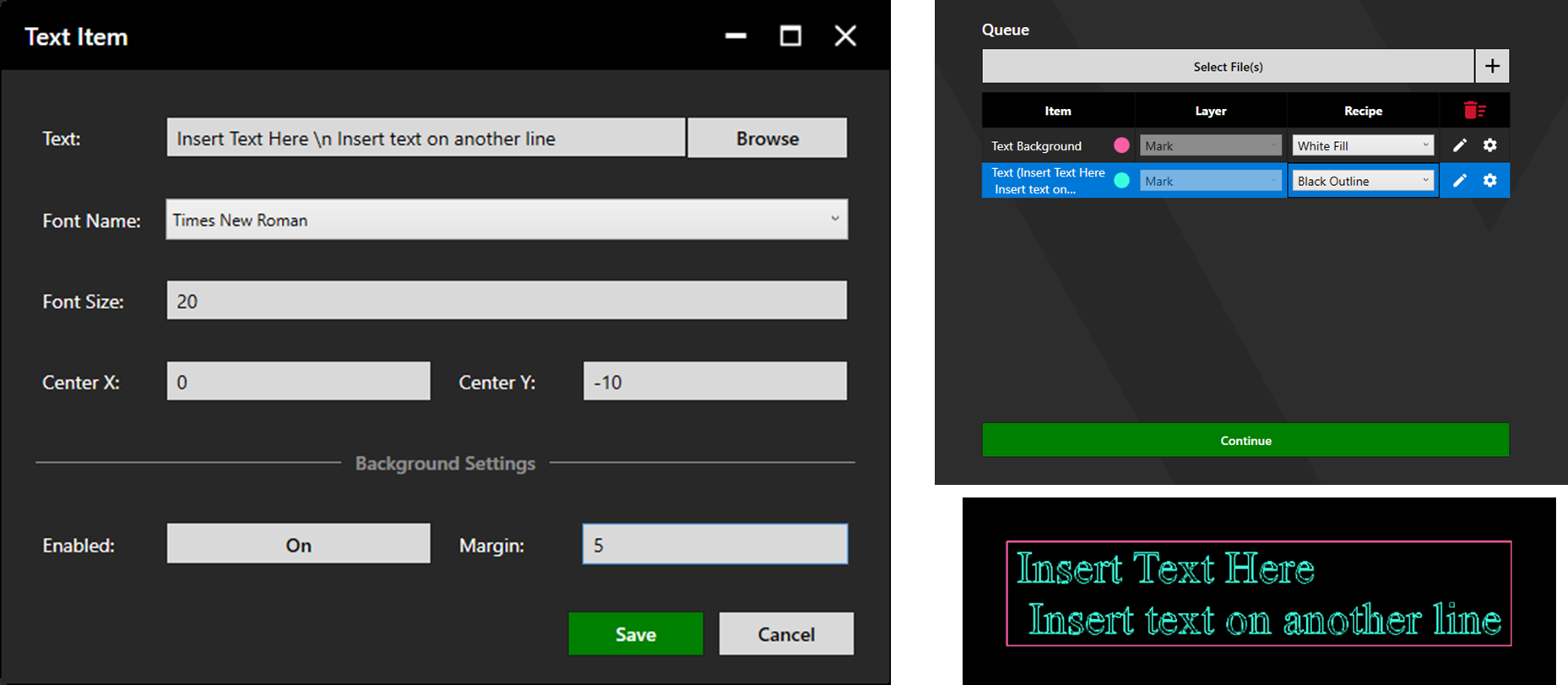
The desired text can be set by typing manually or by loading in a text file. When typing, \n can be used to take a new line.
Select the desired font and font size (mm). Set the centre point of the text using the X and Y coordinates.
Background settings can be used to produce a rectangular background. This can be used with a white fill recipe to create a light background, allowing the text to stand out. Alternatively, An outline recipe can be used to frame the text. See the marking recipes article for more detail.
Once the parameters are set as desired, click save to add to the queue.
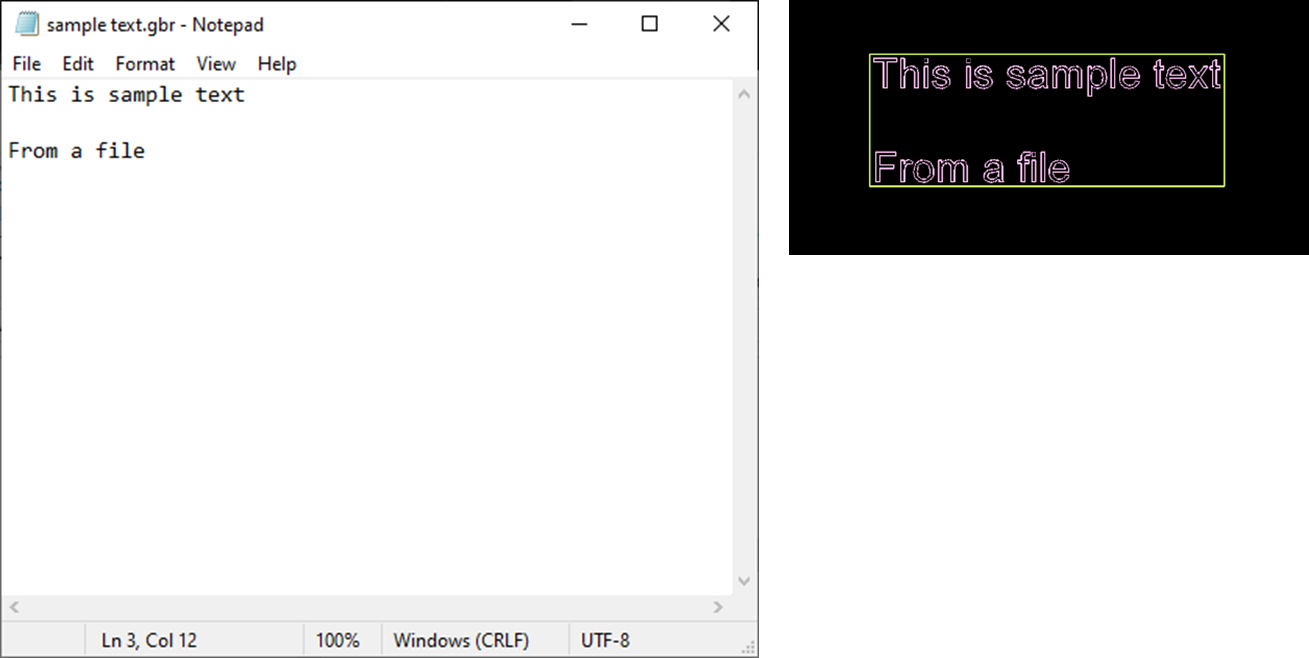
To load text from a text file, click Browse.
Any additional processes, e.g. Alignment, can be added to the queue as normal.
Once the queue is completed, click continue to proceed to output. See the Marking Process article for more information regarding the output process.