
TABLE OF CONTENTS
Setup
Load the Stencil.
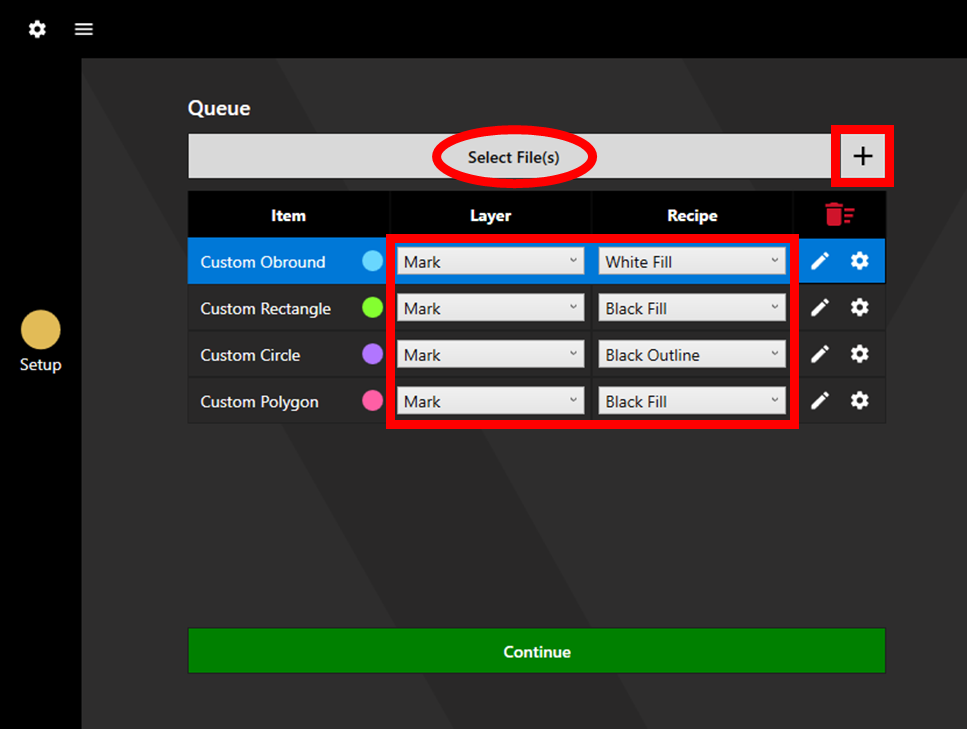
Click Select File(s) and load the marking file(s). Set the Layer to Marking and choose the appropriate recipe for the desired Marking Settings.
Additionally, Barcodes/QR Codes and Custom Shapes can be added via the plus icon.
If using an alignment file, also load this in. Set the Layer to Alignment and choose the appropriate recipe for the desired Camera Lighting Settings and Detection Settings.
When loading in files, the layer will automatically be set to Mark if the file has ".5" as its extension. ".12" is used similarly for Alignment.
The created queue will be displayed in the plotter.
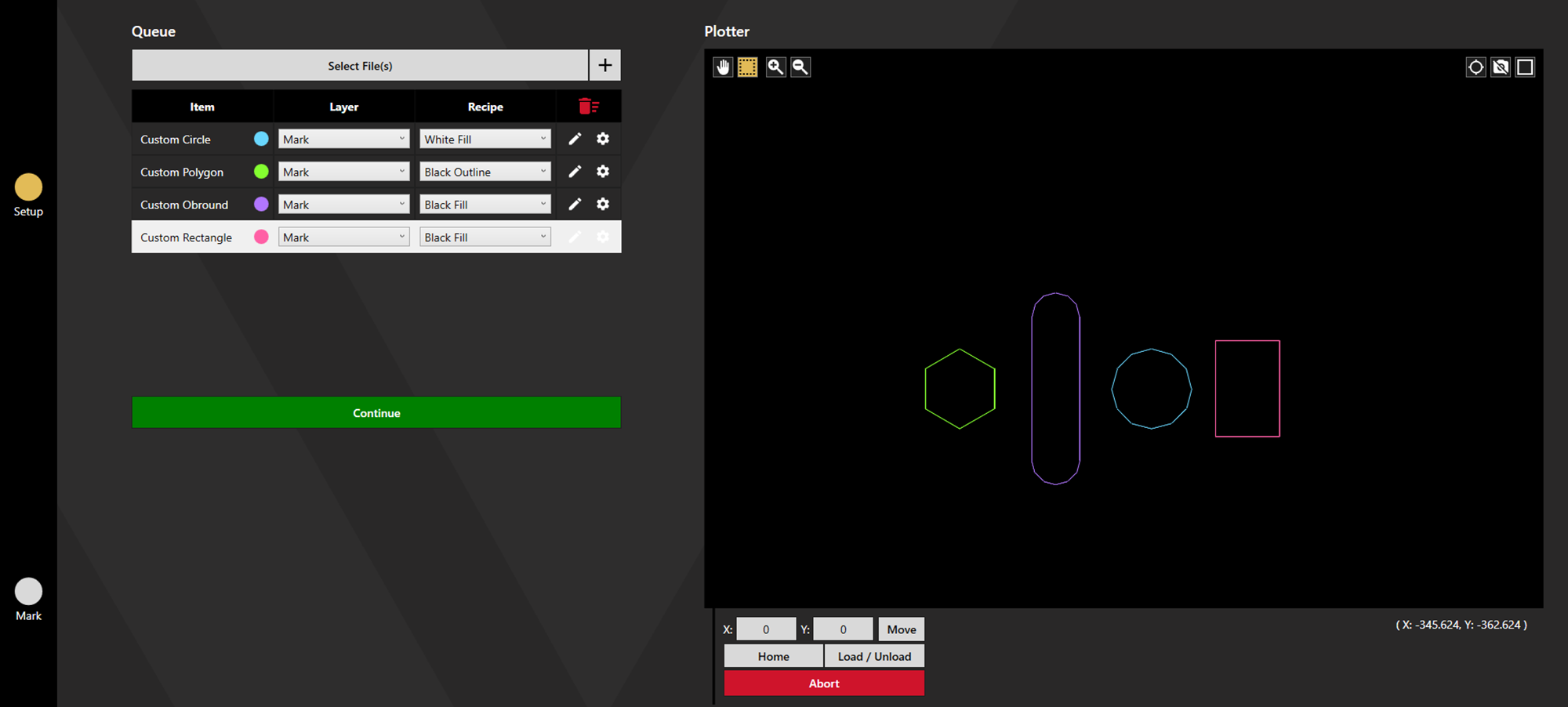
Click Continue to proceed.
Alignment
If an alignment file is not used, skip to the Output stage.
The camera will jog to the expected location of the first fiducial. Auto Focus the camera (Note: The SE12 does not have autofocus - it should already be in focus), then align to the fiducial and click Set Fiducial 1.
The camera will then jog to the expected location of the next fiducial for alignment.
The SE12 requires that backlash is removed during alignment. More detail on this and the alignment process is available here.
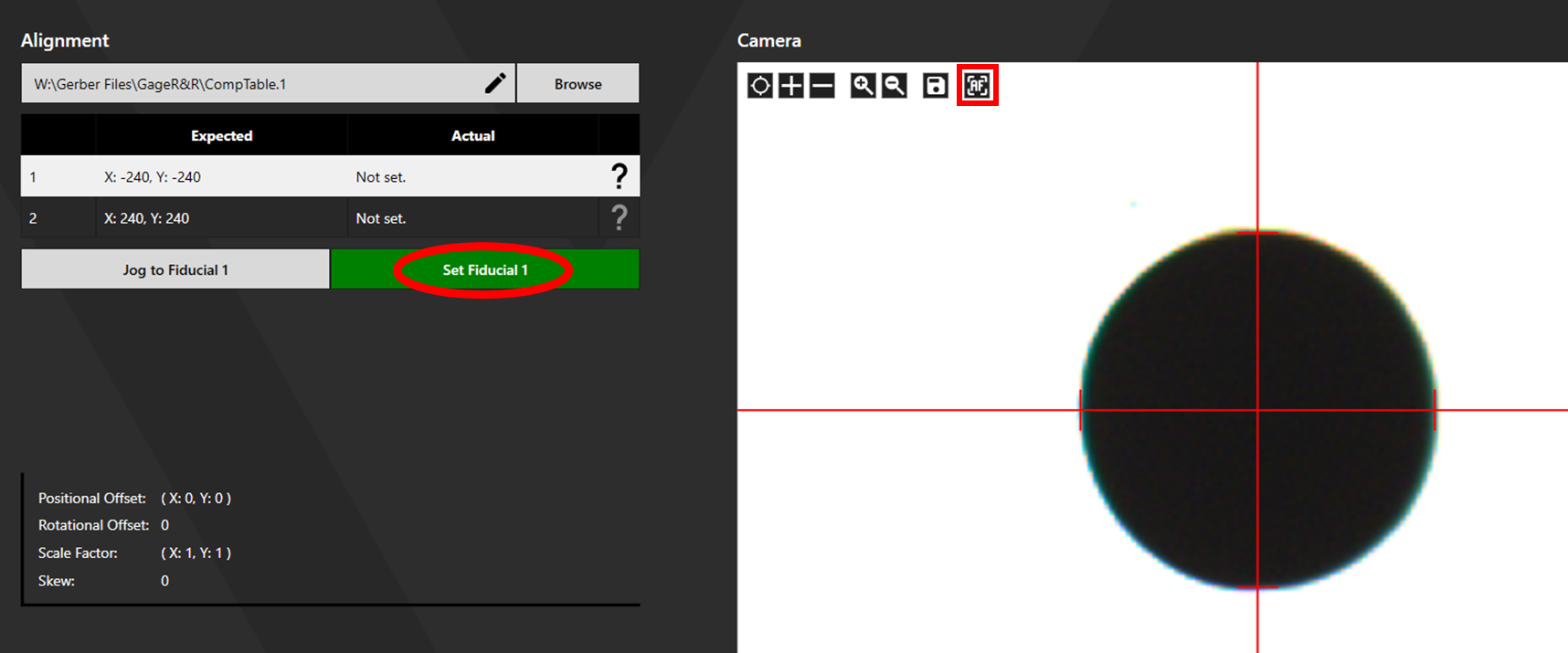
Once all fiducials are set, click Continue to proceed to the Output stage.
Output
The marking layers will be displayed in the Queue and in the Plotter.
Click Preview to view the planned marking path using the guide laser. If this is acceptable, lower the cone and click Output to begin marking.
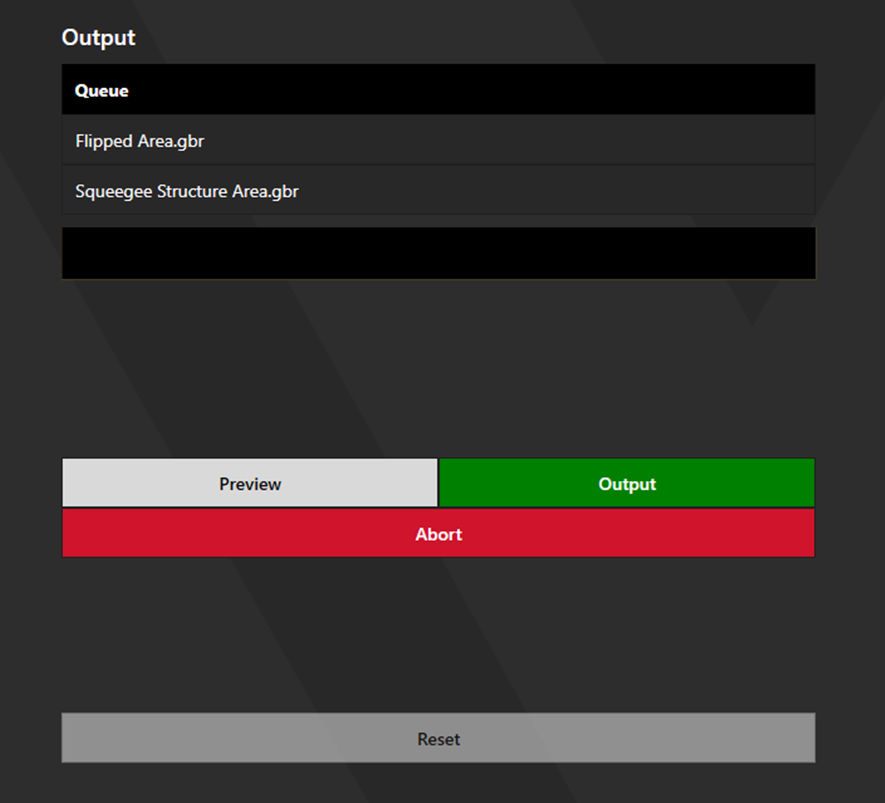
Click Abort to end the preview or output early. Click Reset following output to return to a blank Setup screen.