TABLE OF CONTENTS
Overview
The purpose of this article is to provide a full explanation of all settings. Where suitable, other articles are linked to provide more specific detail. Some settings are machine specific and are therefore not available on other machines.
Access the Settings via the cog symbol in the upper left corner of the Watt Laser Suite app. The settings are split into tabs.
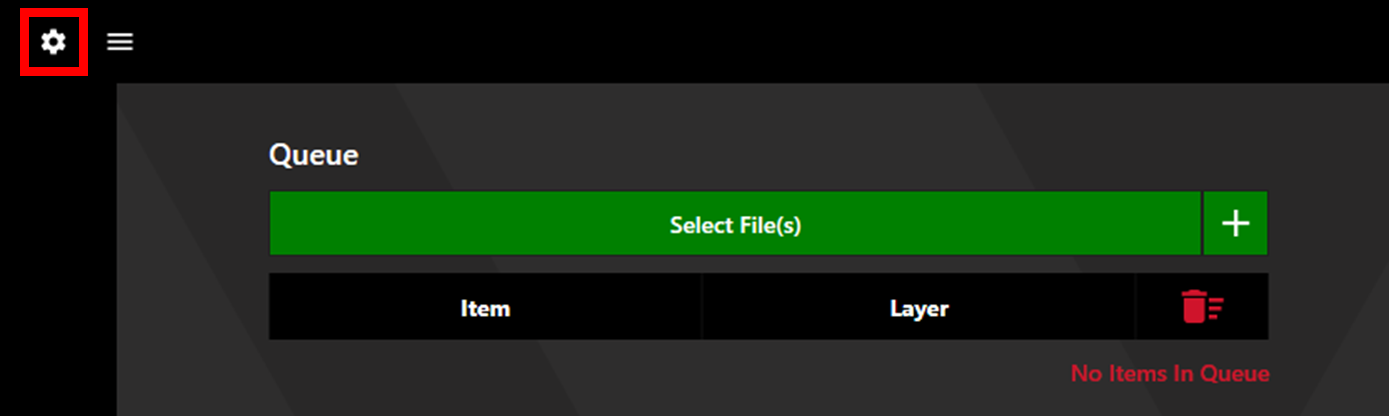
The settings are split into tabs seen along the top of the settings window. The vertical arrows in the window header can be used to import or export a Watt Laser settings file. It can be a good idea to back this up to avoid losing recipes and settings.

1. General
1.1. Data Settings
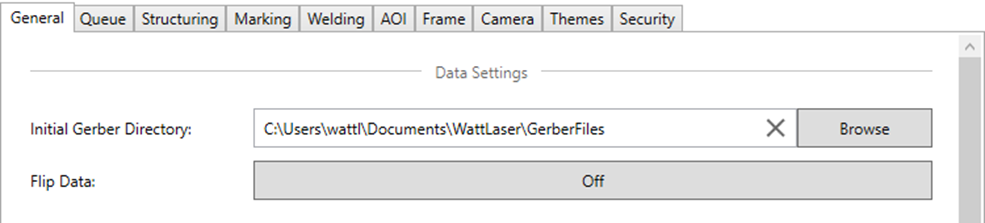
Initial Gerber Directory: This sets the default location opened when selecting files. If left blank, the most recent file location will be used.
Flip Data: When toggled on, this setting flips data automatically upon loading into the software.
1.2. Machine Settings
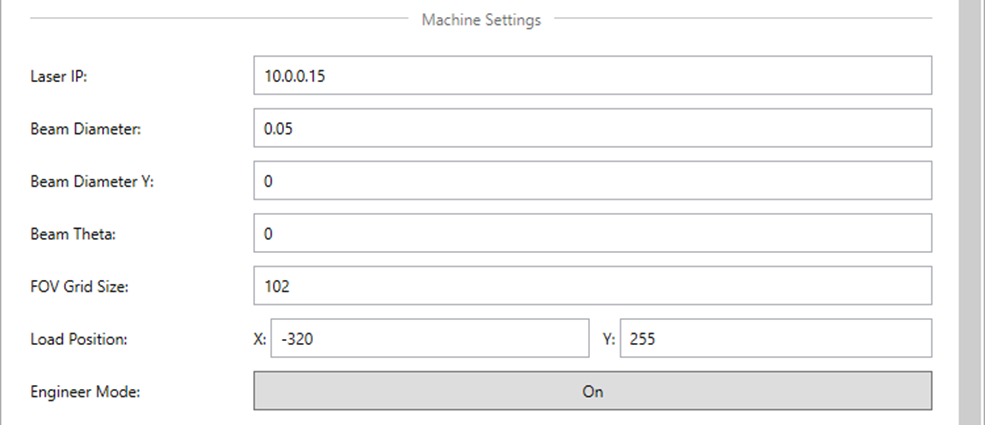
Laser IP: This setting is specific to the MLAb system. This is the IP address of the laser. Once set, this does not need to be adjusted.
Beam Diameter: This setting is specific to the MLAb system. This sets the diameter of the beam to inform the required offset.
Beam Diameter Y: This setting is specific to the MLAb system. It should be used if the beam diameter is different in X and Y. If set to 0, the Y value is assumed to be equal to the Beam Diameter setting.
Beam Theta: This setting describes the rotation of the beam, and is used if the X and Y axes set in the Beam Diameter settings are rotated from true X and Y.
FOV Grid Size: This value describes the maximum area that the scanner can hit with the laser.
Load Position: This setting describes the position that the machine will move to when the Load/Unload button is pressed.
Engineer Mode: When toggled on, engineer specific information can be seen in various locations throughout the app. Generally speaking, this should be toggled off during normal operation.
1.3. License and Software Information
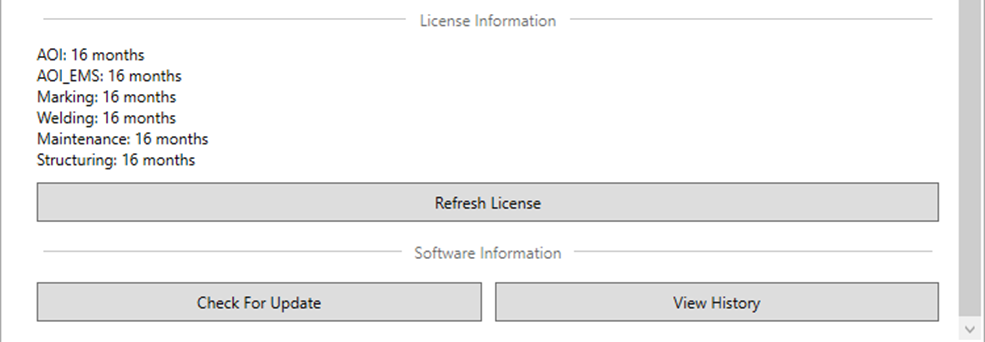
The License Information section displays the processes available to the license holder and the time until the license expires.
Refresh License: Click this button to update the license information.
Check For Update: Click this button to check if a software update is available. For more information, see the Checking For Updates article.
View History: Click this to display the full release notes for all versions.
2. Queue
2.1. Layer Association Settings
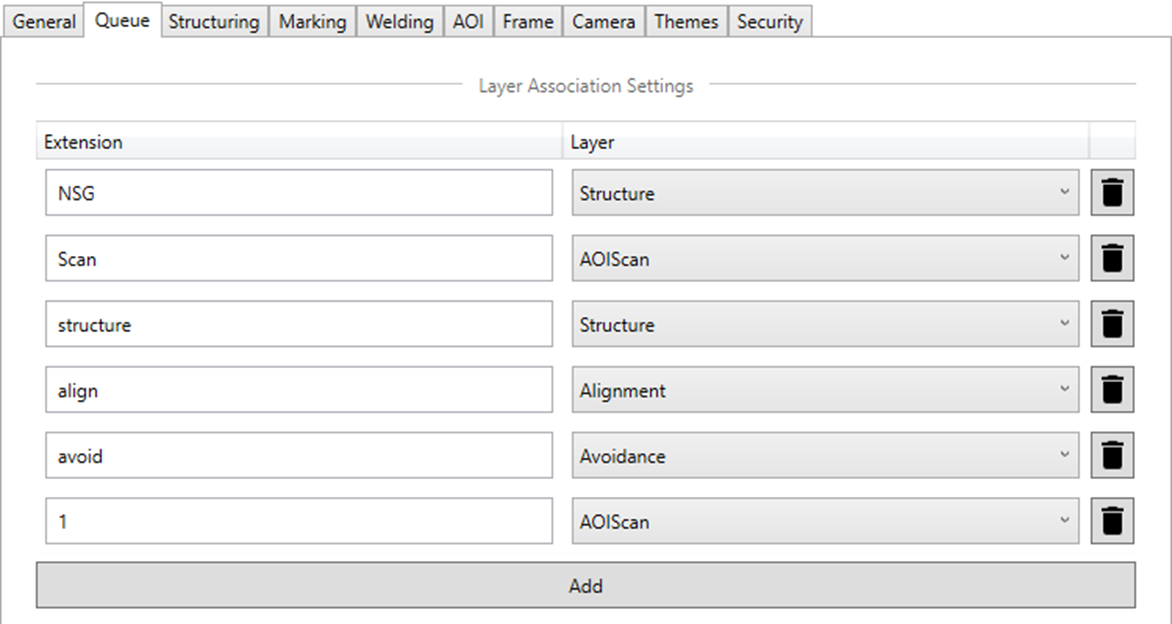
Layer association allows automatic assignment of layers based on file extensions when loading files. In the example shown below, a file such as "ScanData2025.1" would automatically be assigned the AOIScan layer. If a default camera recipe is also chosen this would automatically populate as well, allowing fast progression to the next step.
Layer associations can be created, edited, and deleted at will in this tab.
2.2. QR Code Settings
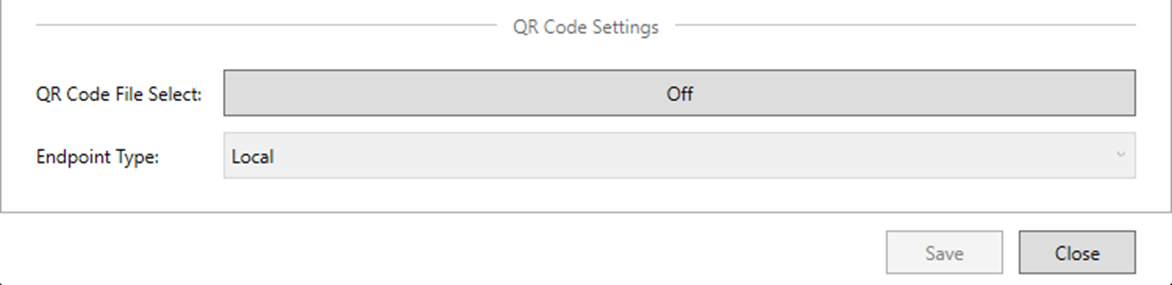
QR codes can be used to load job files. For a full description of this settings please see the QR Code File Selection article.
3. Structuring, Marking, and Welding
These tabs allow the structuring, marking, and welding recipes and settings to be adjusted. Please see the specific articles linked below:
4. AOI
This tab allows adjustment of the Automated Optical Inspection (AOI) settings.
4.1. General Settings
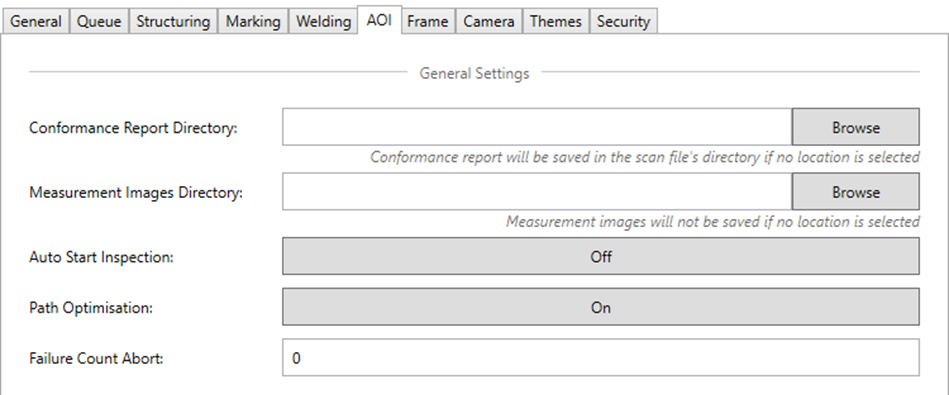
Conformance Report Directory: This sets the file location where conformance reports and csv's will be saved. If left blank, conformance reports and csv's will be saved to the scan file location.
Measurement Images Directory: This sets the file location where measurement images will be saved.
Auto Start Inspection: This setting determines whether inspection will automatically begin when alignment is complete. If set to Off, the process will begin when the operator clicks Process.
Path Optimisation: When toggled to On, path optimisation will be used. This should improve processing times but may also increase shake.
Failure Count Abort: This sets the number of fails required to abort the scan. If the value is set to 0, the scan will never auto-abort.
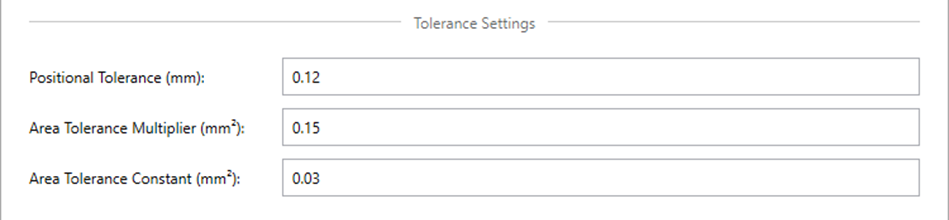
4.2. Tolerance Settings
Positional Tolerance: The positional tolerance sets the maximum offset of the shape centre before producing a positional failure.
Area Tolerance Multiplier: This value adds to the Area Tolerance Constant such that larger apertures have a higher area tolerance. The total area tolerance is determined by the equation: Area * Multiplier + Constant.
Area Tolerance Constant: See the equation above.
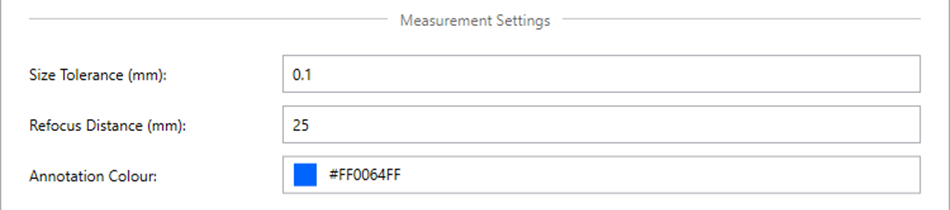
4.3. Measurement Settings
Size Tolerance: This setting determines the maximum allowable size error before producing a size failure.
Refocus Distance: When measuring multiple apertures, refocussing can be required after moving between distant apertures to maintain accurate measurement. This setting determines the maximum offset between apertures allowed before automatic refocussing will occur.
Annotation Colour: This sets the colour used when annotating measurements.
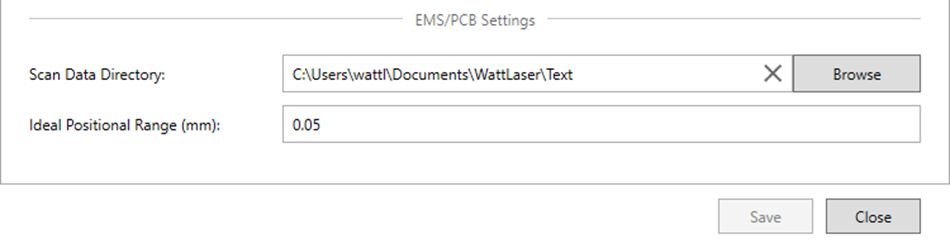
4.4. EMS/PCB Settings
Scan Data Directory: This sets the location for storing past EMS/PCB scan data.
Ideal Positional Range: This sets the "Green Zone" for positional offset during PCB/EMS data analysis. For more detail see the AOI EMS Process article and/or the PCB Scanning Process article .
5. Frame
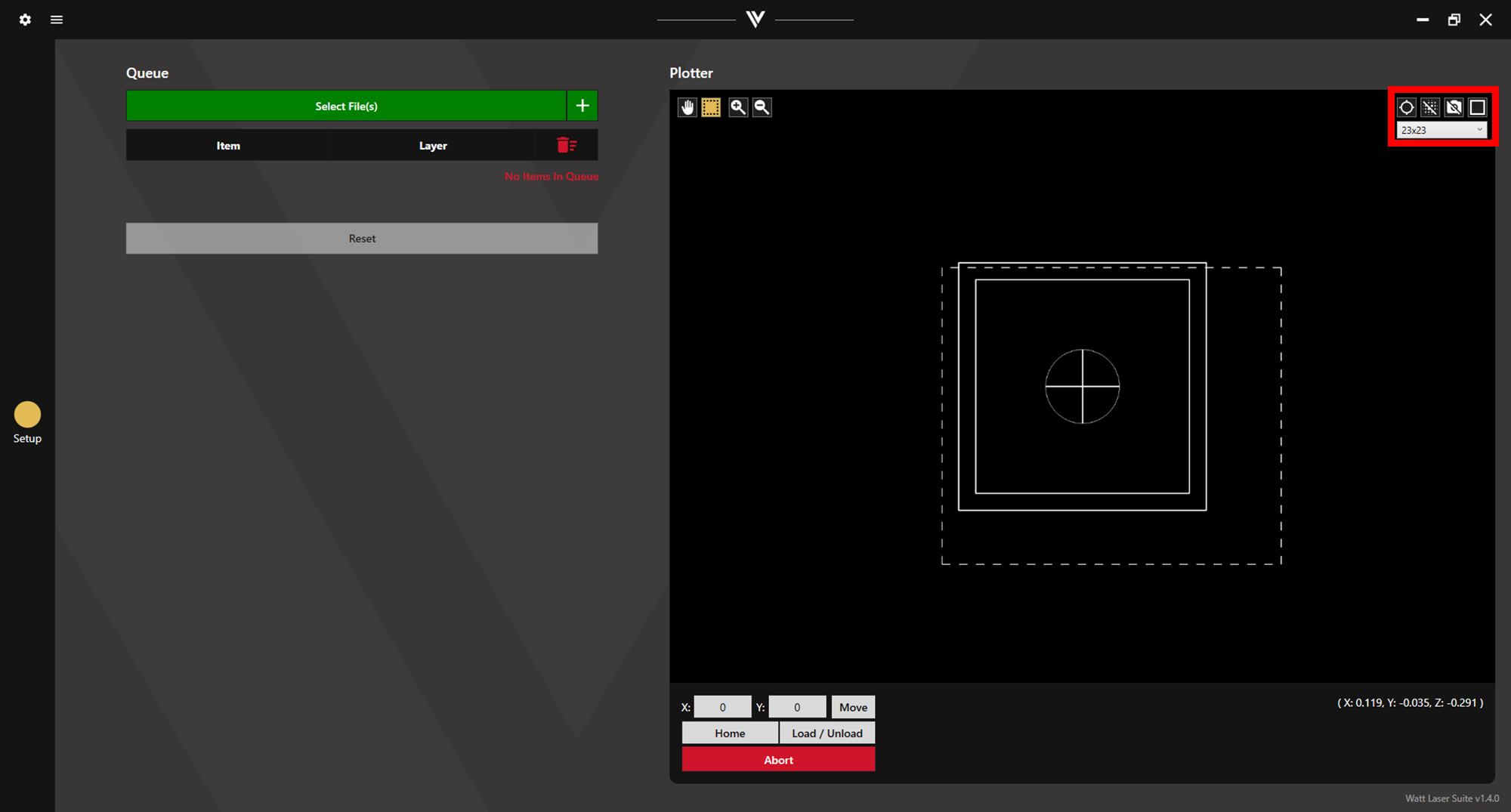
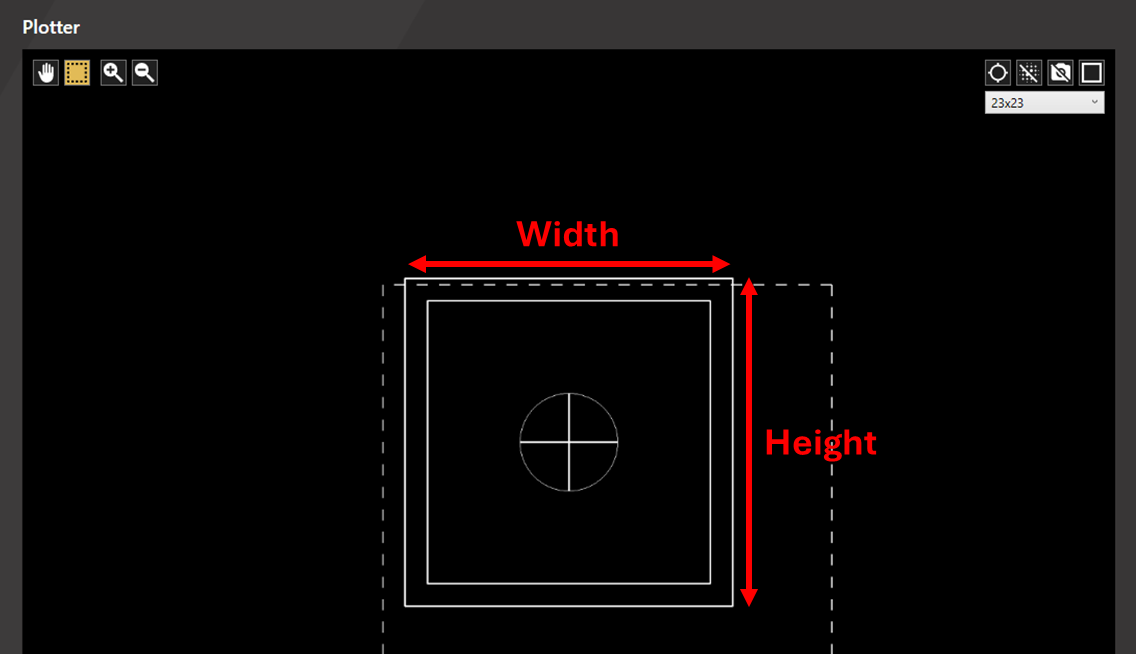
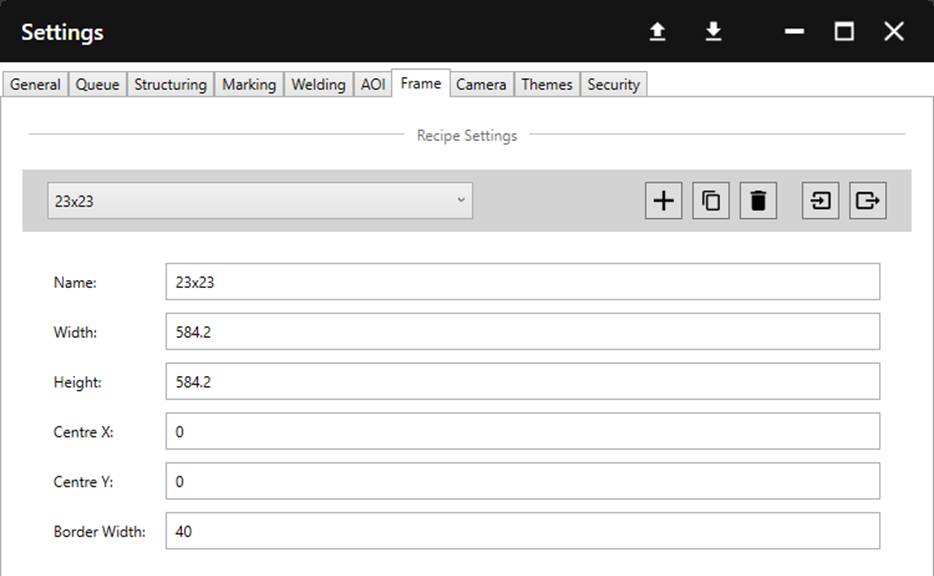
The frame settings tab allows the operator to create, adjust, and delete different frame options. These can be selected in the plotter via a dropdown in the upper right corner and serve as a visual indicator to quickly see if the data is outside of the frame location. Frames can also be associated with QR code locations (See section 2.2. QR Code Settings).
Name: Sets the name used to refer to the frame recipe.
Width: Sets the outer width (X axis dimension) of the frame.
Height: Sets the outer height (Y axis dimension) of the frame.
Centre X: Sets the X coordinate of the frame centre.
Centre Y: Sets the Y coordinate of the frame centre.
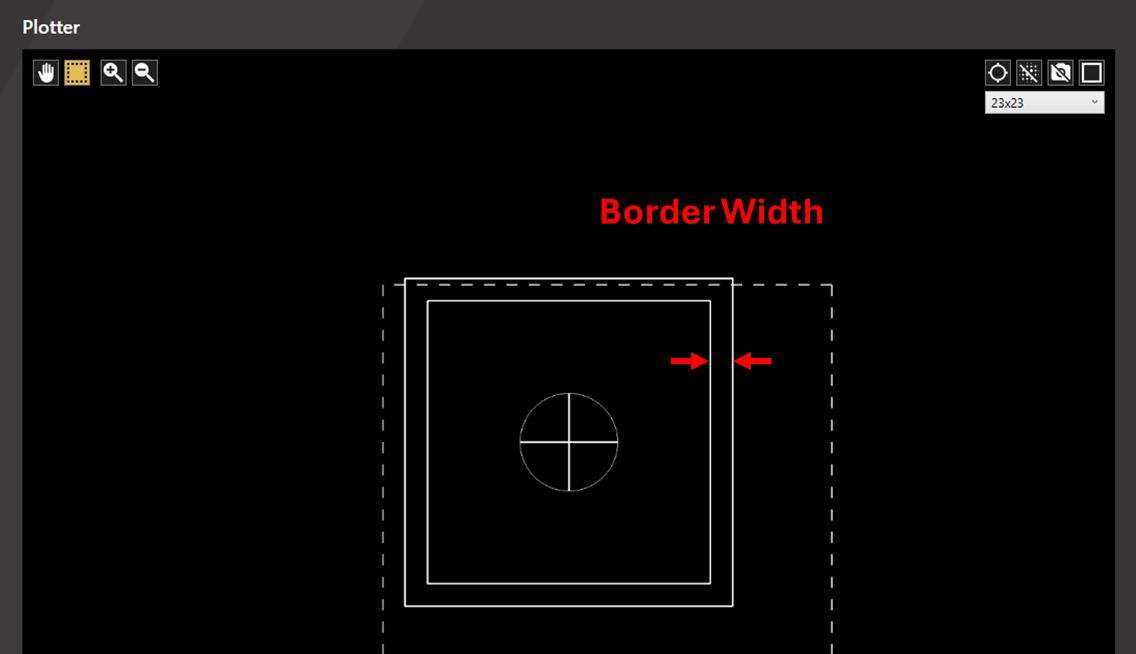
Border Width: Sets the distance between the outside of the frame and the start of the foil.
6. Camera
6.1. Recipe Settings
Camera recipe settings are used to control the camera settings used during alignment, inspection, and measurement. For more detail on adjusting camera recipes, please see the Calibrating Camera Lighting Settings article.

6.2. Camera Operation Settings
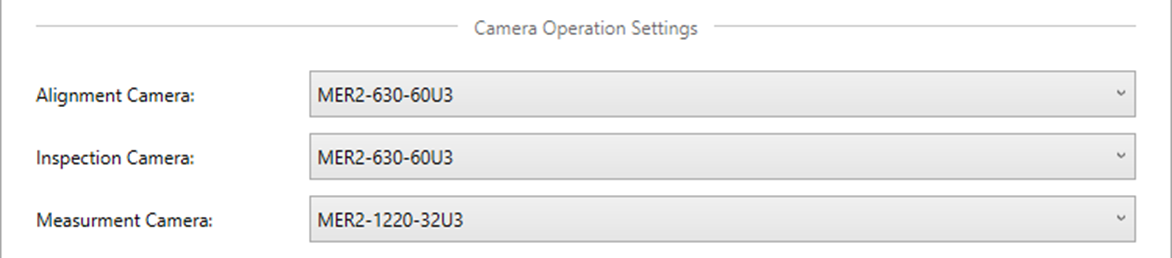
The camera operation settings allow specific cameras to be assigned as the default for each camera process. The assignment shown below is the recommended setting as it allows for the best combination of accuracy and efficiency. However, in some applications, another assignment may be worthwhile.
MER2-630-60U3
- Wider field of view resulting in faster alignment and scanning.
- Greater depth of field meaning less frequent refocussing is required (usually this is only required for this camera when changing stencil) resulting in faster processing.
MER2-1220-32U3
- Better resolution resulting in more accurate measurements.
6.3. Focus Settings
Focus On Camera Change: When this setting is toggled on, the camera will auto-focus when switching between the two cameras.
Focus During Alignment: When this setting is toggled on, the camera will auto-focus after jogging to the first fiducial.

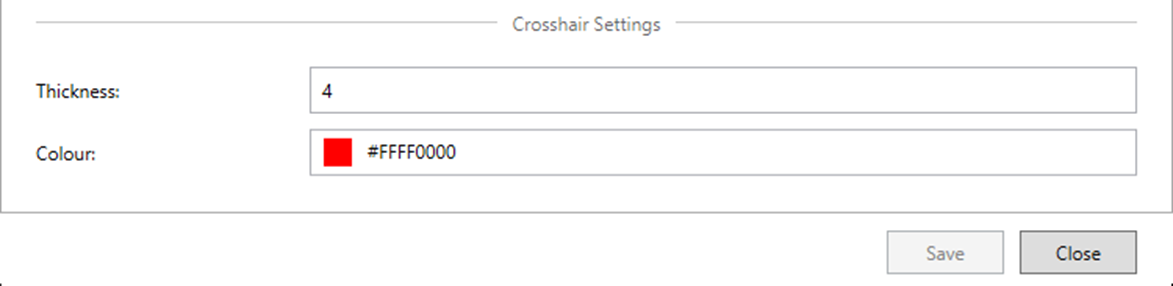
6.4. Crosshair Settings
Thickness: Sets the width of the crosshair in pixels.
Colour: Sets the colour of the crosshair.
7. Themes
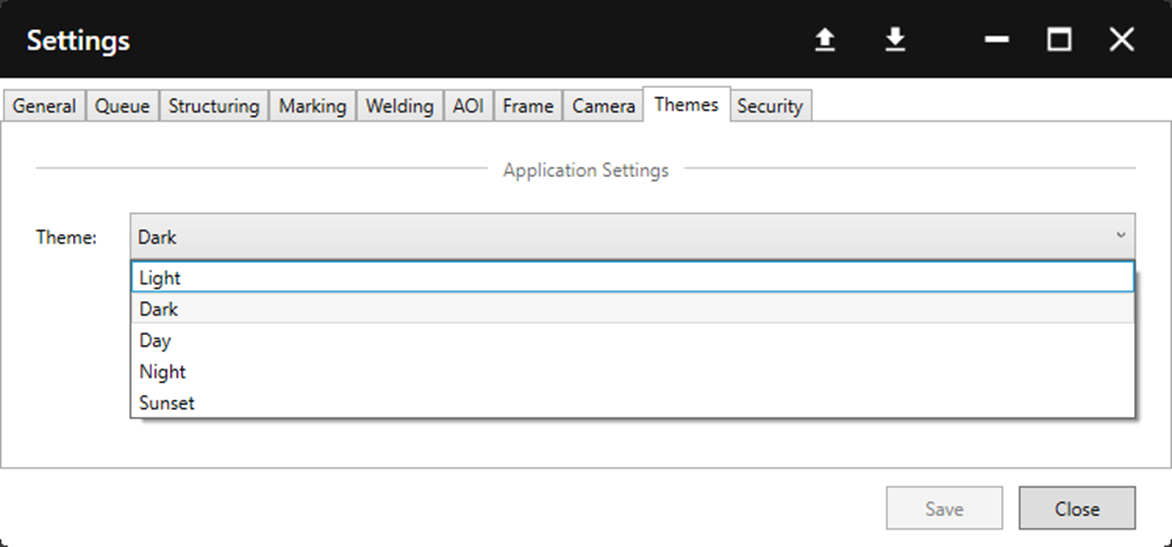
The themes tab allows the colour scheme of the app to be chosen. Various options are available as shown below.

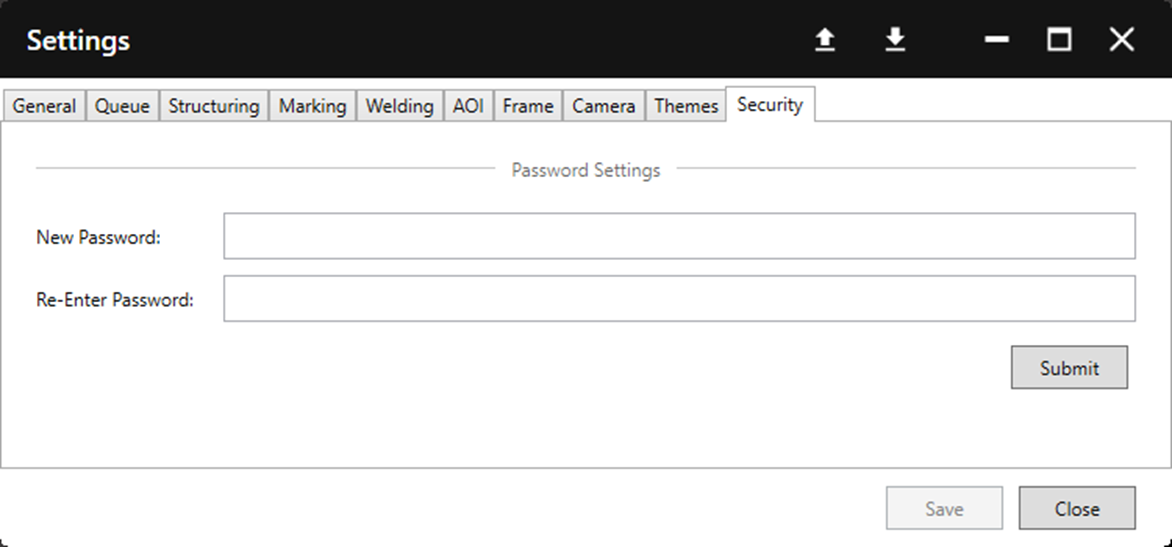
8. Security
Setting a password locks various settings, as well as the data analysis section of the EMS process (see the AOI EMS Process article for specifics).
The full list of settings locked by the password is as follows:
- AOI Positional Tolerance (Section 4.2. Tolerance Settings)
- AOI Area Tolerance Multiplier (Section 4.2. Tolerance Settings)
- AOI Area Tolerance Constant (Section 4.2. Tolerance Settings)
- AOI Size Tolerance (Section 4.3. Measurement Settings)
If a password already exists, the old password must be entered to change the password.
To remove a password, enter the old password as if changing the password but leave the new password sections blank and click Submit then Save.