
TABLE OF CONTENTS
1. Installing/Updating WattCut
To install WattCut for the first time, see the Installing Article. This article also contains a link to download the latest installer.
If WattCut is already installed and just needs updated, see this article on Checking for Updates.
2. Setup
2.1. Loading a Stencil
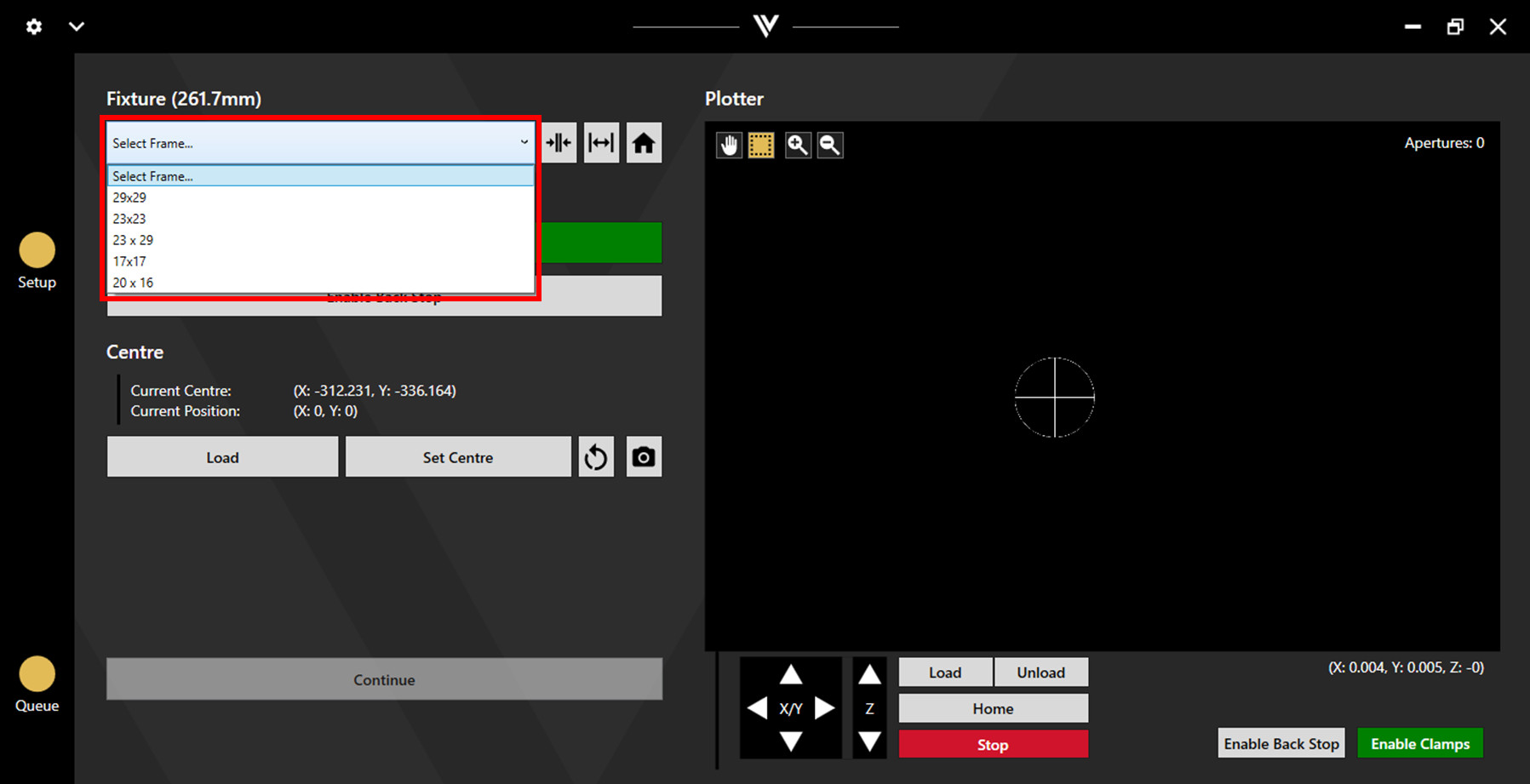
To load a stencil, first select the frame size from the dropdown menu. The fixtures will automatically move to the associated size. For more information on adjusting and adding to frame sizes, see section 7.7. Fixtures.
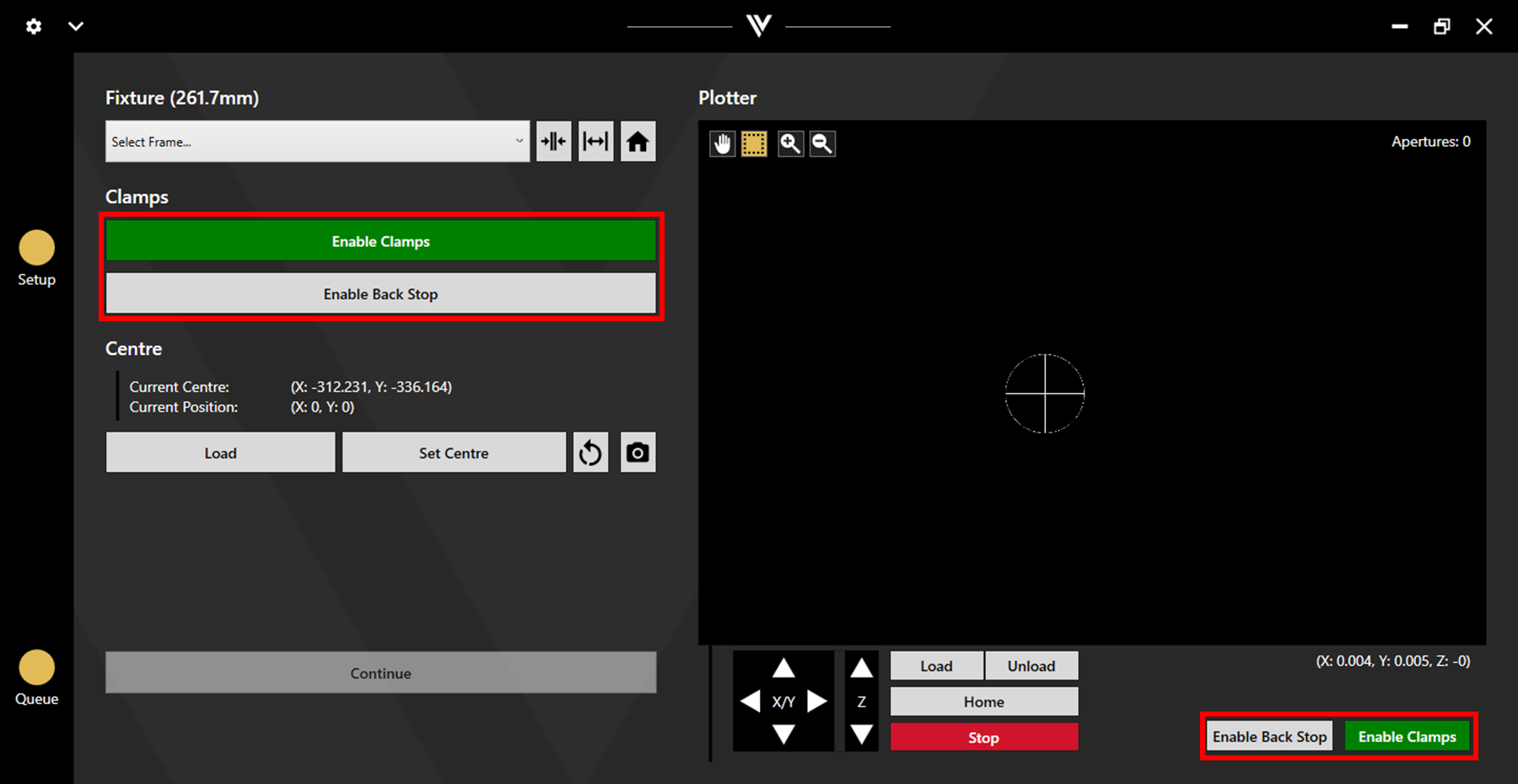
If using a backstop, ensure it is enabled then load the stencil into the fixtures. When the stencil is in place, keep hands clear and enable the clamps.
Fixture Troubleshooting
If the fixtures do not move, the clamps may be enabled. Disable the clamps and try again.
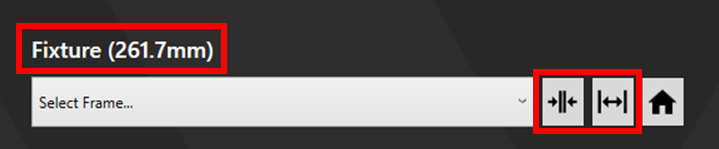
If the fixture size displayed above the frame selection dropdown is incorrect, the fixtures may need homed. Ensure the clamps are disabled and there is not a stencil loaded, then click the home button.
2.2. Setting the Centre
Setting the centre of the data in the middle of a stencil ensures that the data is centred on the stencil. Alternatively, setting the centre of the data to be different from that of the stencil allows data to be placed conveniently on the fly. The centre can be set using the laser head or by aligning the camera to a mark.
See the Setting the Centre article for more detail.
3. Queue
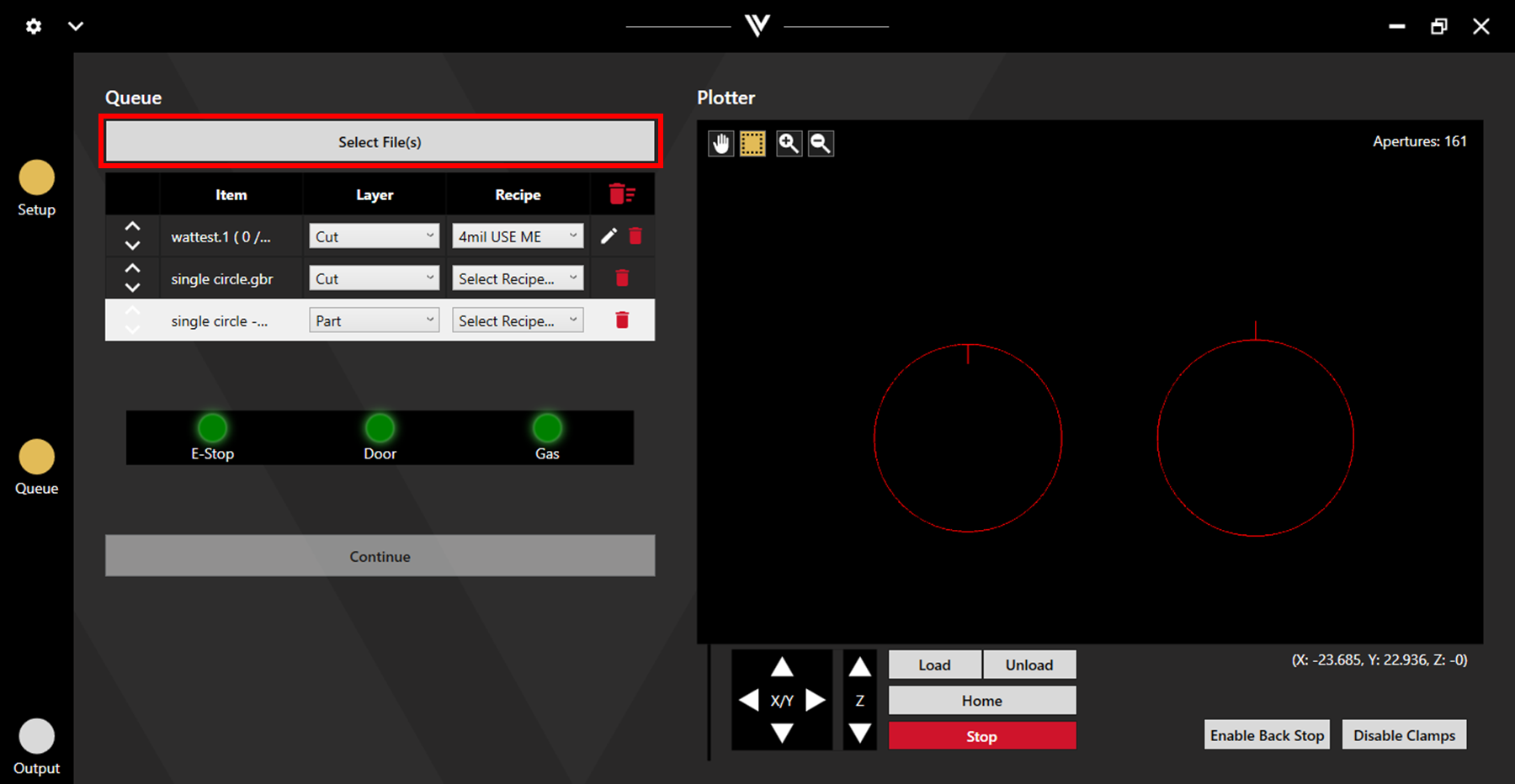
Load files into the queue by clicking Select File(s) or by drag and drop.
The files will be displayed in the plotter.
3.1. Layer and Recipe Assignment
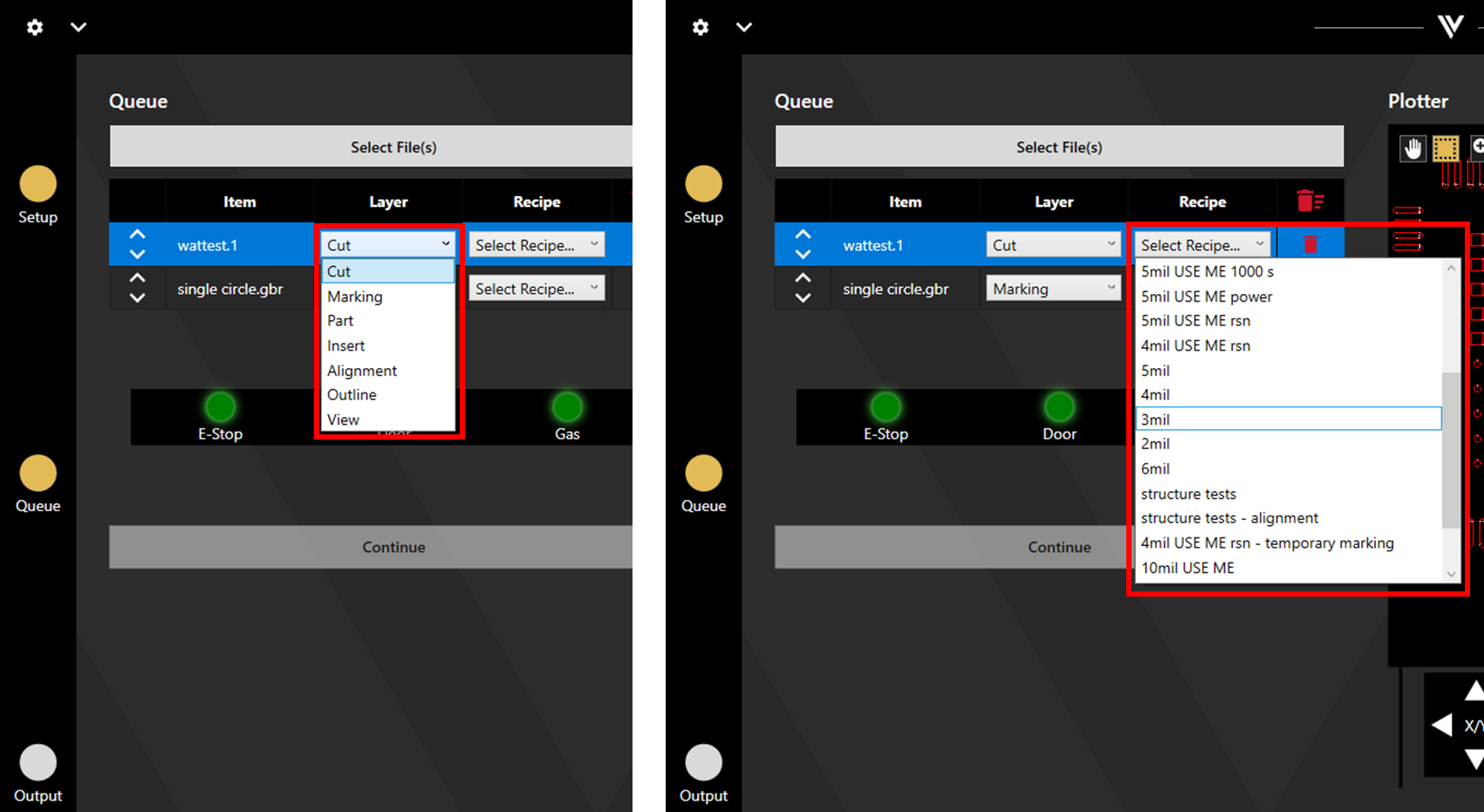
After loading files, they must be assigned a layer and a recipe. Select these from the relevant dropdown menus. The layer controls the type of operation to be carried out, while the recipe controls the parameters of the operation.
3.1.1. Layer Types
Cut: The cut layer is used for general cutting operations, this is the most commonly used layer and should be used to cut apertures.
Marking: The marking layer is used for marking. For example this can be used to mark text or fiducials.
Part: The part layer is a cutting operation. This differs from the cut layer in that the lead in begins outside of the shape rather than inside, and that the beam offset will be applied on the other side of the shape outline.
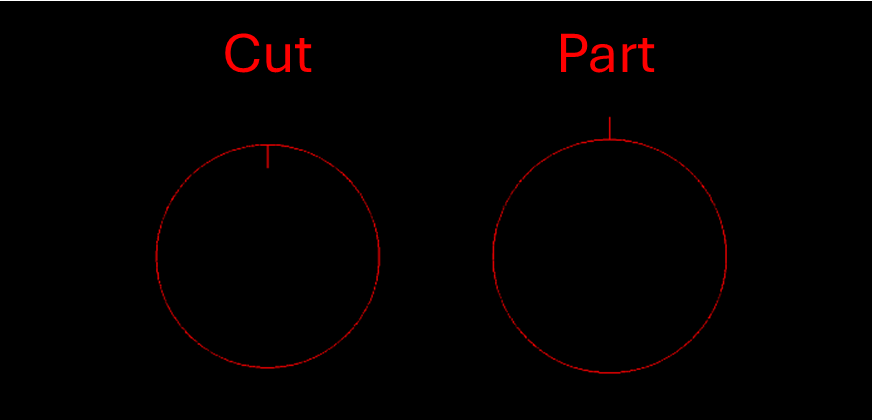
Path used in the Cut layer vs the Part layer.
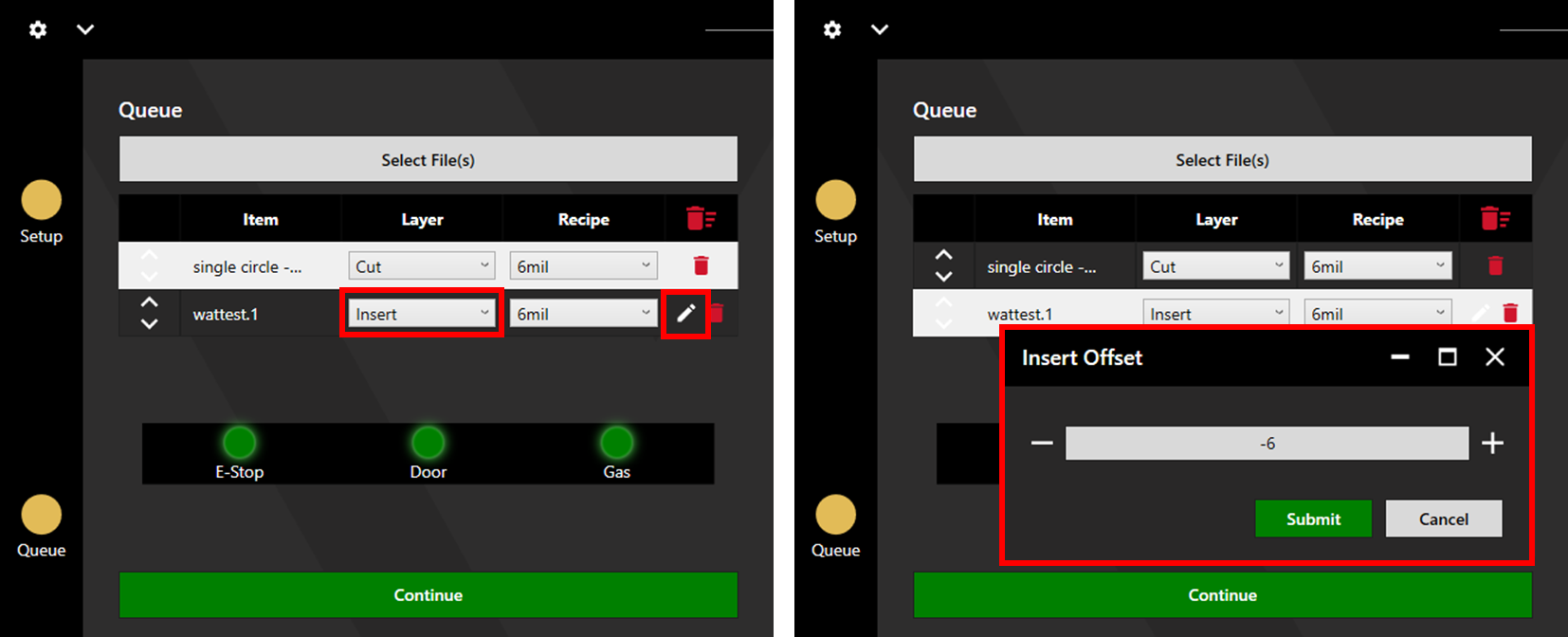
Insert: The insert layer is used when cutting inserts that will be welded into a multilevel stencil.
When this layer is selected, a pen icon will appear. Click this to adjust the Insert Offset (under or oversizing of the insert for the best fit during welding. The units for this value are microns. A negative value reduces the size of the insert while a positive value increases it).
Similar to the Part layer, the insert layer lead in starts outside of the shape and the beam offset is applied on the other side of the shape outline.
Additionally, this layer allows the extra feature "Group Inserts". For detail on this feature see section 3.3. Data Adjustment Features.
Alignment: The alignment layer assigns the file for alignment. If aligning to fiducials, the fiducial file should be set to alignment. Otherwise, any file can be set to alignment. For more detail see section 4. Alignment.
Outline: Outline is a cut layer. This layer has a similar path to Part and Insert, and can be used to apply different recipe settings than the regular cut recipe. For example, when cutting an outline the quality may be unimportant allowing higher speeds to be applied. For more detail, see section 3.1.2. Recipe Details.
View: This layer can be used to view a file in the plotter without carrying out a specific operation.
3.1.2. Recipe Details
Recipes contain a variety of parameters seen in the below image. It is not recommended to adjust any parameters outside of Name, Z Position, and Power.
For each recipe, Cutting, Marking, and Outline have their own set of parameters. The cutting parameters apply to Cut, Part, and Insert layers. Marking parameters apply to Marking layers. Outline parameters apply to Outline layers.
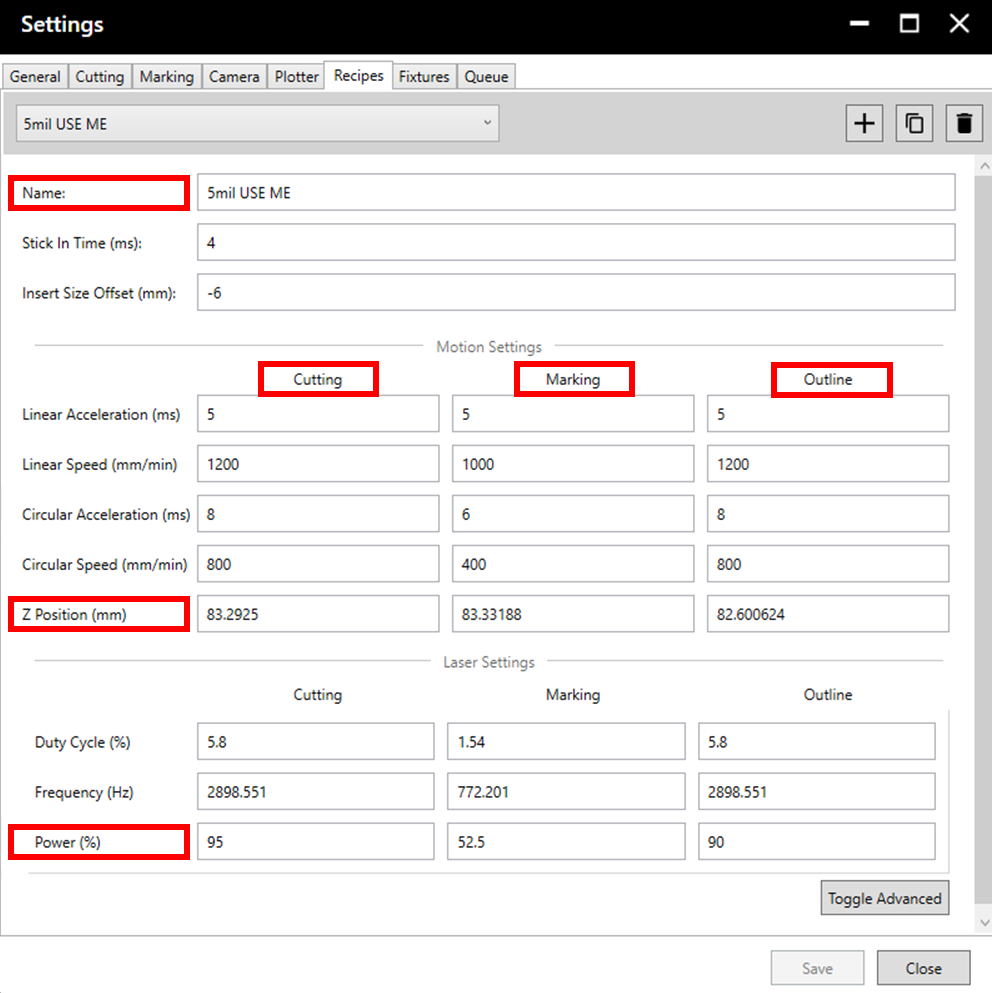
It is important that the Z position is correct during operation. It is recommended to carry out Z Height Calibration each time a stencil is loaded onto the machine. For more detail on how to do this, see the Z Height Calibration guide.
If creating a new recipe for a new thickness, an existing recipe should be copied. Change the name to match the new thickness, then adjust the power value in proportion to the change in thickness. For example, if the existing recipe is 100 microns cut at 50% power, the new recipe for 120 microns should have a power of (50/100)*120 = 60%.
Note:
- Changing power alone is not necessarily possible at the upper and lower extremes of thickness. In this case other parameters may need adjusted. See the Recipe Parameters Guide for more information.
- Power cannot be set below 40%.
- The power to thickness relationship described above is not always exact, some further adjustment of the power value may be required.
3.1.3. Automatic Layer Assignment
Layers will be automatically assigned to files depending on the file extension.
| Extension | Layer |
| .1 | Cut |
| .5 | Marking |
| .12 | Alignment |
3.2. Queue Adjustment
Adjustments can be made to the queue by right clicking on the queue.
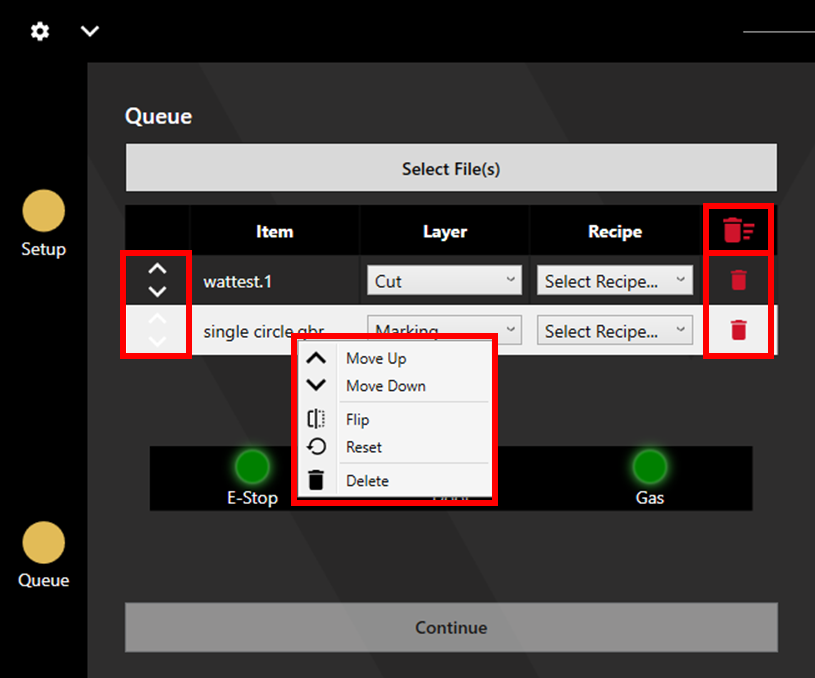
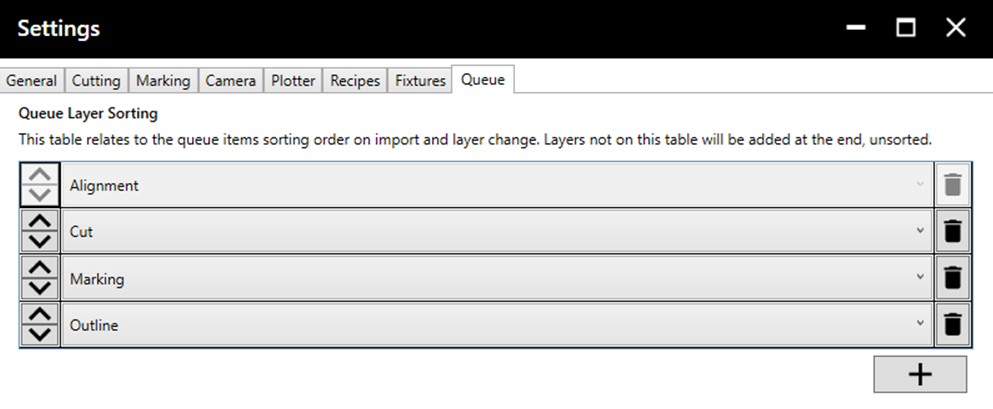
Move Up/Down: Adjusts the order of the queue by moving the file that was right clicked. This can also be done using arrows seen on the left side of the queue. This only affects the order of files with the same layer type. The order of different process types is determined in the Settings > Queue. For more information on accessing and adjusting the settings, see section 7. Settings.
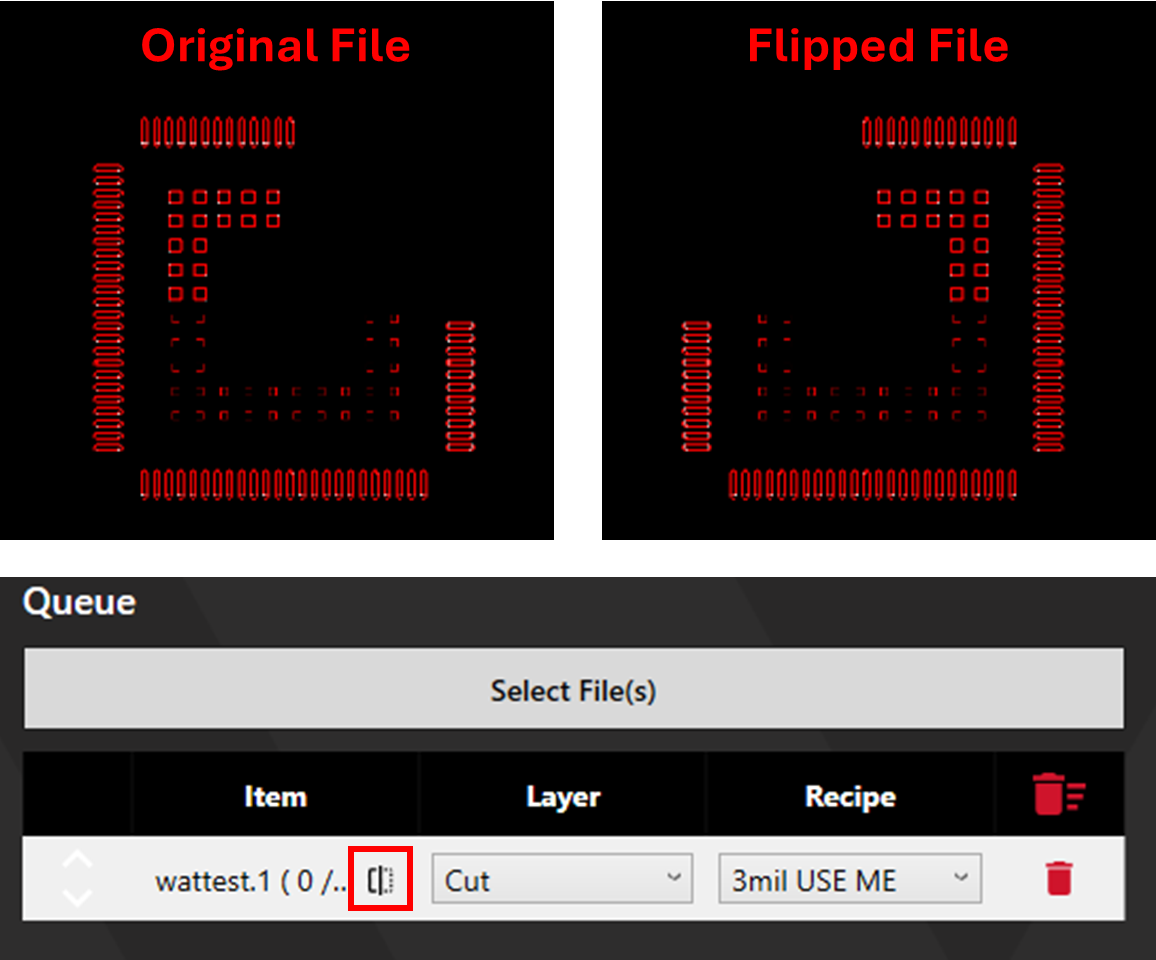
Flip: This flips the data for the selected file across the y axis (X-coordinates flip from positive to negative and vice versa). Flipped files display the symbol shown below.
Reset: Resets the selected file to its original state.
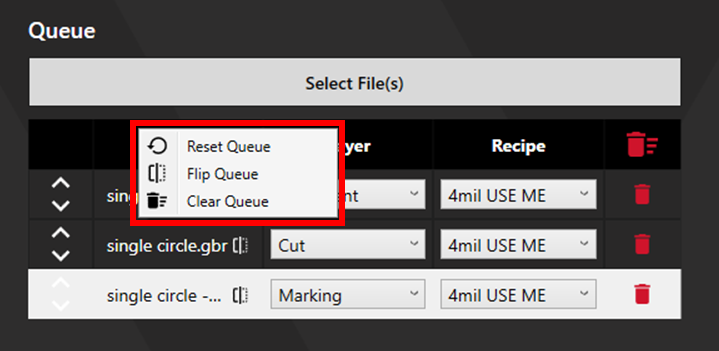
Full Queue Adjustment: Right click on the queue header to adjust the entire queue. Reset, Flip, and Clear have the effects described above.
3.3. Data Adjustment Features
Right clicking on the plotter allows for adjustment of the data. If nothing is selected in the plotter, any adjustments will apply to all the data. Shapes can be selected using the select tool - click on apertures or click and drag to box select). Compound selections by holding Ctrl. Selected shapes are highlighted yellow.
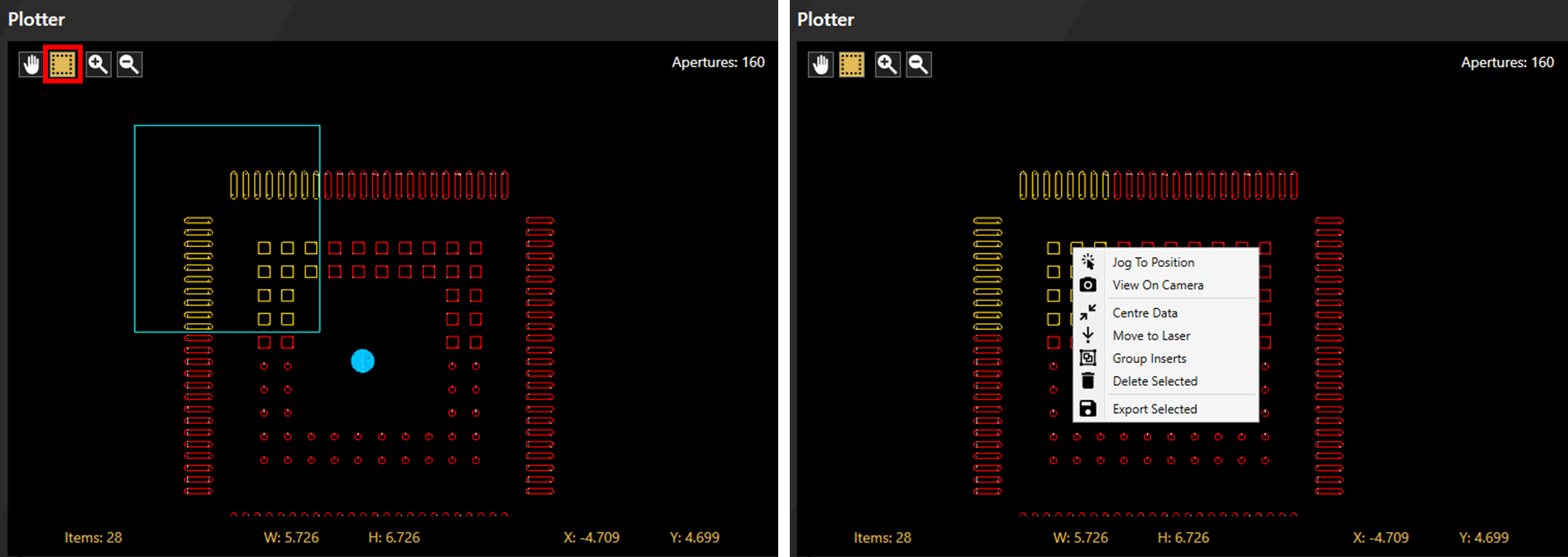
Jog to Position: This moves the laser to the location which was right clicked.
View on Camera: This moves the camera to the location which was right clicked and opens the camera viewer.
Centre Data: This moves the selected shapes to (0, 0). (Selected shapes remain in their position relative to each other. The overall centre point of the selected shapes is placed at (0, 0)).
Move to Laser: This moves the selected shapes to the current position of the laser head. (Similarly to the Centre Data operation, selected shapes remain in their position relative to each other. The Centre point of the selected shapes as a whole is placed at the position of the laser).
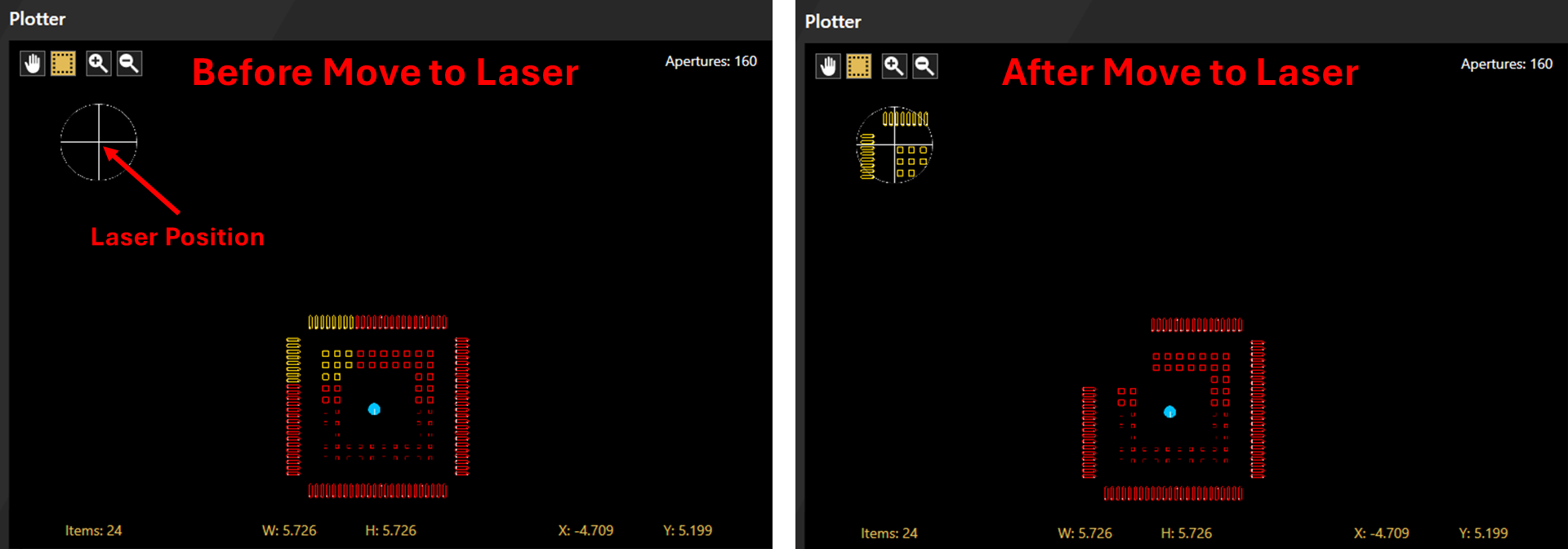
Delete Selected: Deletes the selected shapes.
Export Selected: Exports the selected shapes to a gerber file. Shapes will be in the same format as they were when loaded in (polygon will be polygon, flash will be flash).
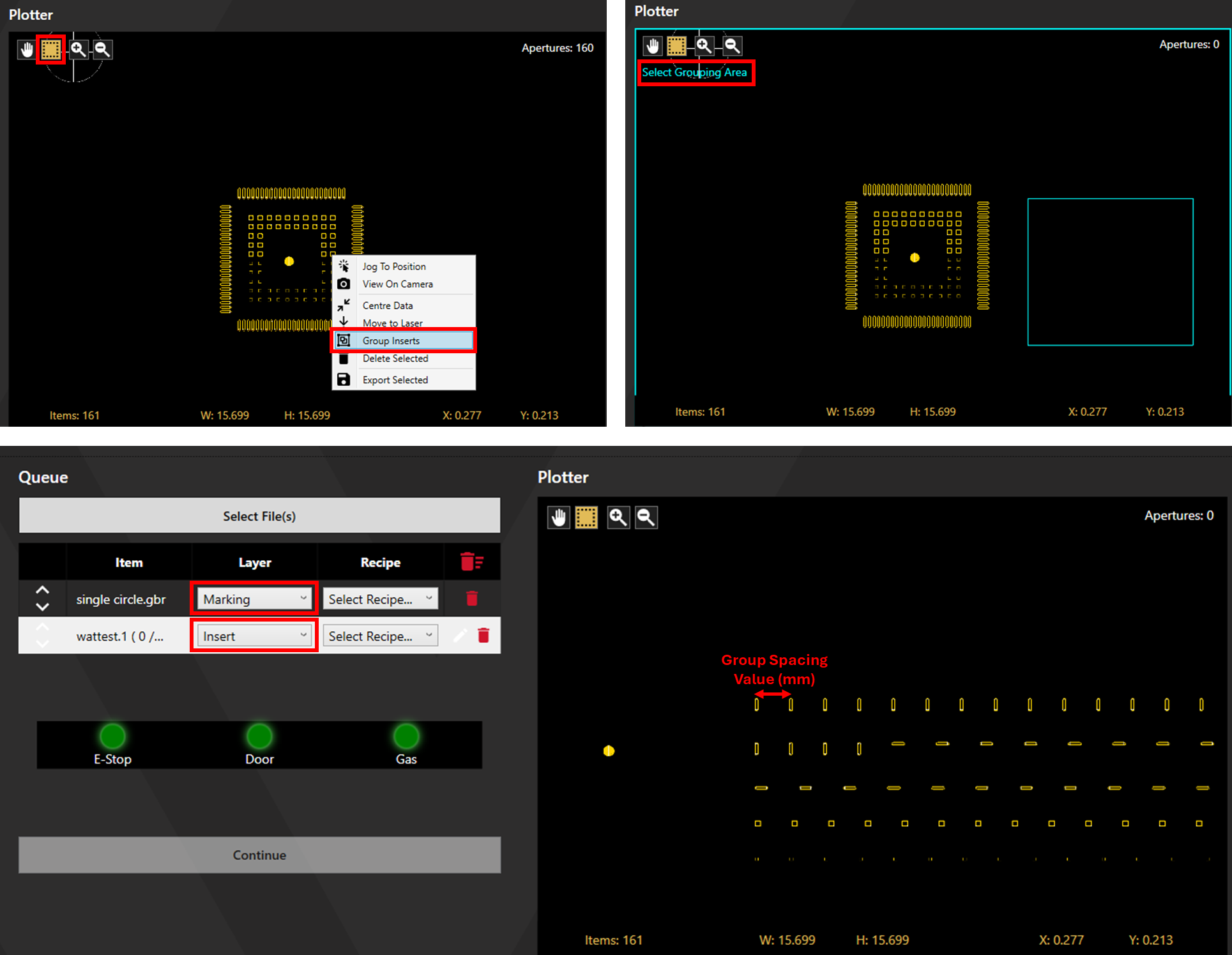
Group Inserts: This feature can only be applied to files set to the Insert layer. Select the desired shapes then right-click and select Group Inserts. When prompted, click and drag to Select the Grouping Area.
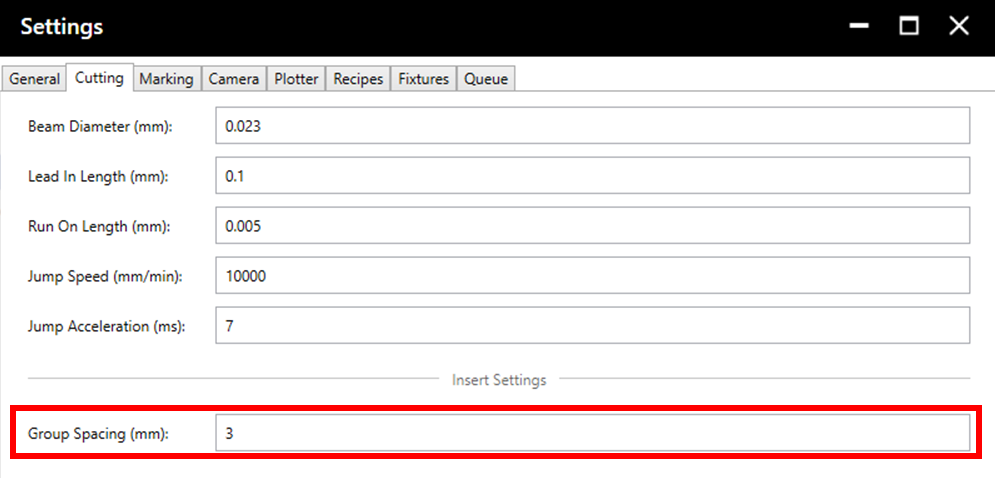
The previously selected shapes will be placed in a grid, based on the group spacing setting see section 7.2. Cutting Settings. Note that, in the example below, the single circle in the centre is not affected by the group inserts function because it's layer is set to Marking.
Once the queue is complete, click Continue to proceed to Alignment/Output
4. Alignment
If there is no alignment file in the queue, this stage will be skipped.
If there are more than 2 shapes in the alignment file, there will be a prompt to select 2 points for alignment. These can be chosen via the coordinate list by checking boxes, or from the plotter. By default, alignment layers are displayed as orange (this can be changed, see section 7.5. Plotter Settings). Selected shapes are highlighted yellow. Once the shapes are selected click Submit.
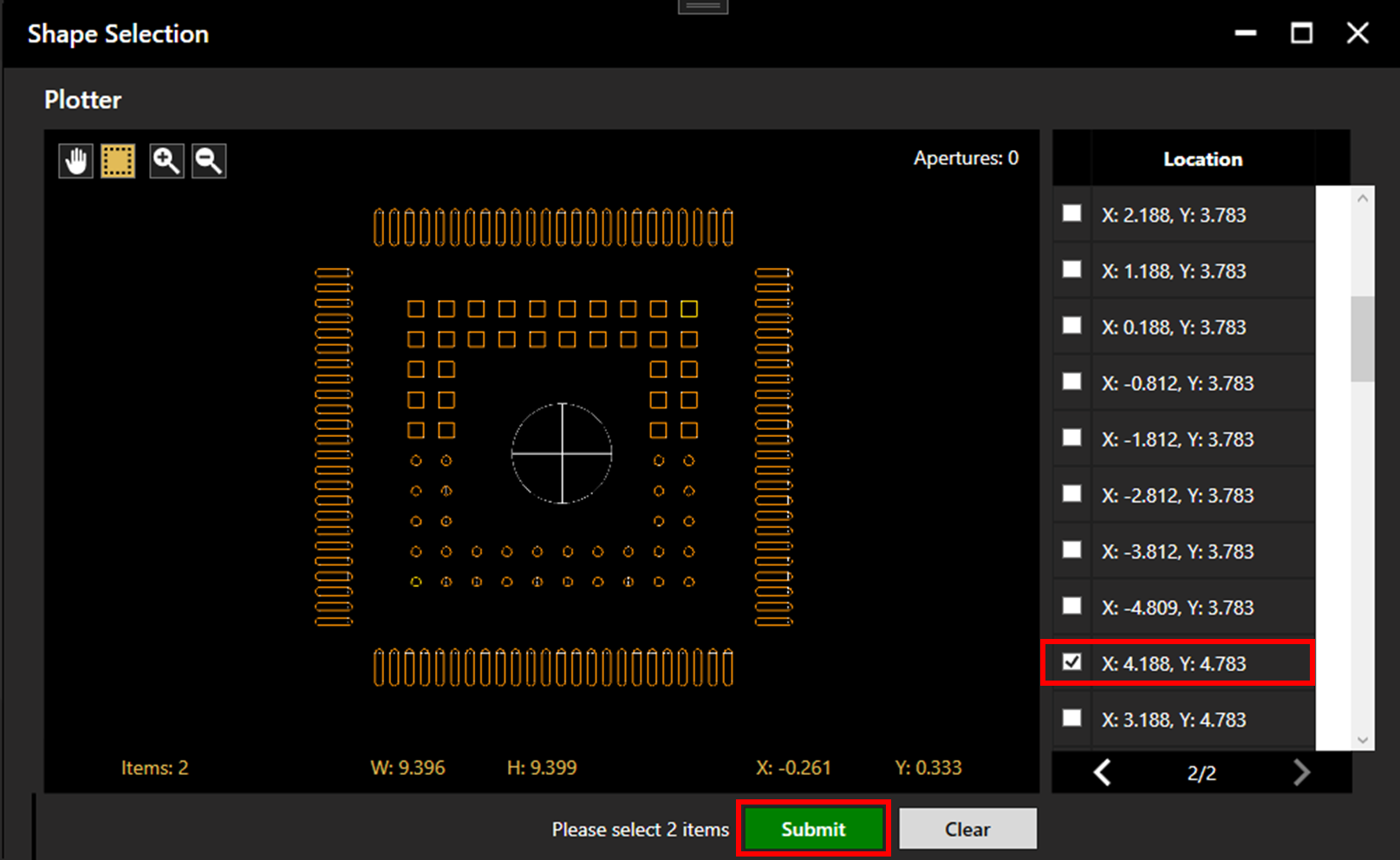
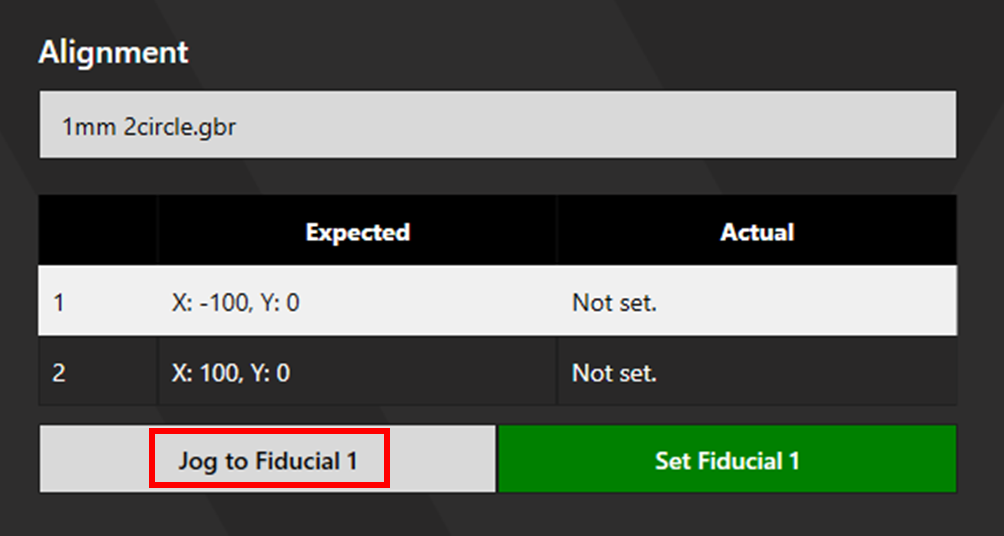
Click Jog to Fiducial 1 to jog the camera to the expected location of the first alignment point.
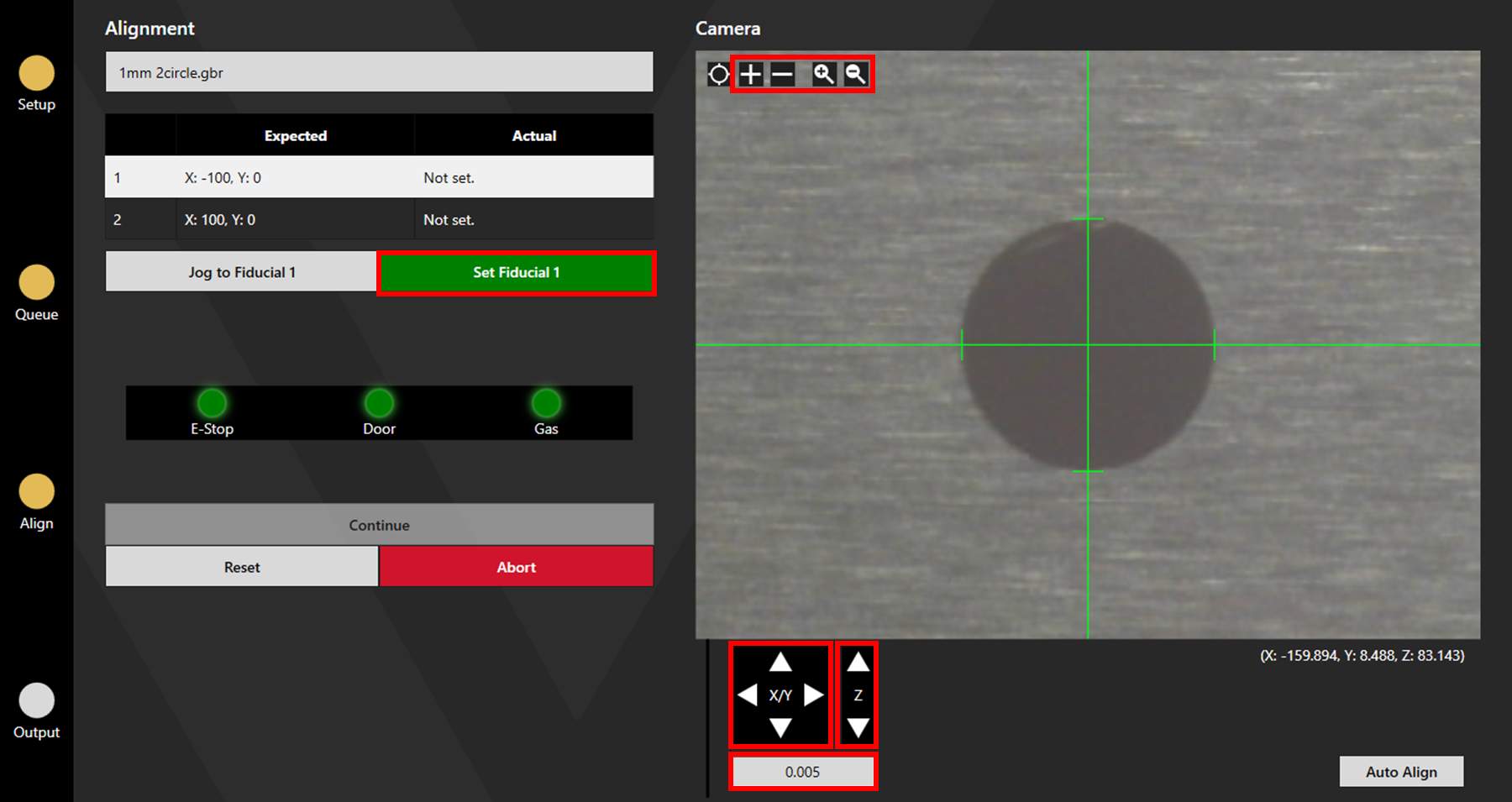
Move the camera over the first alignment point and align.
Adjust the Z height if necessary (If Z-height calibration has been carried out correctly this shouldn't be required).
Zoom using the scroll wheel or the magnifying glass buttons and adjust the size of the crosshair using the plus and minus buttons.
Right clicking on the aperture or clicking the Auto Align button will auto align to the fiducial (some adjustment may still be required).
Adjust using the X/Y arrows. The size of step can be adjusted by typing in the box beneath the arrows (units are mm).
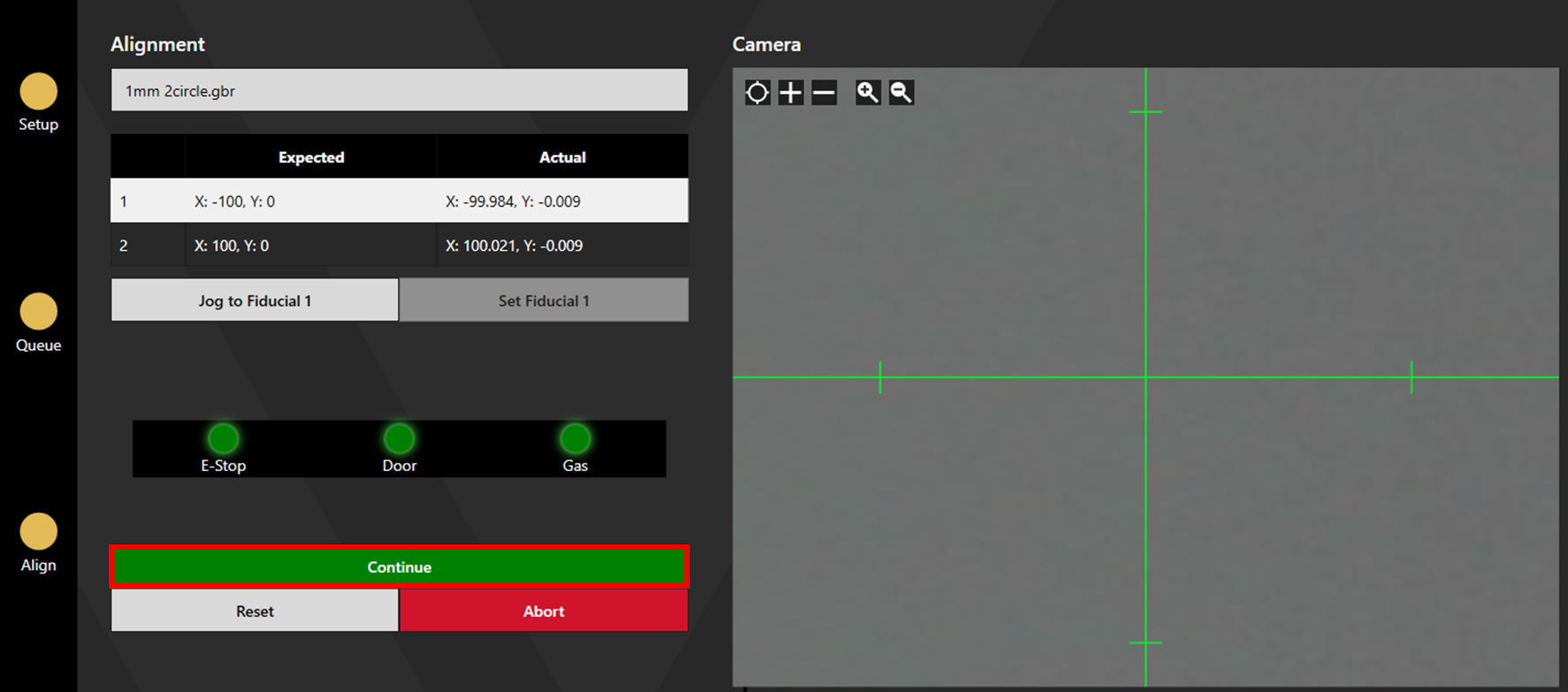
Once aligned, click Set Fiducial. Align to all alignment points then click Continue to proceed to Output.
Align to all alignment points then click Continue to proceed to Output.
5. Output
5.1. Basic Output
The files for processing will be displayed. The total number of apertures from all cut files is shown in the upper right corner of the plotter.
When ready to output, click Output to begin processing.
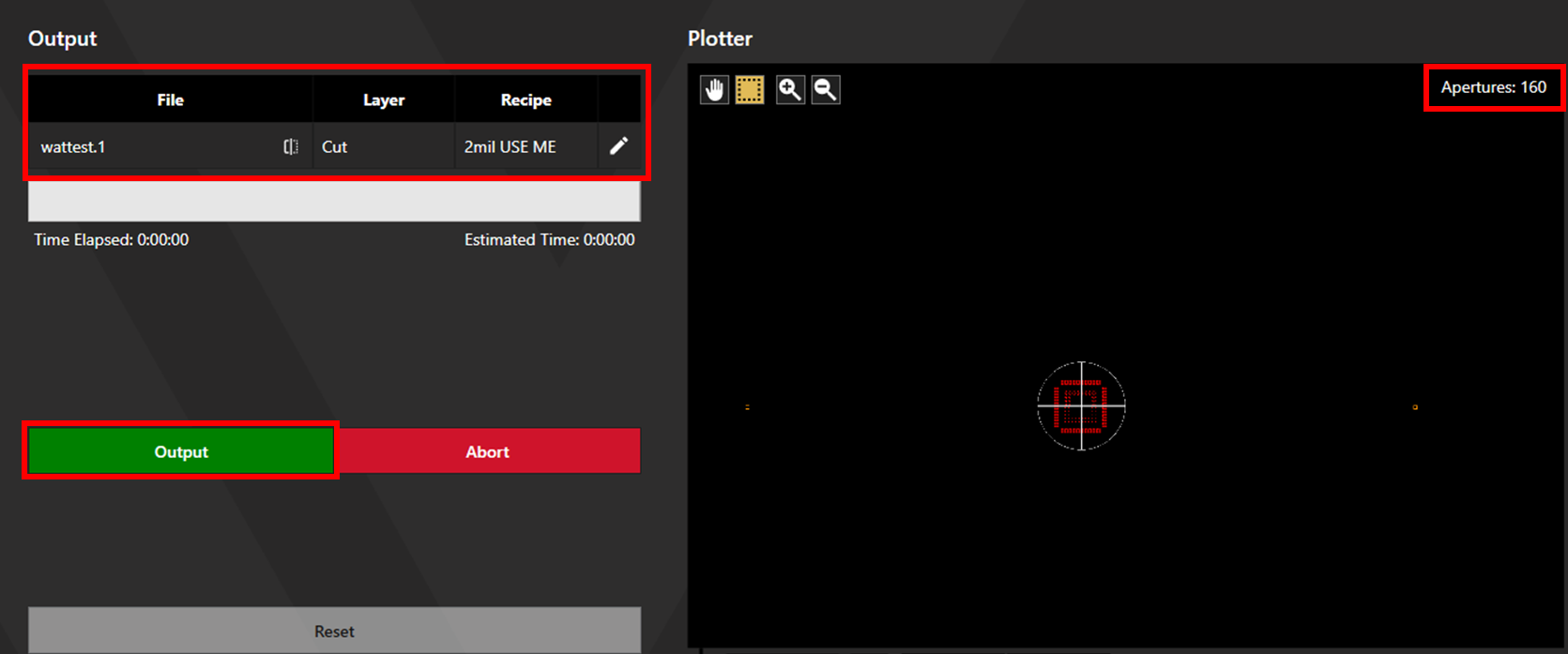
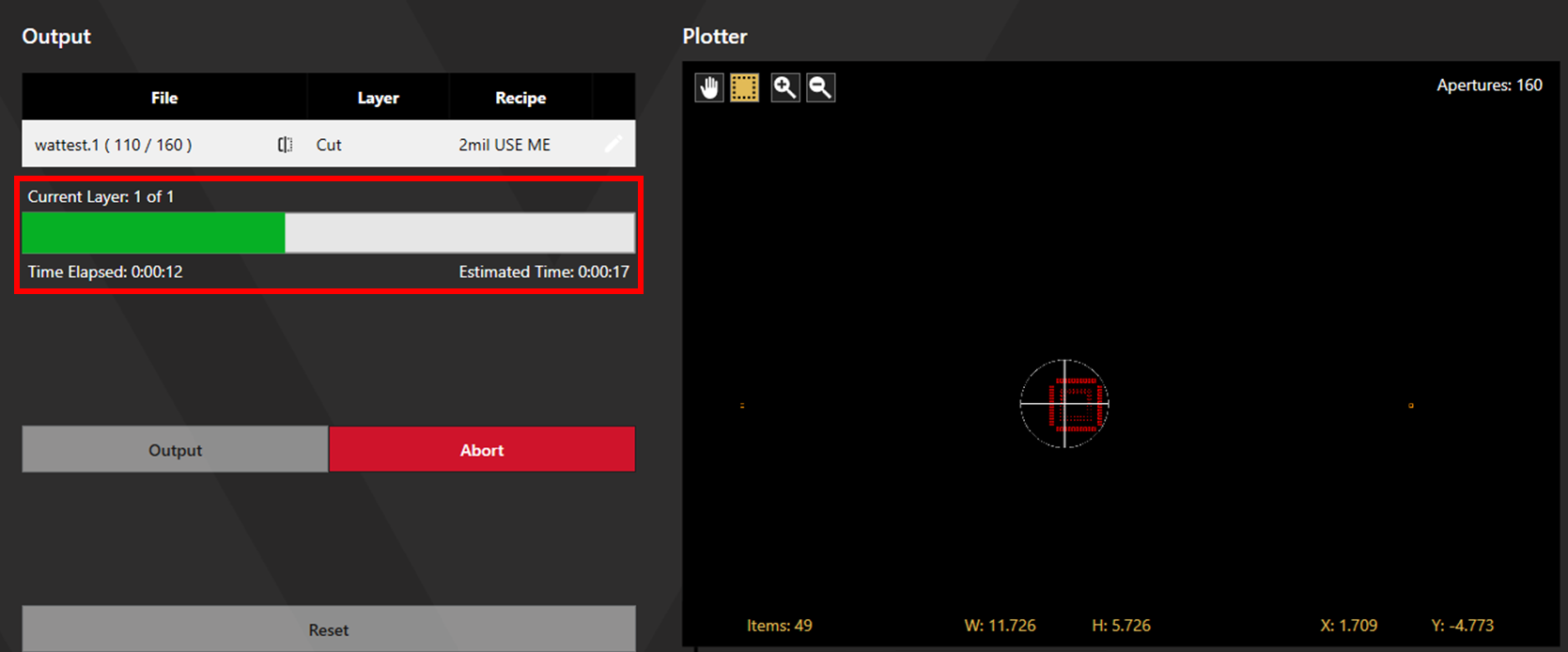
During output, the location of the laser can be seen moving within the plotter. The time elapsed and the estimated time remaining are displayed alongside a progress bar. These are specific to the layer and will reset when the next process begins.
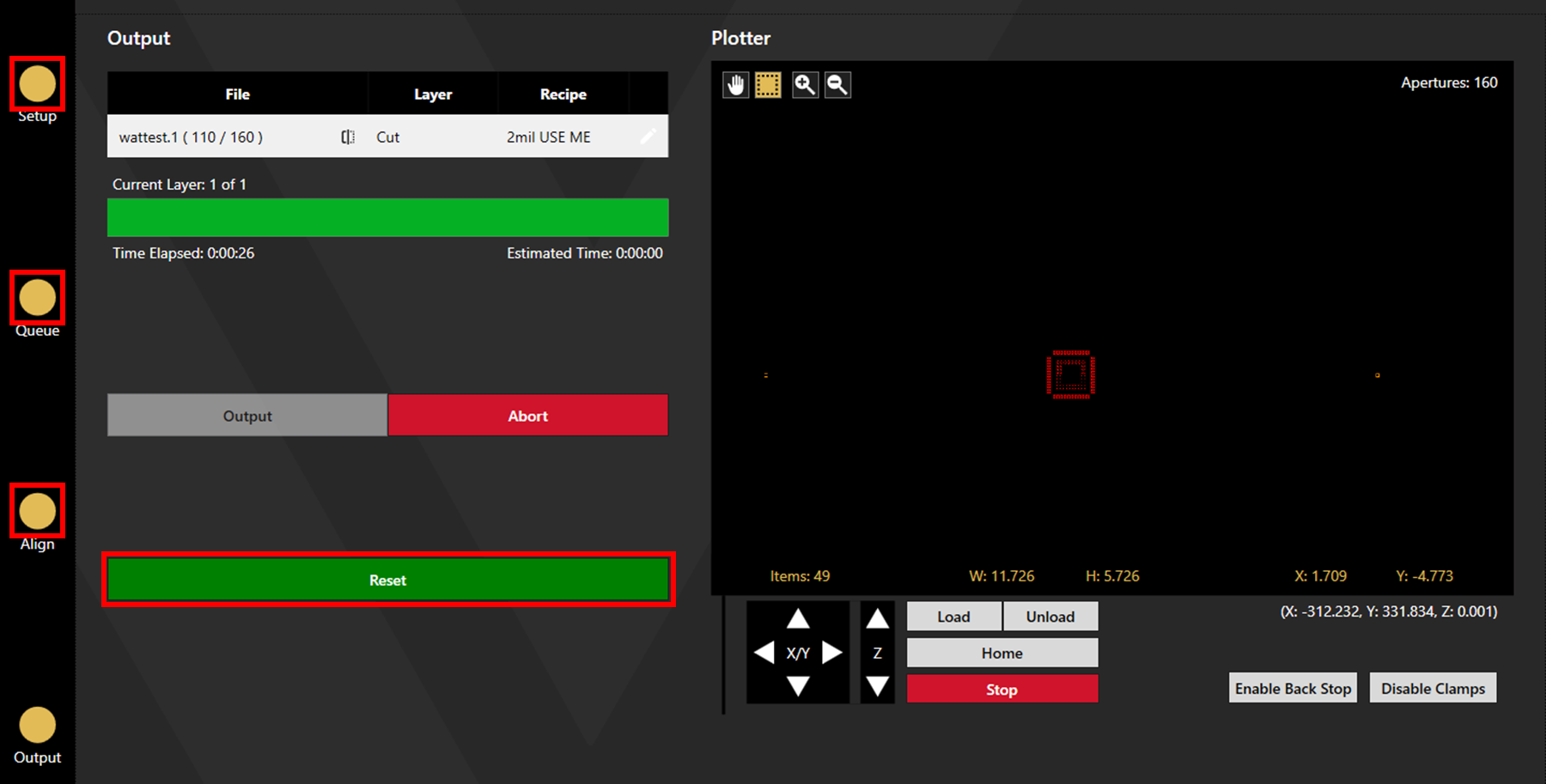
When output is complete, the machine will move the stencil to the unload position. Click Disable Clamps to unload the stencil. Click Reset to return to a blank setup screen, or click on the circles above Setup, Queue, or Align to make adjustments to the current process.
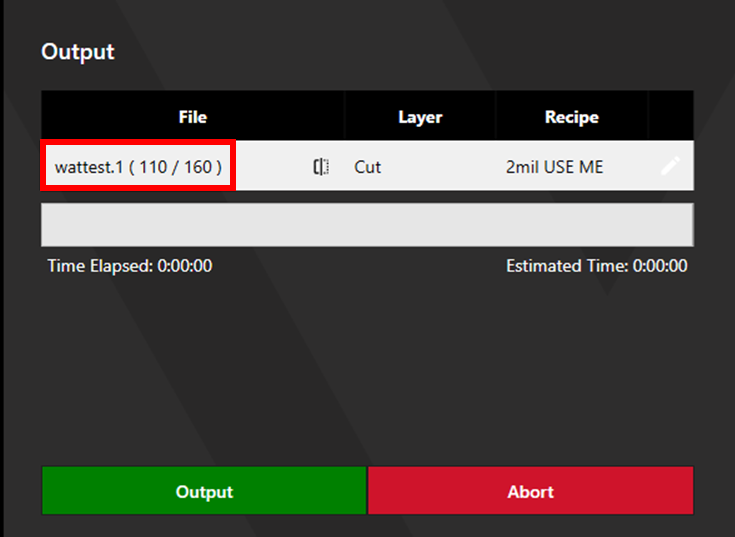
5.2. Output Select Apertures
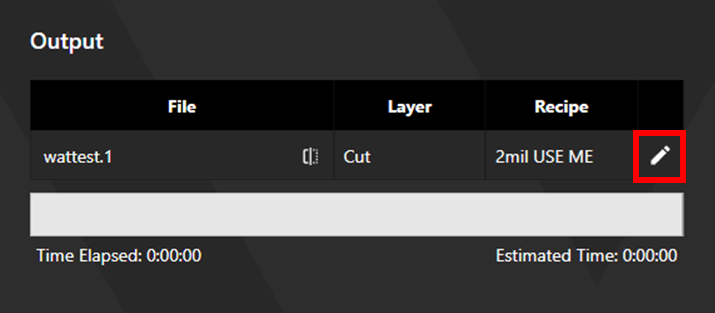
Specific apertures can be selected for cutting by clicking the pen icon, opening the Shape Selection window.
Select the desired apertures then click Submit.
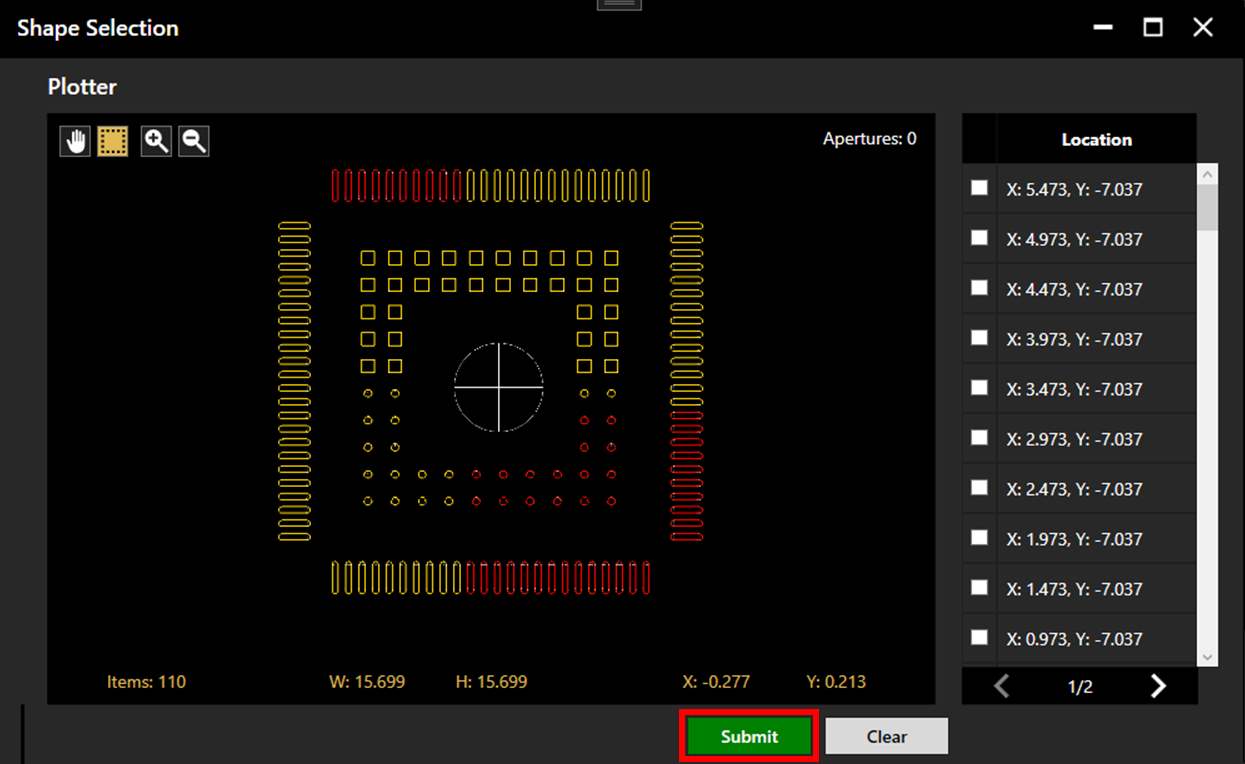
The number of selected apertures is now displayed next to the total available apertures in the file. Click Output to cut the selected apertures.
6. Calibration
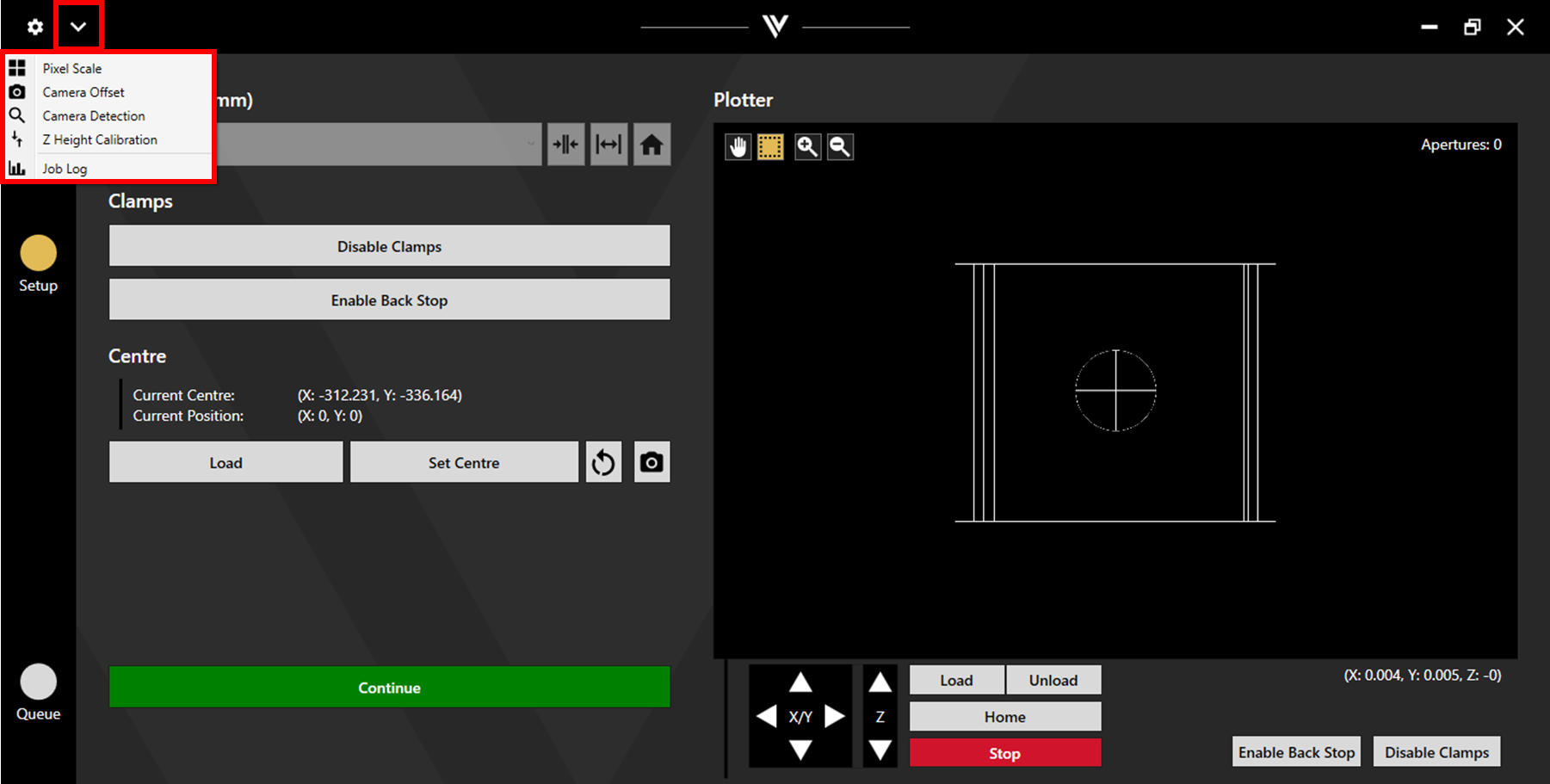
There are various calibration processes available via the dropdown arrow in the upper left corner of the app.
6.1. Pixel Scale
Pixel scale does not usually need recalibrated after the initial setup. However, if click jogs on the camera viewer appear to be over or under shooting, recalibrating the pixel scale should fix the issue.
An aperture is required for pixel scale. A 1mm circular aperture is a good size/shape.
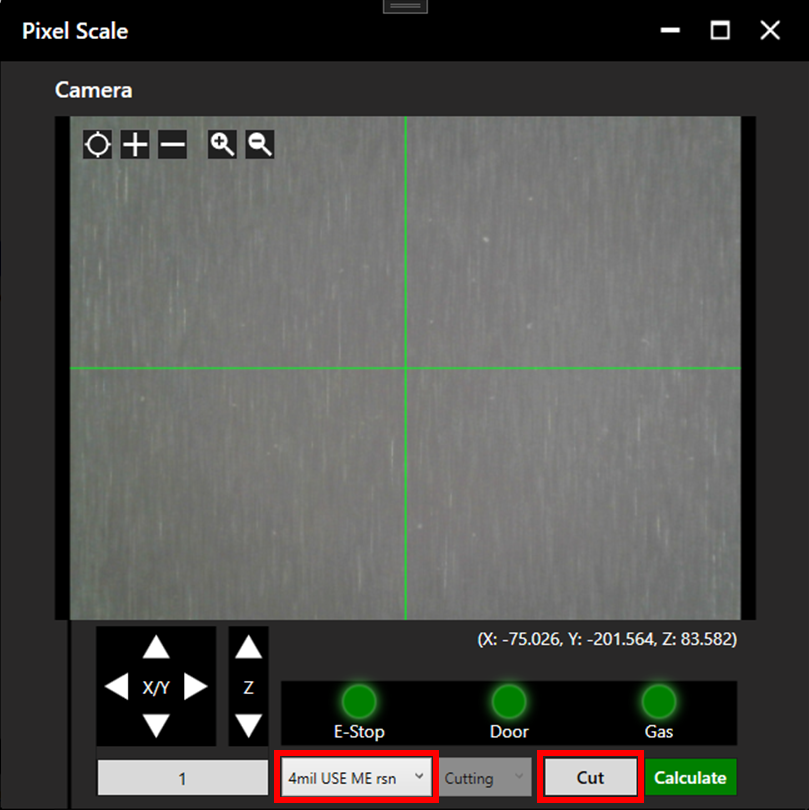
If an aperture is not available. One can be cut from the Pixel Scale window: Move the laser head to a convenient position over a stencil, and select the appropriate recipe. Click Cut to output a 1mm circle aperture.
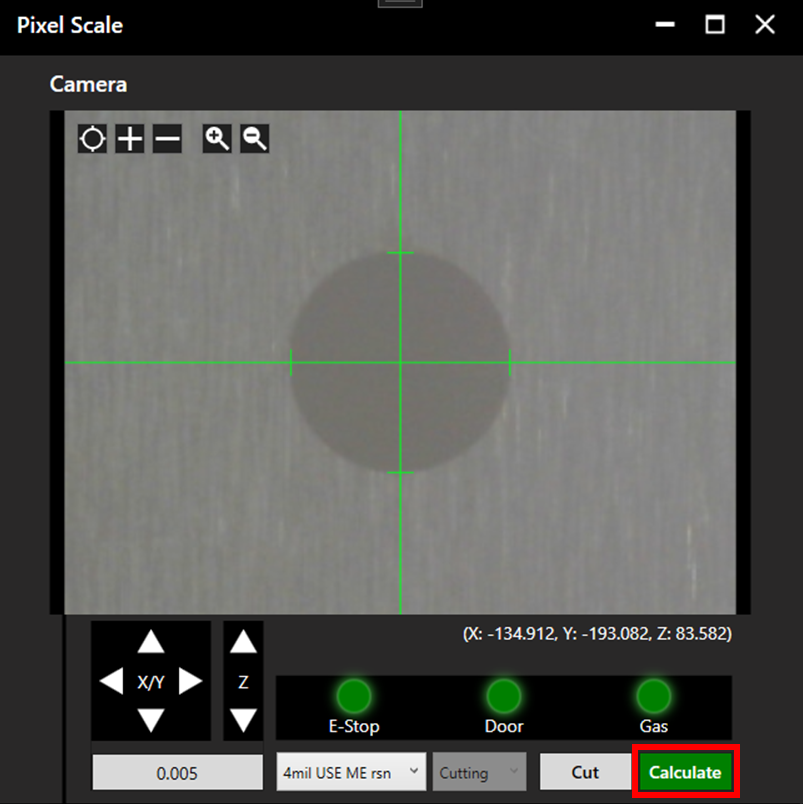
When cutting is complete, the camera will move to the cut aperture.
Align to the chosen aperture, then click calculate.
Pixel Scale Troubleshooting
If, after cutting an aperture, the camera move does not land on the aperture, camera offset likely needs recalibrated. See section 6.2. Camera Offset.
If the message "Unexpected X value, make sure only 1 marking is visible." appears. Select a different aperture which is more isolated. In the case that this message appears even when no other apertures/marks are in the image, camera detection may need adjusted. See section 6.3. Camera Detection.
6.2. Camera Offset
Camera offset must be accurate to ensure alignment is effective. See the Camera Offset article for details on conducting this calibration.
6.3. Camera Detection
Open the camera detection window and position the camera over an aperture/multiple apertures. Select an appropriate recipe from the dropdown menu to bring the camera into focus.
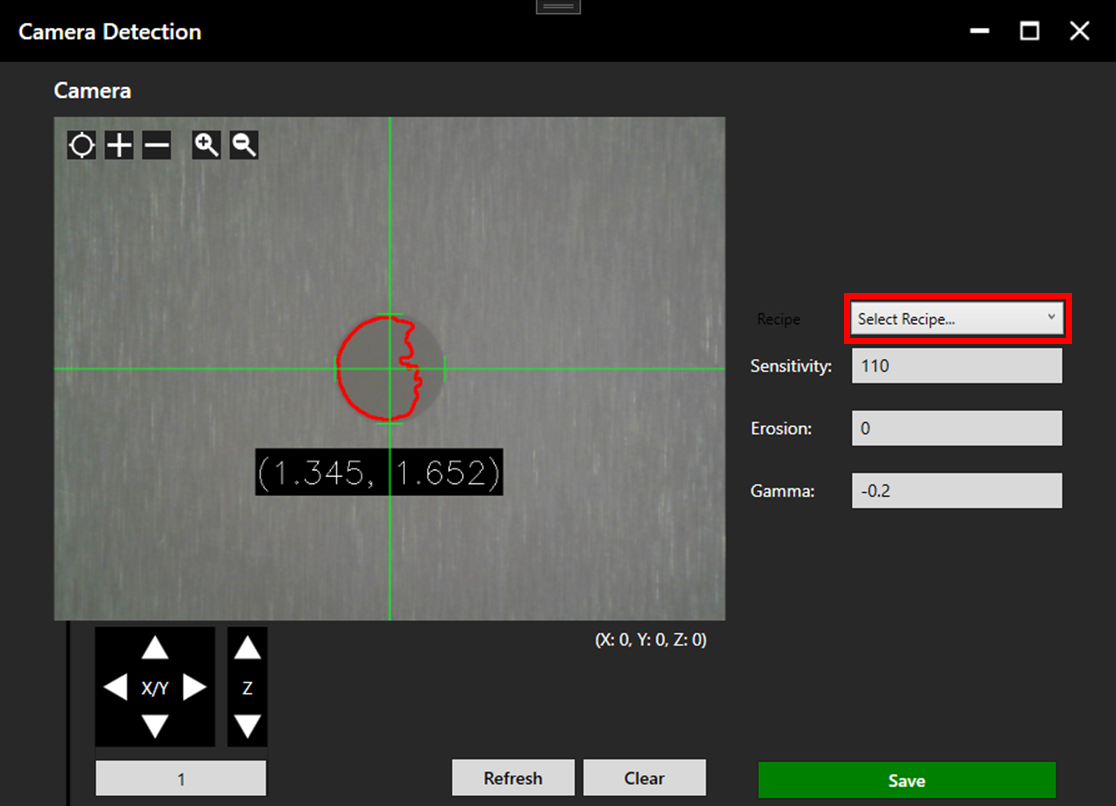
Adjust the detection parameters until the circle is well detected.
The Parameters are as follows:
| Parameter | Description |
| Sensitivity | A high sensitivity value will detect apertures more easily but will be less refined. A low sensitivity may struggle to detect apertures but will have a tighter definition. |
| Erosion | Dust or small imperfections next to an aperture can alter the detected aperture shape. The erosion setting reduces this deformity but will have a tighter definition. A too high erosion value could result in true deformities being missed. |
| Gamma | Gamma refers to the brightness of the image. Increasing the gamma will result in a brighter, less contrasted image. While setting a negative gamma will increase the contrast but amplify unwanted shadows/reflections. |
Examples of good and bad detection are shown below (right hand side is good).
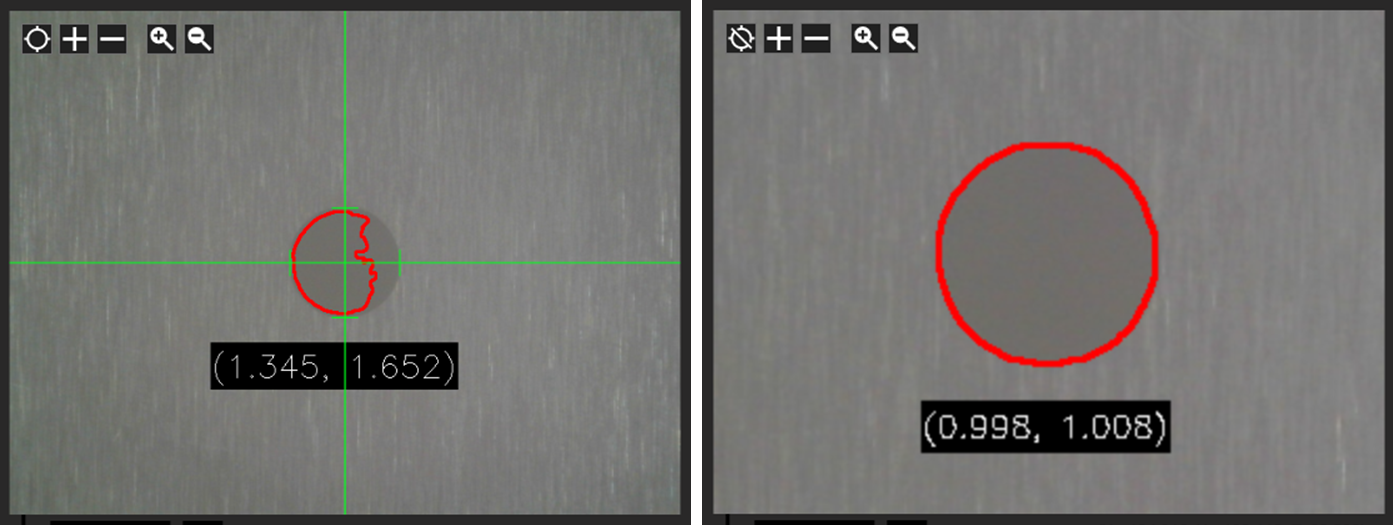
Camera Detection Troubleshooting
If the displayed dimensions of the aperture are wrong, pixel scale calibration may be required. See section 6.1. Pixel Scale. An example of this is shown in the left hand image above, where the correct dimensions would be (1, 1).
6.4. Z-Height Calibration
Correct Z height calibration is essential for good laser focus. It is recommended to carry out z height calibration each time a new stencil is loaded.
For detail on carrying out z height calibration, see the Z Height Calibration article.
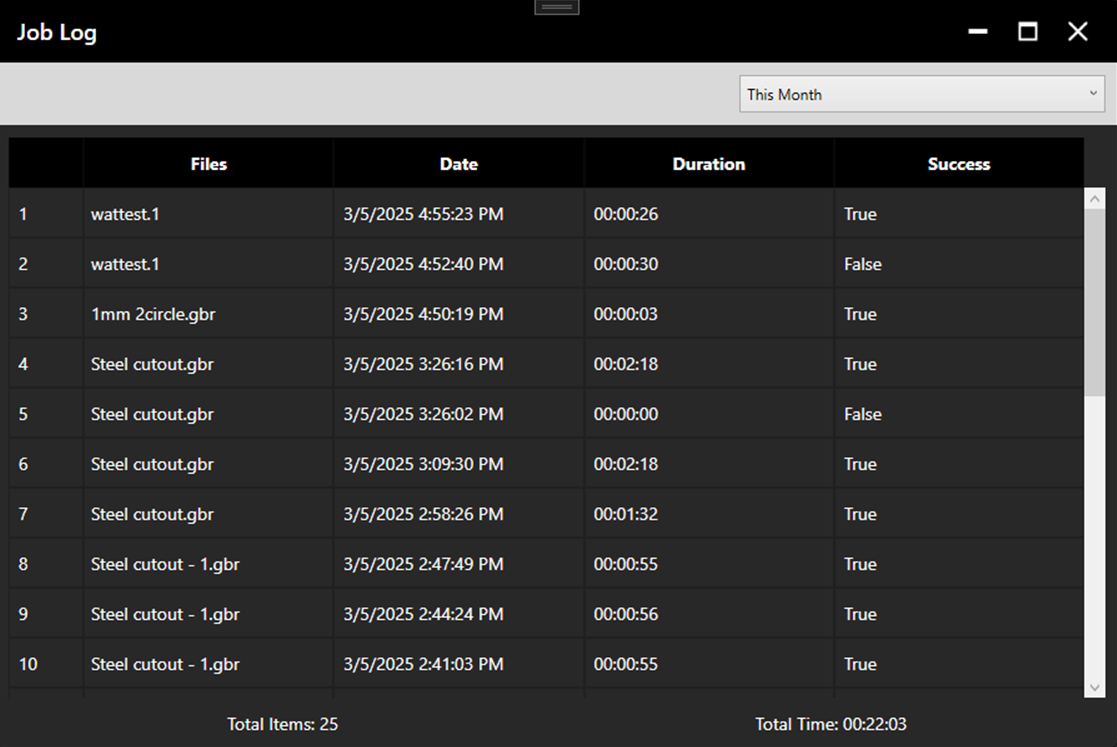
6.5. Job Log
The job log contains the history of jobs carried out by the machine. The timescale can be adjusted via the dropdown menu. Success is labelled "False" if the process was aborted.
7. Settings
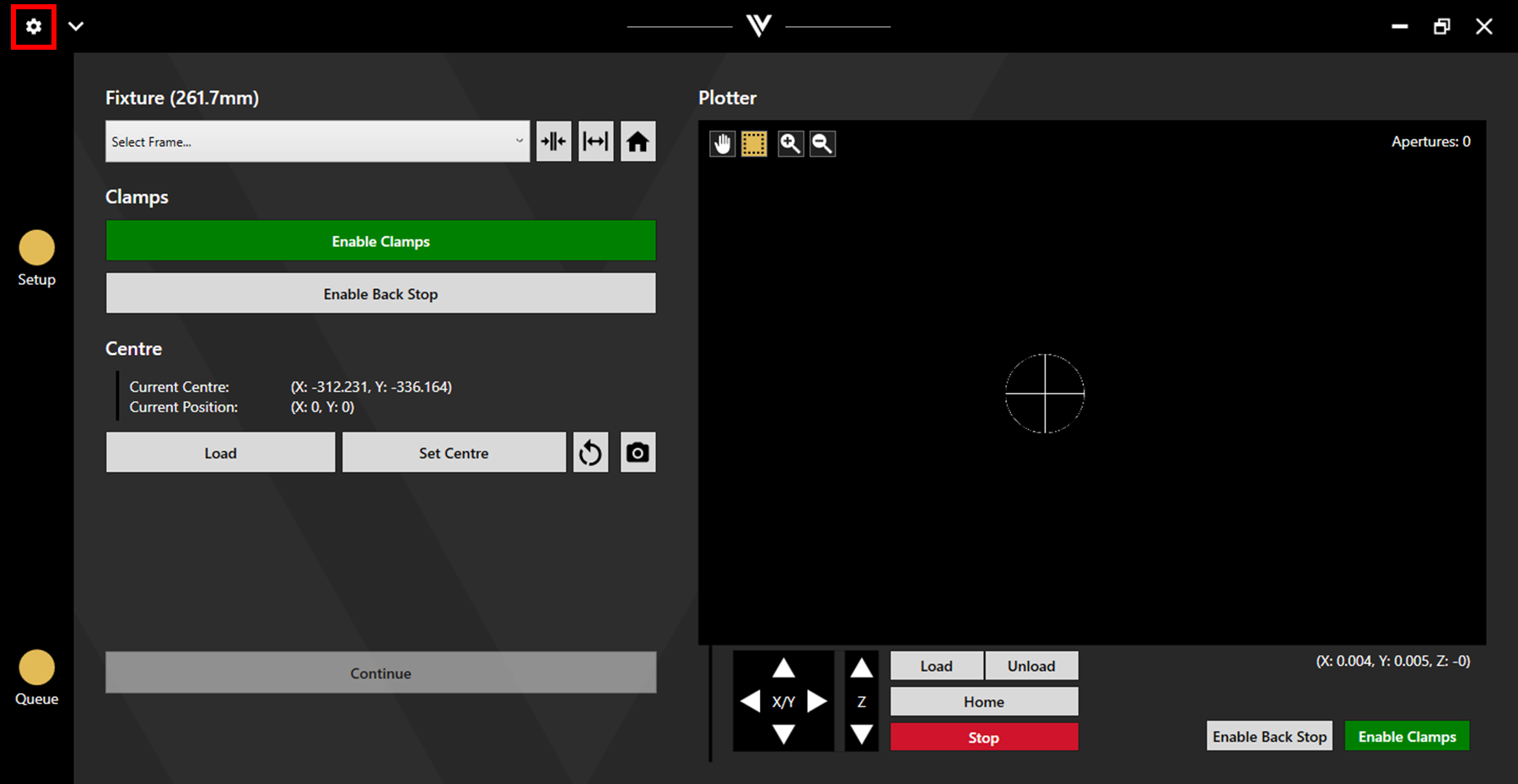
The settings can be accessed via the cog icon in the upper left corner.
7.1. General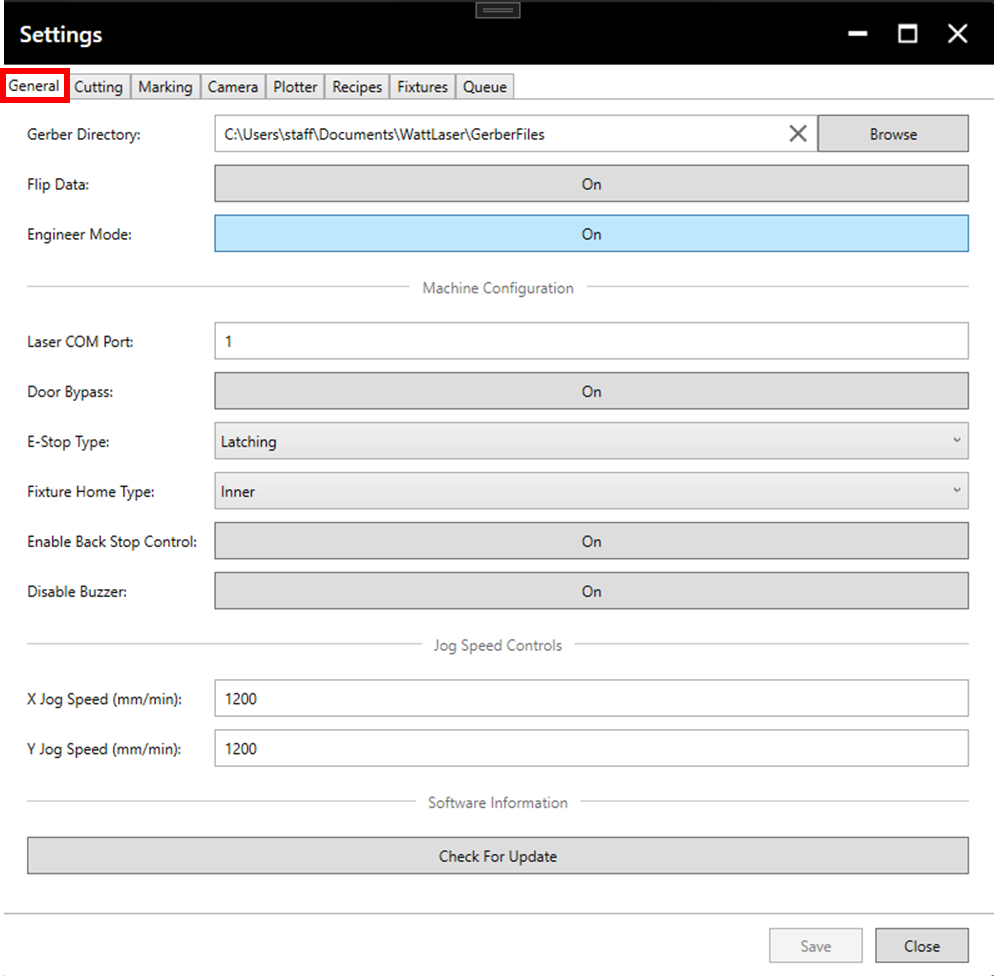
Gerber Directory: The gerber directory sets the location which initially opens when selecting files during queue creation. If this is left blank, the Select File(s) button will open the directory from which files were most recently selected. The same will occur if the set gerber directory no longer exists. Change the directory by typing a new path or by clicking Browse.
Flip Data: Setting this to On will flip all loaded data across the Y-axis (X coordinates will flip from positive to negative and vice versa). Individual files can be flipped back using the queue adjustment feature described in section 3.2. Queue Adjustment.
Engineer Mode: Setting engineer mode to On will display additional information about the cut path within the plotter.
Laser COM Port: This setting should not be changed.
Door Bypass: Setting this to On allows cutting with the door open.
E-Stop Type: This setting should not be changed.
Fixture Home Type: This setting should not be changed without consulting Watt Laser engineers.
Enable Backstop Control: Setting this to Off removes the Enable Backstop button from the screen.
Disable Buzzer: When this setting is Off, the machine alarm will sound when the status light shows red (E-stop pressed).
X/Y Jog Speed: This sets the speed at which the X and Y axes move. This applies to all movement outside of operations such as cutting and marking.
Check For Update: Clicking this will check for an update. If one is available, the Update screen will display the changes and new features within the update and allow the update to be carried out. If the software is up to date, a message will appear stating this. Automatic update notifications will also be displayed. For more information on update notifications and updating the software, see the Checking For Updates article.
7.2. Cutting
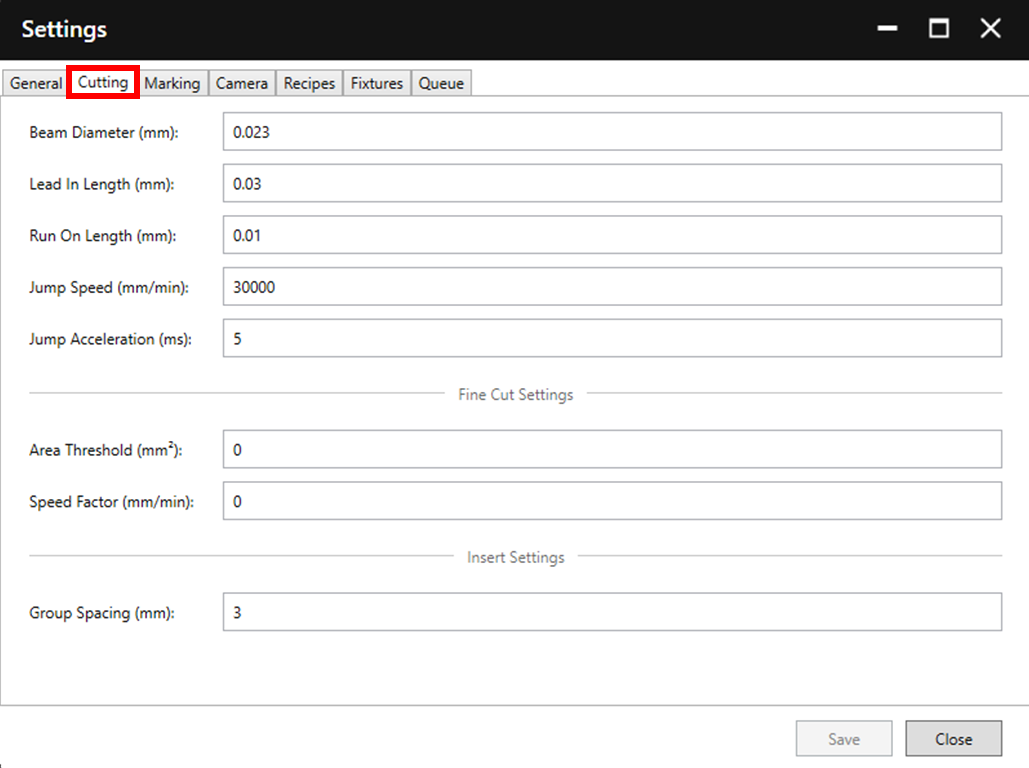
Beam Diameter: The beam diameter controls the size of the offset applied during cutting to achieve accurately sized apertures. If making a change to this value, ensure that the original value is noted.
Lead In Length: This value controls the distance travelled before the actual cutting begins.
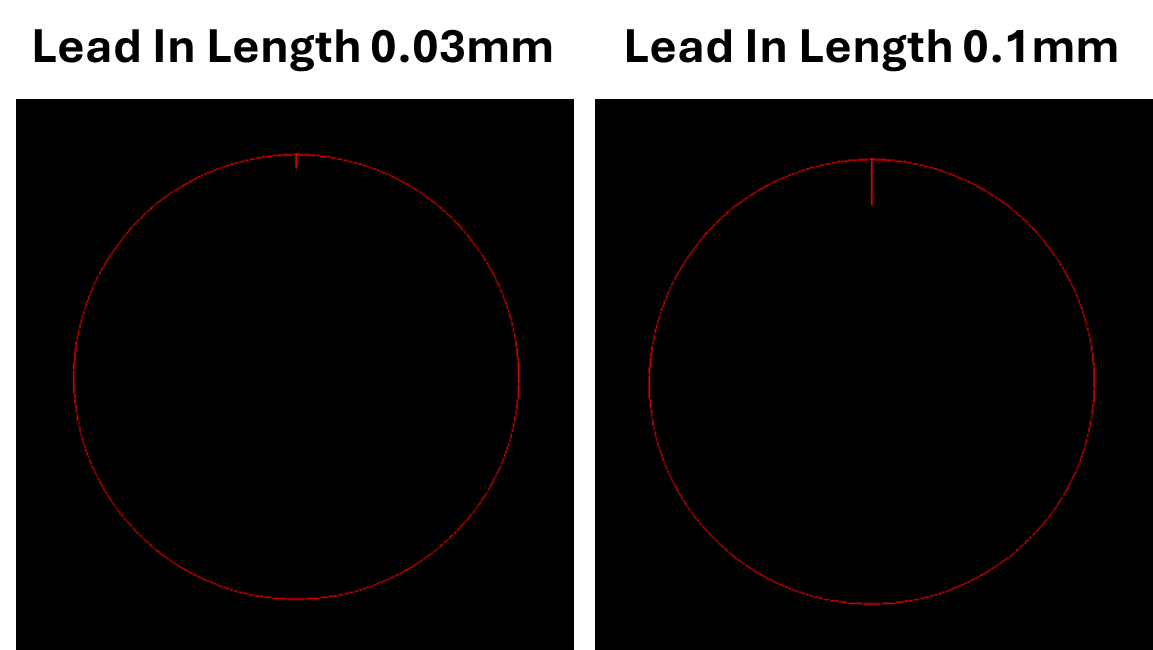
Run On Length: This value controls the extra distance cutting continues after completing a shape (the extra distance cut is along the same perimeter as the rest of the shape).
Jump Speed: This value controls the speed of movement between apertures.
Jump Acceleration: This value sets the time taken for acceleration when moving between apertures.
Area Threshold: This value sets the threshold value at which a slower cutting speed will be used. For more detail, see the Fine Cutting article.
Speed Factor: This value is multiplied by the cutting speed within each recipe to define the slower cutting speed used beneath the area threshold. For more detail, see the Fine Cutting article.
Group Spacing: This value sets the distance between shapes when grouping inserts (see section 3.2. Queue Adjustment).
7.3. Marking
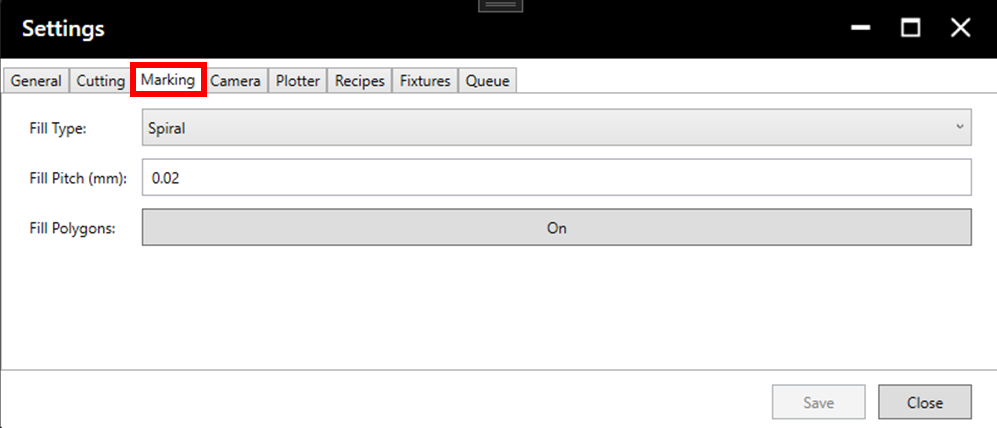
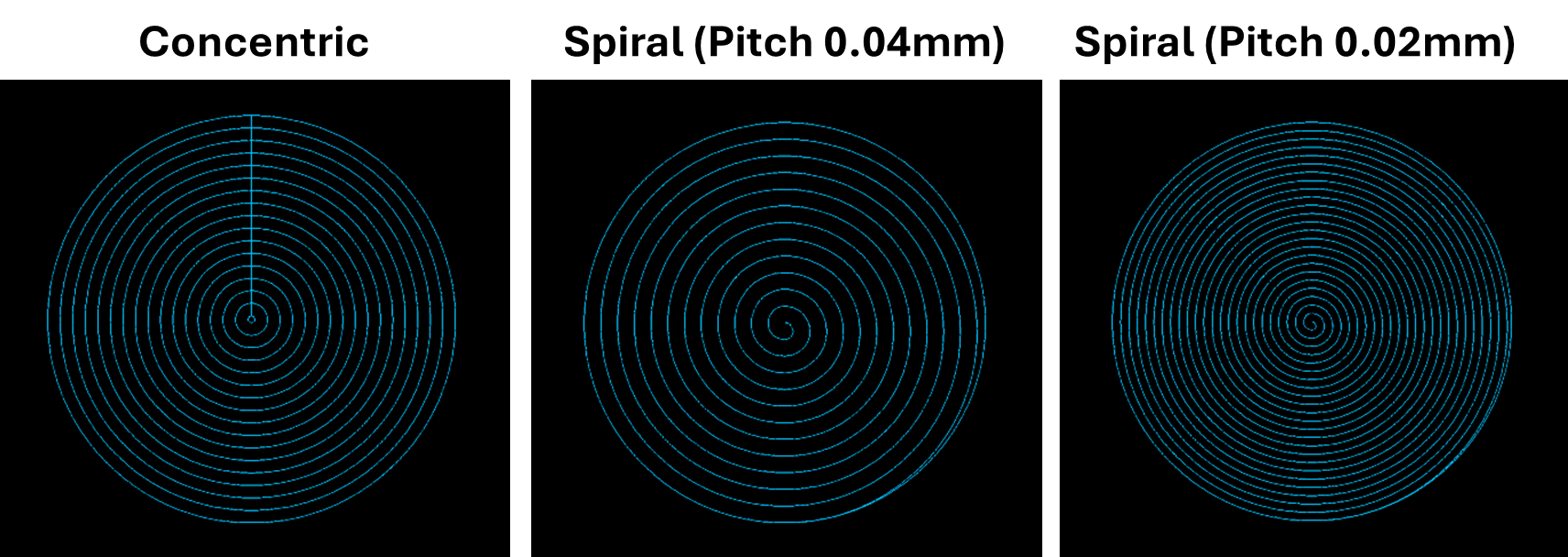
Fill Type: The currently available fill types are Spiral, Concentric, and No Fill.
Fill Pitch: This value controls the space between the passes of the fill. A smaller pitch value will result in increased output time, a darker mark, and a more uniform appearance. A larger fill value will result in the opposite. This setting can be balanced by the power value set in the marking recipe used. See section 3.1.2. Recipe Details for more detail.
Fill Polygons: Setting this to On will allow polygon shapes to be filled.
7.4. Camera
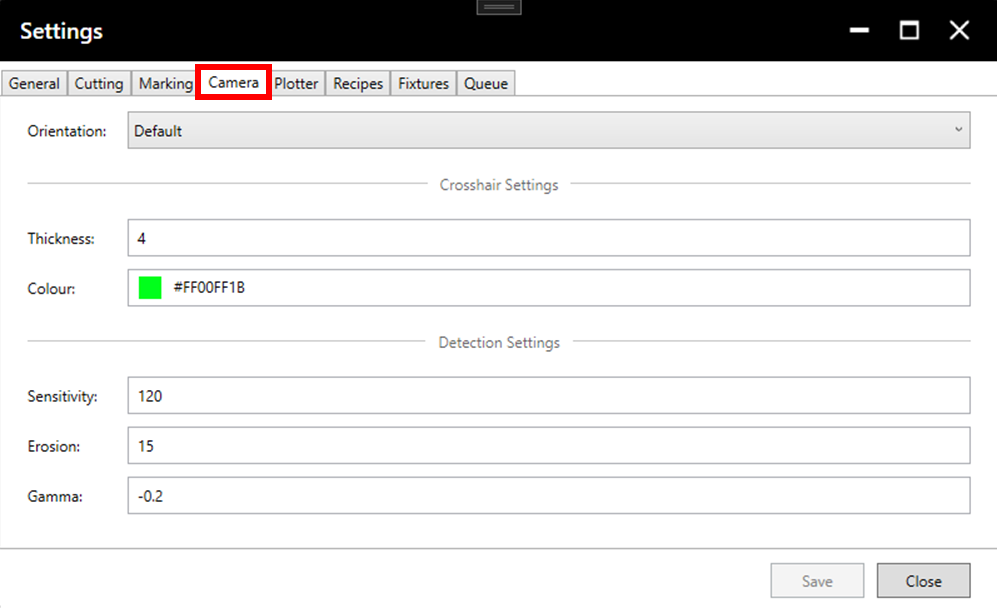
Orientation: The orientation setting is used if it is necessary to invert the camera viewer in X or Y.
Thickness: This value sets the thickness of the crosshair shown in the camera view.
Colour: This sets the colour of the crosshair shown in the camera view.
Detection Settings: If changing these values, it is generally best to use the Detection Calibration tool. For more information on using this tool and understanding the parameters, see section 6.3. Camera Detection.
7.5. Plotter
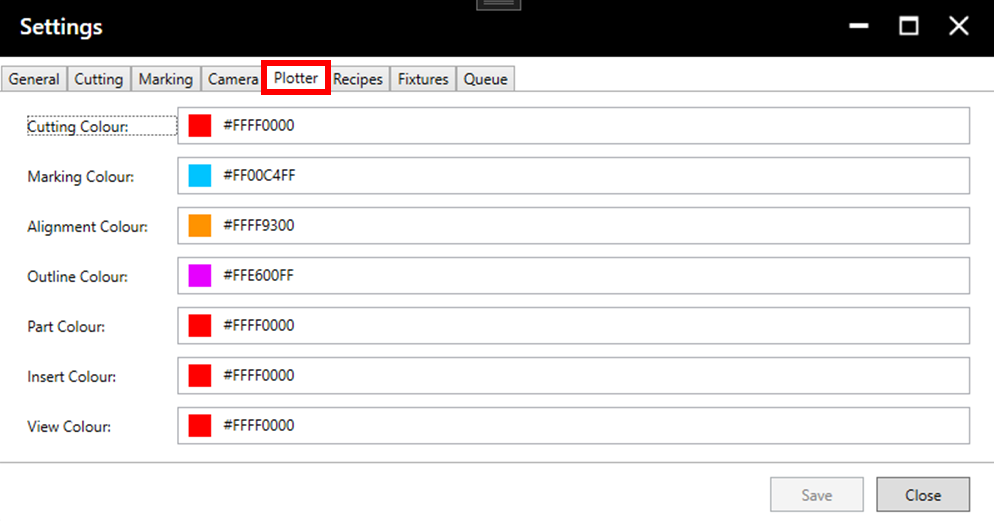
The plotter settings can be used to set the colour with which each layer type is displayed in the plotter.
7.6. Recipes
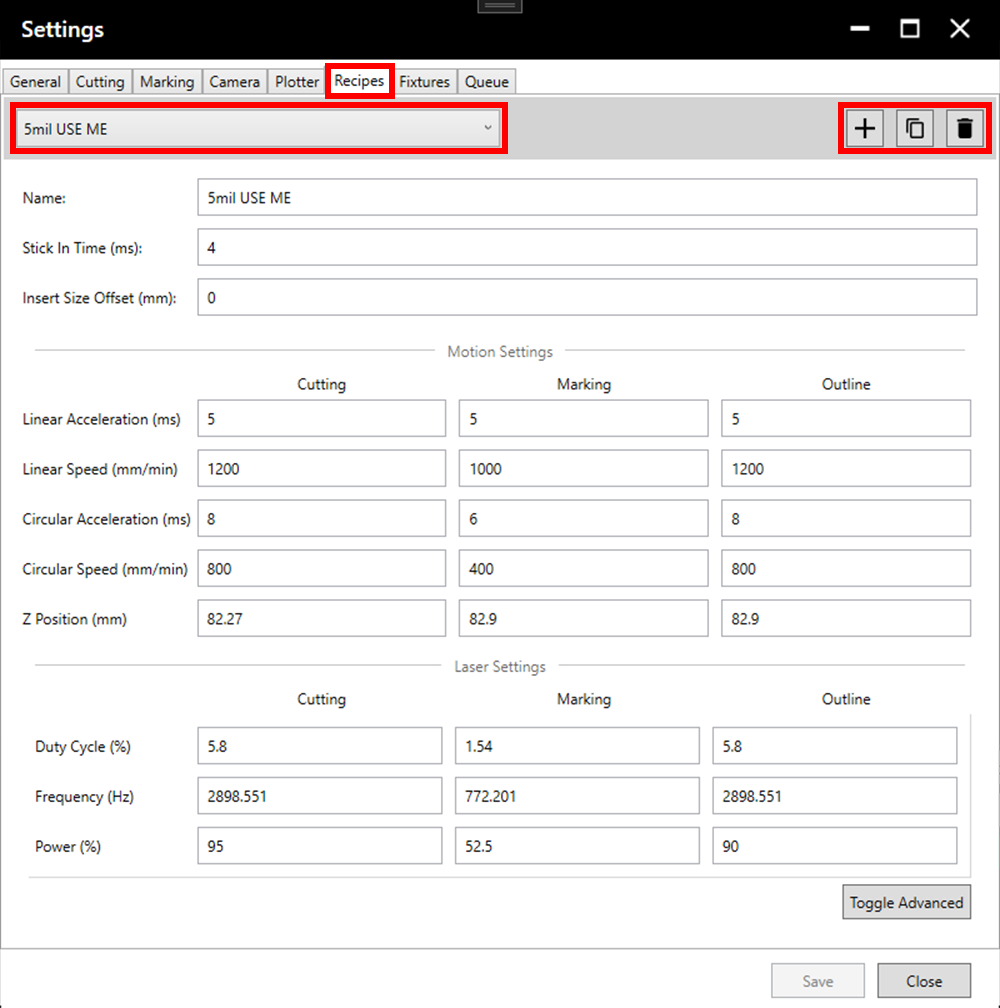
The recipe tab is used to adjust the settings used for cutting and marking. Select the desired recipe for adjustment from the dropdown menu, or create, duplicate, or delete recipes using the three buttons right of the dropdown menu.
For more information on recipe parameters and adjusting/creating new recipes see section 3.1.2. Recipe Details.
7.7. Fixtures
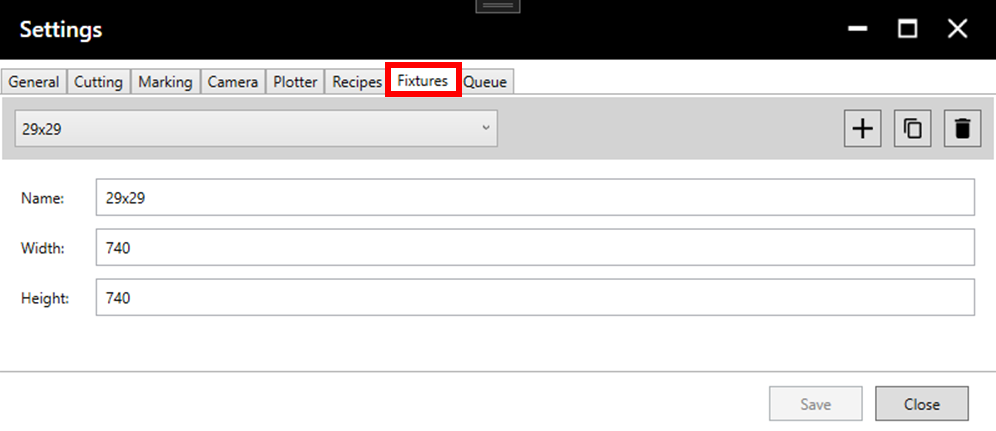
Existing fixture sizes can be accessed through the dropdown menu, then adjusted, duplicated (copy symbol) or deleted (trash symbol). Alternatively, new fixture sizes can be created using the plus button.
Name: The name which will be displayed in the dropdown menu when selecting the fixture size during setup (see section 2.1. Loading a Stencil).
Width: This value sets the gap between the fixtures in the machine in millimetres. This does not need to be exact, a 736mm wide frame may require a value anywhere from 735-742mm for example.
To ensure an ideal width size, adjust the fixture width using the fixture jog buttons until well positioned (test with a frame). Then read the current fixture width and input that value in the appropriate fixture width setting.
Height: This value is not currently used.
7.8. Queue
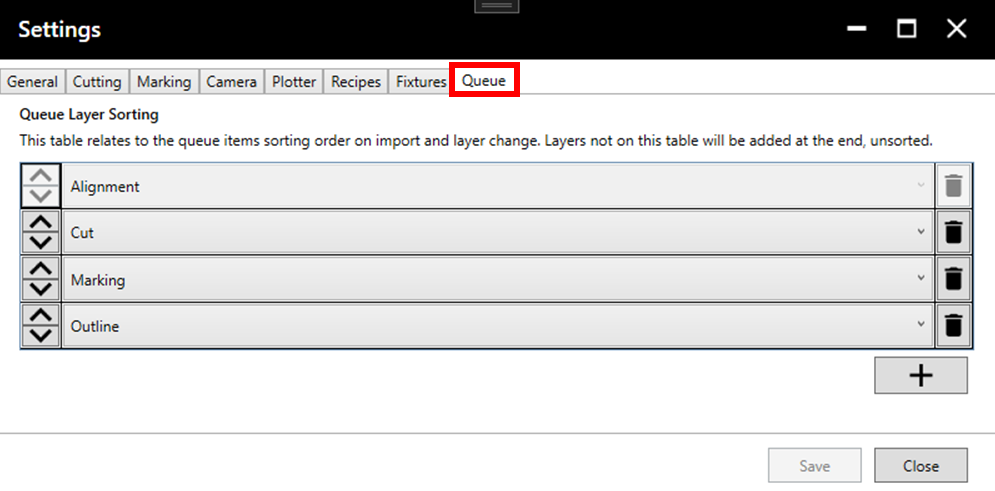
See explanation in image. Reorder using the arrows on the left, delete or add items using the trash and plus icons on the right.